Preferences
Customize workflow defaults, features, and the look of your dashboard.
Before you start
Manager only- Every toggle saves the moment you flip it — there is no Save button.
Turn on automatic invoicing
Want an invoice created and sent every time you approve an Order?
Go to SettingsPreferences.
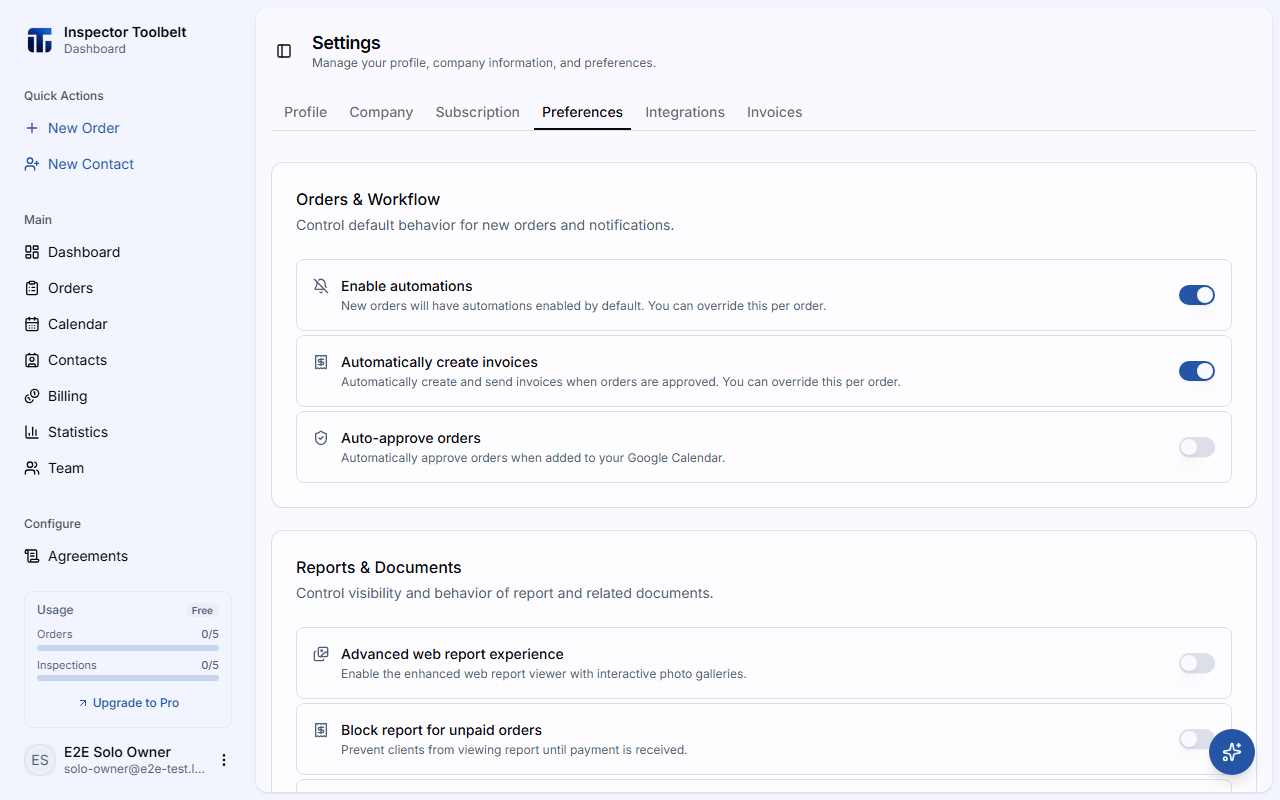
In Orders & Workflow, flip on Automatically create invoices.
You can still override this on any single Order.
Turn automations on or off by default
Go to SettingsPreferences.
In Orders & Workflow, flip Enable automations on or off. New Orders will follow this default; you can override it per Order.
What you should see
A Preference saved message pops up after each flip. New Orders pick up the new defaults — existing ones don't change.
If something goes wrong
- "Failed to save preference" — check your connection and flip the toggle again.
Settings reference
Orders & Workflow
Defaults applied to new Orders:
| Setting | What it does |
|---|---|
| Enable automations | Whether automations run by default on new Orders |
| Automatically create invoices | Auto-create and send an invoice when an Order is approved |
| Auto-approve orders | Automatically approve new Orders from the booking page |
Reports & Documents
- Advanced web report experience — enhanced web report viewer
- Block report for unpaid orders — hide the report until the client pays
- Block report for unsigned agreements — hide the report until the agreement is signed
- Repair list — adds a client-facing repair list to the published web report, letting agents and clients pull repair items straight from the report's findings. It's available once Advanced web report experience is on, and the list is generated for the client from the web report.
Features
- Auto-generate agreements — build agreements automatically when an Order is approved
- AI Assistant — the in-app AI helper, on by default. Switch it off here if you'd rather not use it; re-enabling asks you to accept a short disclaimer
Custom Lists
Tailor the dropdown options you use throughout the dashboard:
- Custom Referral Sources — how clients heard about you
- Custom Contact Types — categories for your contacts
- Location Tags — options like Floor, Room, and Direction
- Offline Payment Methods — labels for payments taken outside Stripe
Dashboard Widgets
Reorder and show or hide the cards on your dashboard home. Drag to reorder; paired widgets (↔) display side-by-side. You can also choose which Sidebar Quick Actions appear.
Related
- Setting Up Automations
- Creating Invoices
- Integrations — link Google Calendar to sync approved Orders