Subscription & Billing
Manage your ITB Dashboard plan, team seats, and payment method.
Before you start
Two kinds of billing
This page is about your subscription to ITB Dashboard. Sending invoices to your clients is covered in Creating Invoices.
- Payments and plan changes run through Stripe's secure billing portal — the dashboard never stores your card.
- Subscribed through the Apple App Store? See App Store subscriptions below.
Upgrade your plan
Go to SettingsSubscription.
In the Choose Your Plan section (shown while you're on the free Starter plan), click Upgrade on the Pro card ($79/mo).
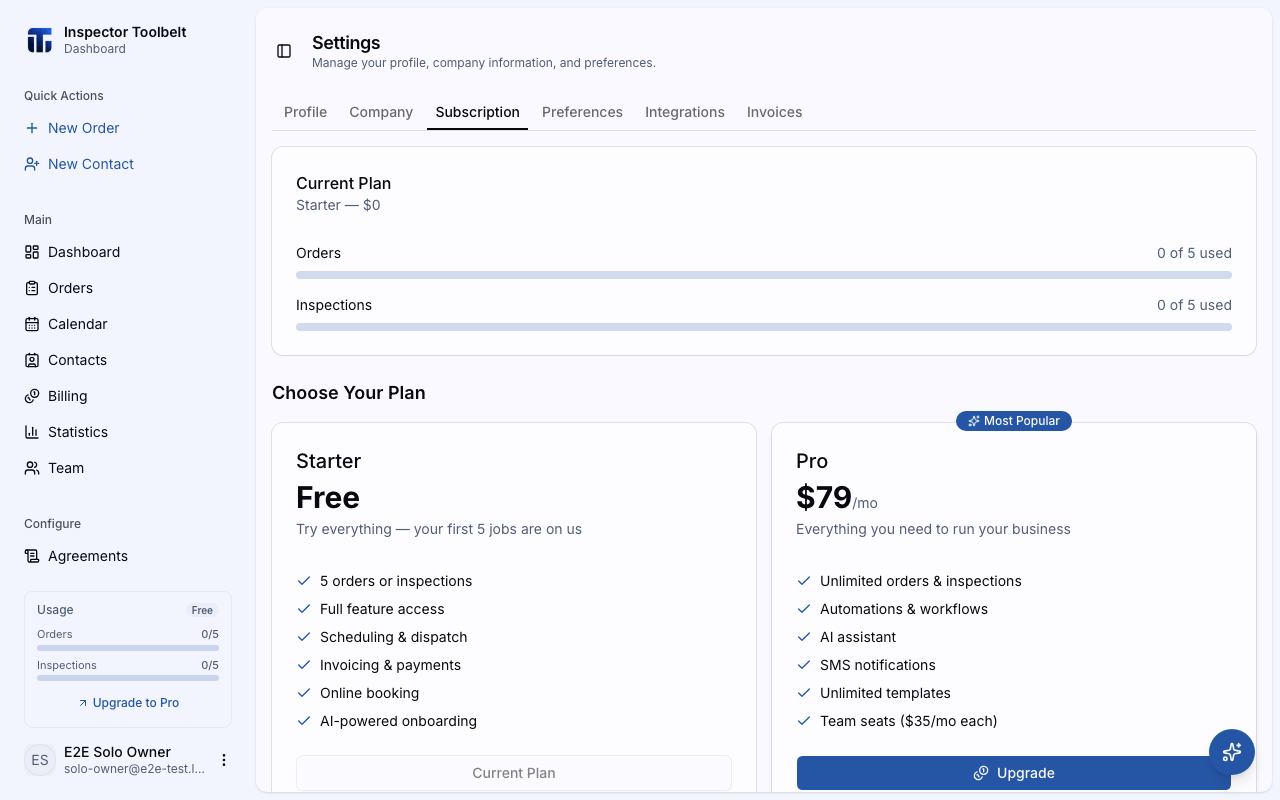
If you already have team members on paid seats, a confirmation shows the full monthly cost first — the Pro plan plus $35/mo per paid seat. Click Continue to Checkout.
Pay on the secure Stripe checkout page. You'll be brought back to the dashboard when it's done.
Cancel your plan
Go to SettingsSubscription and find the Current Plan card.
Click Cancel Plan. This opens the Stripe billing portal on the cancellation page — confirm there.
After canceling
You keep full access to Pro features until the end of your current billing cycle. Then your account moves to the free Starter plan. Until that date, your plan shows a Canceling badge.
What you should see
After upgrading, the Current Plan card reads Pro with an Active badge, and the usage meters disappear — Pro has no Order limits. After canceling, a Canceling badge and a notice with your downgrade date appear.
If something goes wrong
- "Could not open billing portal" — check your connection and click the button again.
- Plan shows "Processing" — your payment is still being confirmed. Give it a moment and refresh.
- Plan shows "Billing Issue" — there's a problem with an App Store subscription. Fix it in your Apple device's subscription settings.
Settings reference
Current Plan
Shows your plan, its price, and a status badge — Active, Canceling, Processing, or Billing Issue. If you pay through Stripe, three buttons appear:
- Manage Subscription — opens the Stripe billing portal for any plan change
- Update Payment Method — change the card on file
- Cancel Plan — cancel at the end of the current cycle
Free plan limits and usage
The free Starter plan includes 5 Orders and 5 inspections with full feature access. On the free plan:
- The Current Plan card shows usage meters — for example "3 of 5 used".
- A small Usage widget sits at the bottom of the sidebar. It changes color as you get close to the limit and links back to this page.
- Once a limit is hit, trying to create a new Order — from the dashboard or the mobile app — opens an upgrade prompt instead. On mobile, the app never links out to the dashboard: the prompt is just a brief message telling you you've hit the limit, so open the dashboard yourself and come back to this page to upgrade.
- You can invite up to 2 team members. Seat billing starts when you upgrade to Pro.
- If you signed up with a group code from a school or partner organization, your limits may be higher than 5 — see Using a group code. The Current Plan card shows a Group code line above the meters when one is applied.
Team Seats
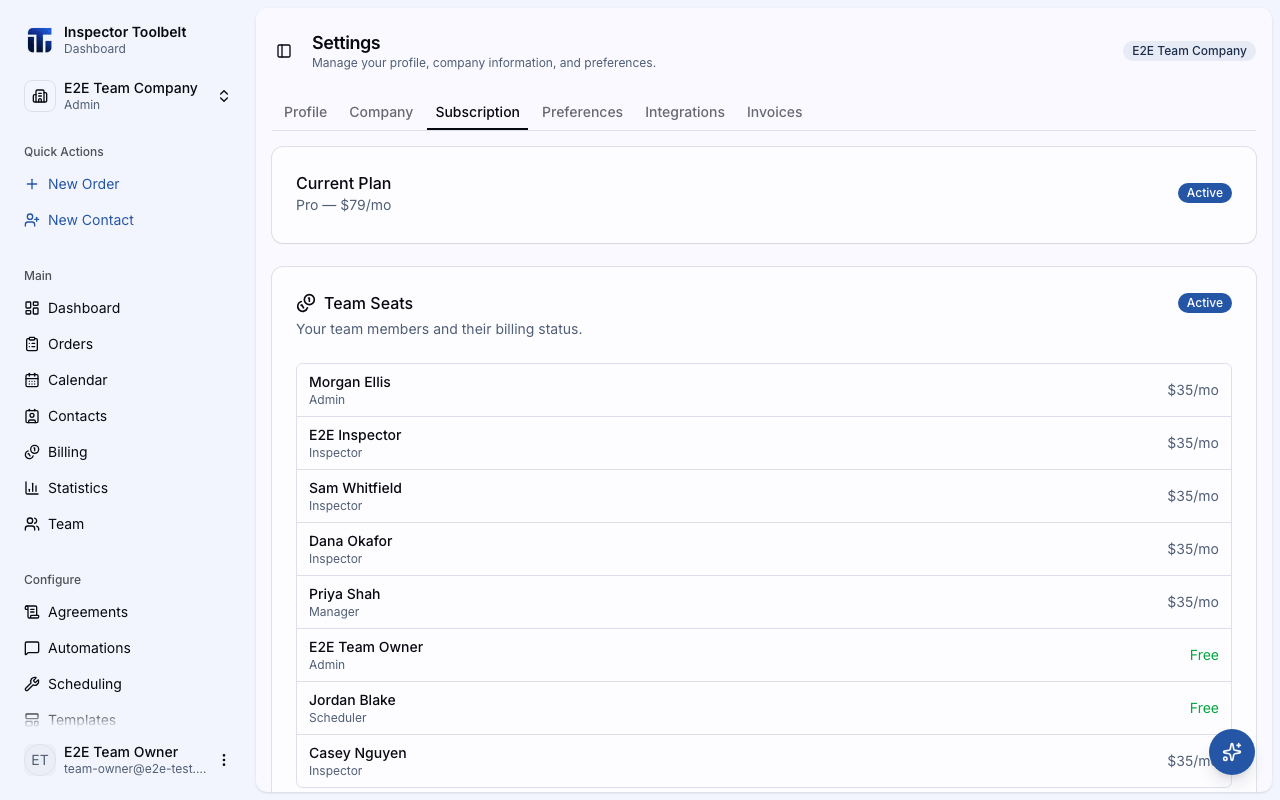
If you have a team, the Team Seats card lists every member with the price of their seat:
- Paid seats cost $35/mo each. All paid roles cost the same.
- Free seats: the account owner, anyone with the Scheduler role, and deactivated members are never billed.
Below the list you'll see the monthly team total and a summary like "2 paid seat(s), 1 free seat(s)". A badge shows whether team seat billing is Active or Inactive.
When you upgrade to Pro with existing team members, team seat billing is added automatically after checkout, aligned to your Pro billing cycle. If you're already on Pro and the card shows Team billing not active, click Activate Team Billing — the cost is prorated, meaning you only pay for the days left in the cycle.
See Managing Team Members for adding people to those seats.
App Store subscriptions
If you subscribed through the Apple App Store, your plan shows an App Store badge and is managed on your Apple device under Settings → Subscriptions — not from this page.