Integrations
Connect Google Calendar and industry tools to your dashboard.
Overview
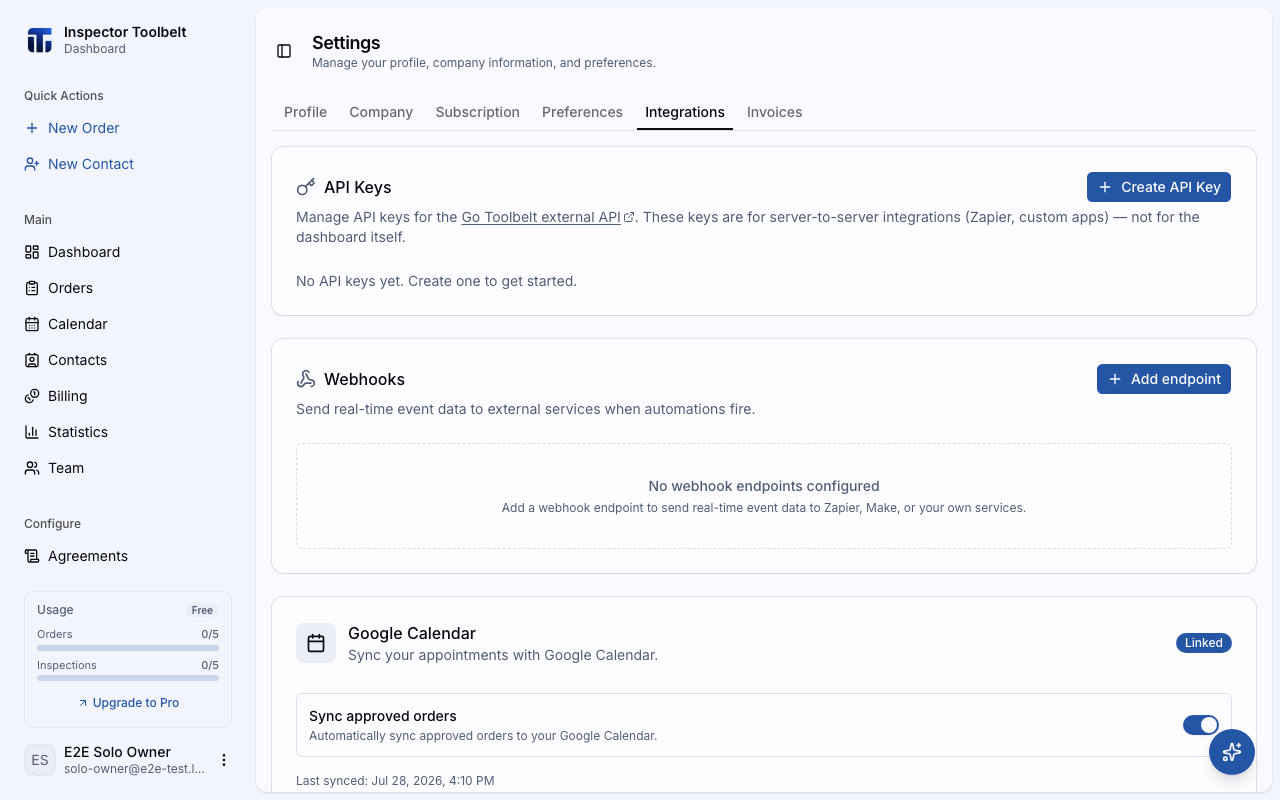
Integrations connect ITB Dashboard to the other tools you use. Manage them under SettingsIntegrations. Each integration shows a Linked or Not linked status.
Google Calendar
Google Calendar sync adds your approved Orders to your Google Calendar automatically, and reschedules and cancellations keep those events up to date. Busy time on your Google Calendar also blocks those time slots on your public booking page. Events you add in Google Calendar don't become Orders in ITB Dashboard.
Click Link Google Calendar and grant access to your Google account.
Once linked, turn on Sync approved orders to automatically add approved Orders to your calendar. The panel shows when your calendar was last synced.
Click Unlink at any time to disconnect.
What syncs and what doesn't
See How Google Calendar Sync Works for exactly what goes to Google and what comes back, or troubleshoot sync issues if something's off.
Online Payments (Stripe)
Connecting Stripe lets you send invoices and collect payments online. The Stripe connection is managed on the SettingsInvoices tab — see How Billing Works for the full setup and payment flow.
Home Inspection Tools
These integrations are for home-inspection businesses:
ISN (InspectionSupport.net)
Link your ISN account so orders created in ISN appear in your dashboard automatically. Enter your Domain, Company Key, Access Key, and Secret Key, then click Link ISN. Once linked you can Import ISN to sync orders, Change Keys, or Unlink.
InterNACHI Buy Back Guarantee
Link your InterNACHI account to automatically purchase a Buy Back Guarantee when you mark an inspection in an enabled Inspection Type as complete. Click Link InterNACHI Account and authenticate; use Unlink Account to stop automatic purchases.