Creating Agreements
Set up service agreements and get electronic signatures from clients.
Agreements are customizable documents that clients sign before or after an Order. Common uses include service contracts, inspection agreements, and liability waivers.
Manager onlyBefore you start
- On a team account, you need the Admin or Manager role to create or edit agreements.
Building Your Agreement
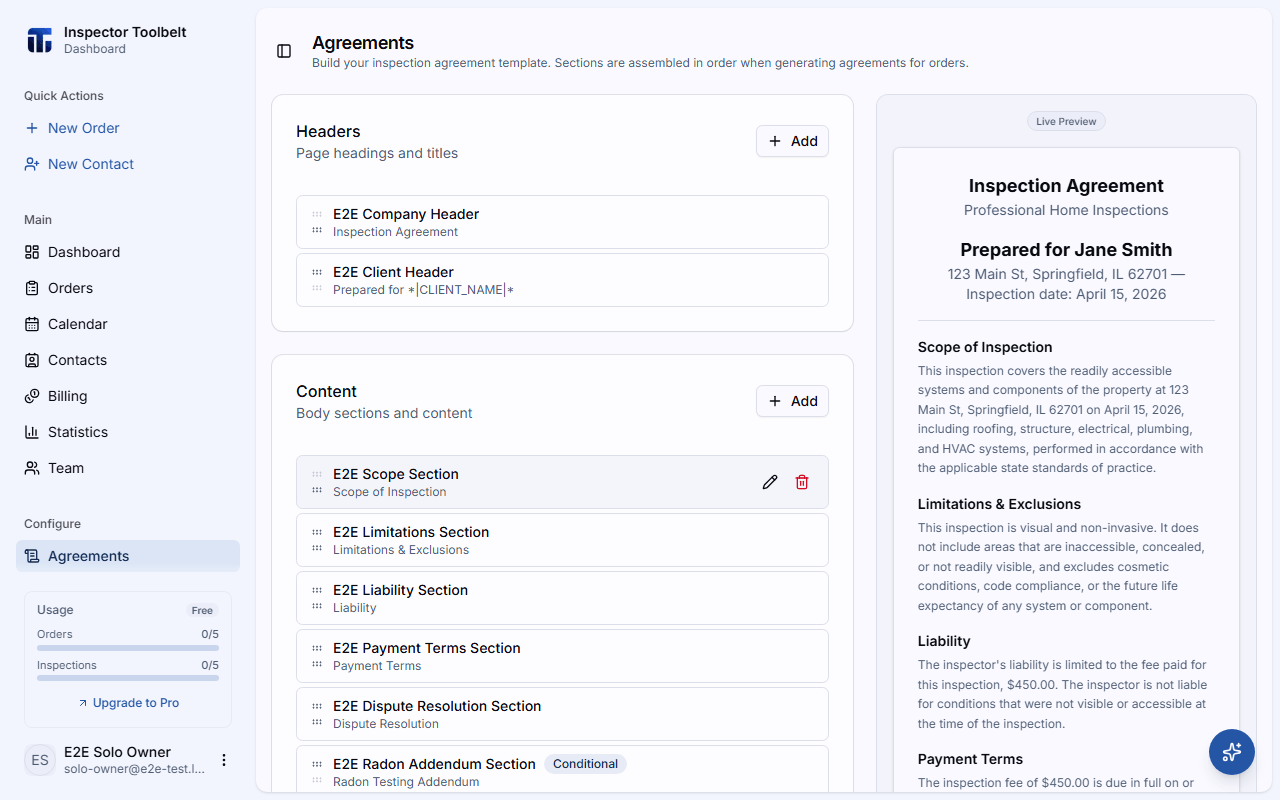
Navigate to Agreements in the sidebar. The page is a live agreement builder organized into three section groups.
Add Your Sections
An agreement consists of three section types:
| Section | Description |
|---|---|
| Header | Your company branding and agreement title |
| Content | Body text, terms, and conditions (supports rich text) |
| Footer | Signature blocks — can include Text, Client Signature, Inspector Signature, and Date fields |
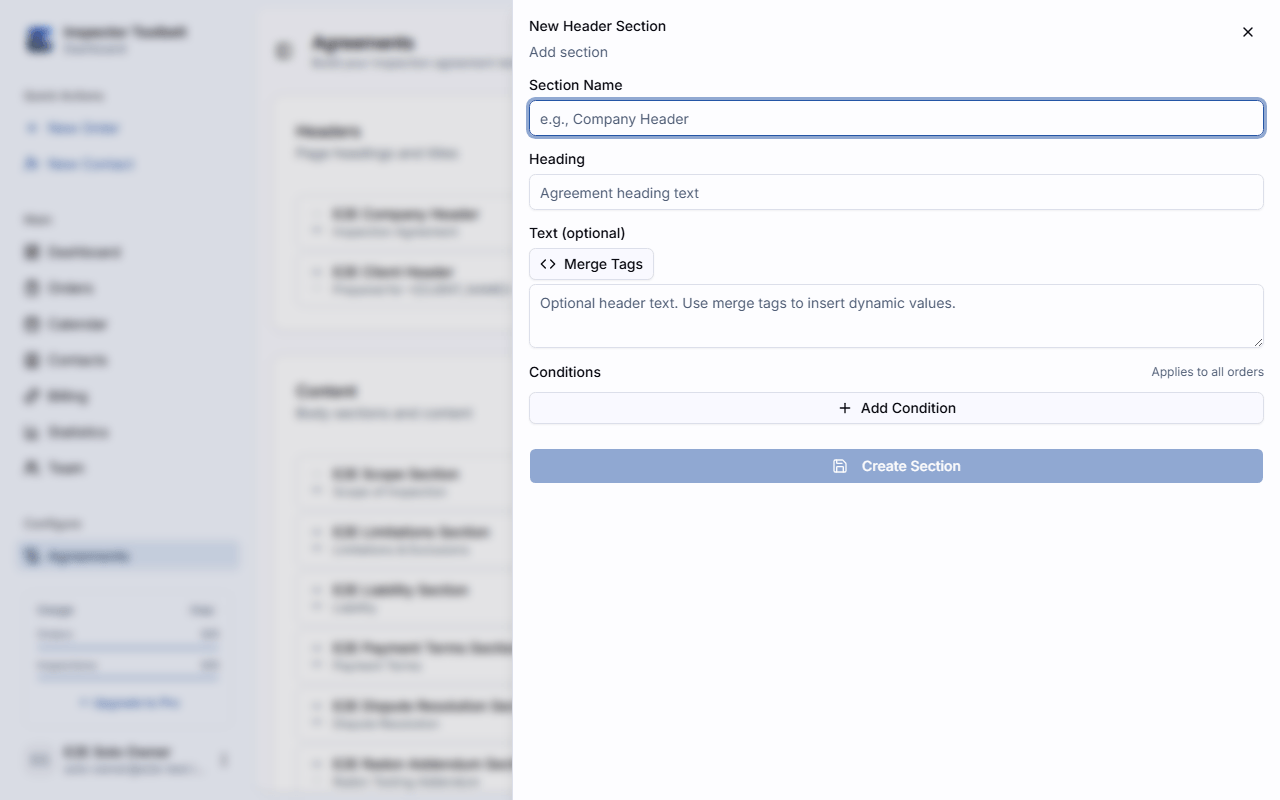
Click Add on any section group to create a new section within it. Fill in the section name and content, then click Create Section to save it.
Review the Preview
A live preview updates as you add and reorder sections. Use the move up/down controls on each section to adjust ordering.
Editing panel behavior
Click an existing section to reopen the section editor — the section stays highlighted while its panel is open, and (like every side panel in the dashboard — see Managing Contacts) the builder behind it stays visible and usable. If you've changed something and try to close the panel with × or Esc, a prompt asks whether to keep editing or discard the changes.
Merge Tags in Agreements
Agreements support exactly five merge tags: *|CLIENT_NAME|*, *|DATE|*, *|CURRENT_DATE|*, *|INSPECTION_ADDRESS|*, and *|INSPECTION_FEE|*. Each tag is replaced with the real value when the agreement is generated for an Order. See the Merge Tags reference for what each tag becomes.
What you should see
Each section you save appears in its section group, and the live preview updates to show the agreement as the client will see it, with sample values filled into any merge tags.
Attaching to Orders
Agreements are automatically generated when an Order is approved. The system evaluates each agreement section's conditions against the Order details and includes only the matching sections.
The client receives a link to review and sign the agreement electronically. The assigned Inspector can also open a read-only copy of the agreement in the ITB mobile app, with the same text formatting shown on the dashboard.
Conditional Sections
You can set conditions on each agreement section to control when it appears. Conditions can be based on:
- Inspection Type — only include for specific service types
- Additional services — include when certain add-on services are selected
- Additional information — include based on details specific to the Order
- State/Region — include for specific geographic regions
Conditions sit at the bottom of the section editor panel, alongside Save Changes. Both stay in place while you scroll, so you never have to scroll to the end of a long section to save it.
To add one, click Add Condition, pick the values you want, then click Add. Each condition you add appears as a small tag next to the others — click its × to remove it. A section with no conditions is included in every agreement.
Conditions are part of the section
Adding or removing a condition is a change to the section, the same as editing its text. Click Save Changes before you close the panel, or the prompt will offer to discard it.
If something goes wrong
- A section is missing from a generated agreement. Check the section's conditions — a section is only included when its conditions match the Order (see Conditional Sections above).
- A merge tag shows up as literal text. Agreements only support the five tags listed above — other tags (like link tags) are not replaced. See Merge Tags.
Related
- Merge Tags — the five agreement tags and what each becomes
- Setting Up Automations — send clients their agreement signing link automatically with the
*|AGREEMENT_LINK|*tag - Creating an Order