How Google Calendar Sync Works
What Google Calendar sync sends to Google, what comes back, and what stays in Google only.
Overview
Google Calendar sync sends your approved Orders to your Google Calendar. Only a little comes back the other way: busy time on Google blocks slots on your public booking page, and changes you make in Google to an event ITB created update that Order. Events you add in Google Calendar don't become Orders in ITB Dashboard. Linking and the sync toggle live under SettingsIntegrations — see Integrations for the connect/disconnect steps.
Two separate switches
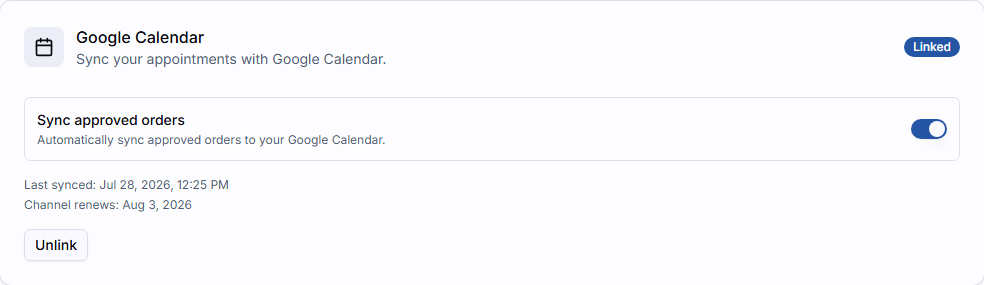
Linking your Google account and turning on Sync approved orders are two different steps. You can be linked without syncing — turn the toggle on once you're ready for approved Orders to start creating calendar events.
What syncs and what doesn't
Sent to Google Calendar
- Approving an Order adds it to your Google Calendar.
- Rescheduling it moves the event. Canceling the appointment deletes the event.
Sent back from Google Calendar
- Events marked Busy block those times on your public booking page.
- If you move or delete an event that ITB created, the matching Order changes too. See below.
Not synced
- Events you add in Google Calendar never become Orders or appointments in ITB.
- The mobile app doesn't show Google Calendar events.
- Events marked Free are ignored.
- Only your main Google Calendar syncs, not other calendars you own or follow.
ITB Dashboard → Google Calendar
Once Sync approved orders is on:
- Approving an Order creates a matching event on your Google Calendar.
- Rescheduling the appointment updates that event's time.
- Canceling the appointment deletes the event from Google Calendar.
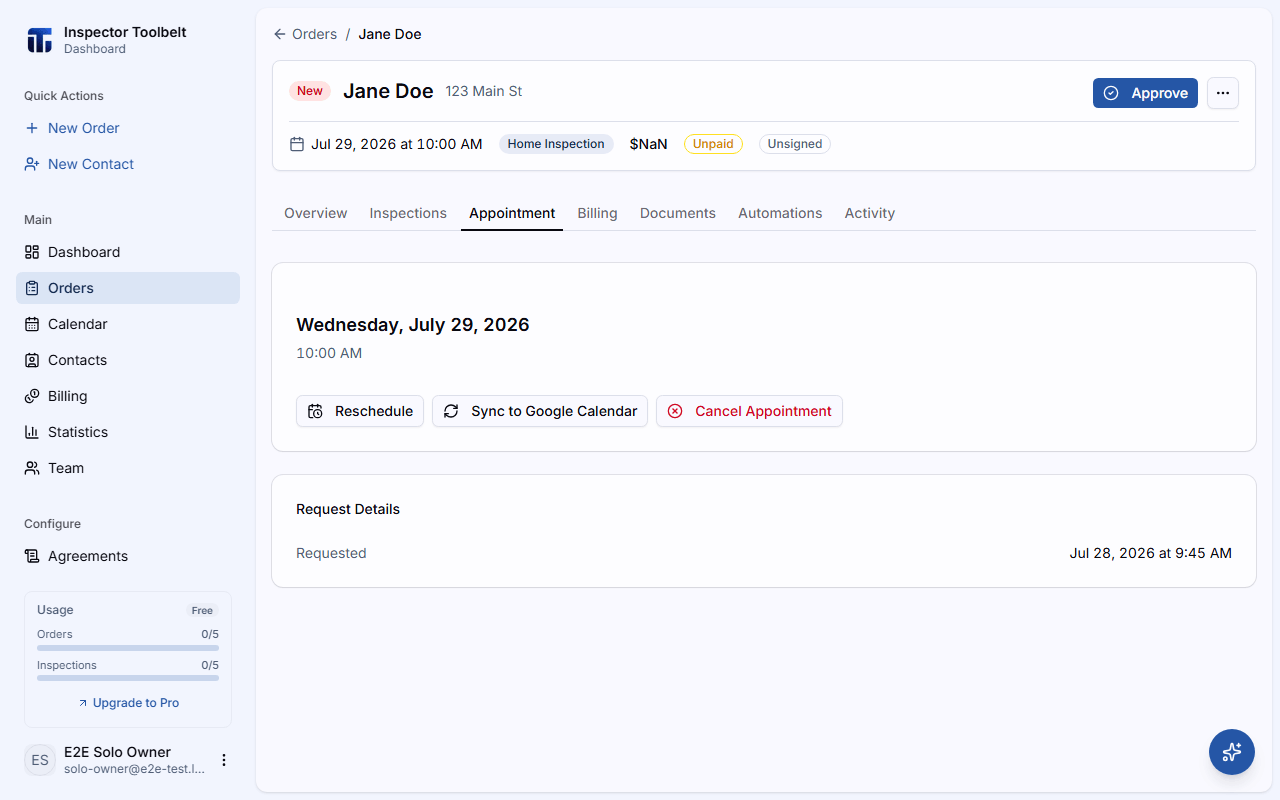
If you approved Orders before you linked Google Calendar, they won't have an event yet. Open the Order's Appointment tab and click Sync to Google Calendar to create one manually.
Google Calendar → ITB Dashboard
Busy time on your Google Calendar blocks matching time slots on your public booking page — it does not affect the single time-slot picker you use inside the dashboard when scheduling an Order yourself.
Busy events also appear on your dashboard calendar, greyed out next to your Orders, so you can see when you're unavailable. Turning off Sync approved orders removes them from the calendar.
Mark events Busy, not Free
Google Calendar events marked Free do not block booking slots — only events marked Busy do. If clients can still book over something on your calendar, check that event's availability setting in Google Calendar.
If you move a synced event in Google Calendar, the matching Order's appointment moves to the new time. If you delete a synced event in Google Calendar, the matching Order goes back from Approved to Read. Its appointment time stays. Approve it again to put it back on your Google Calendar.
Auto-approve orders
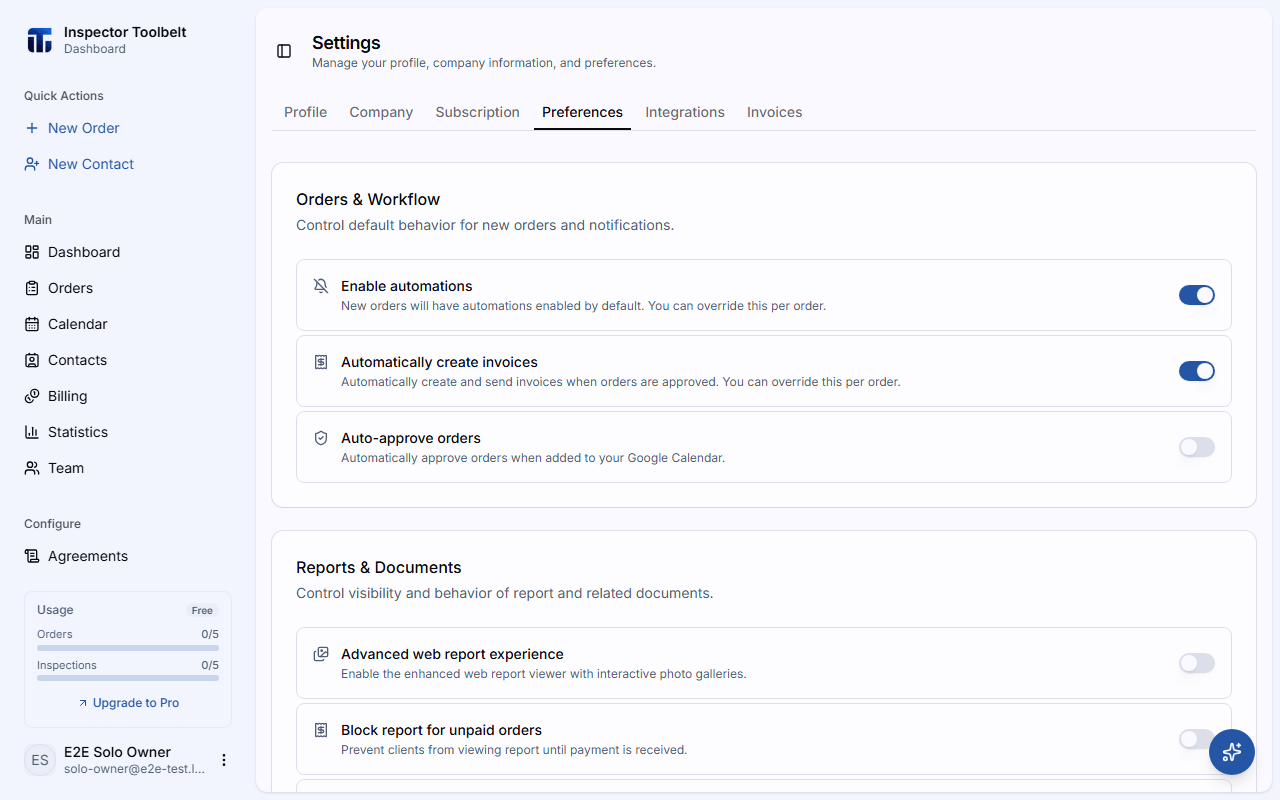
The Auto-approve orders toggle on SettingsPreferences approves new booking requests automatically without you reviewing them first. It works with or without Google Calendar — when sync is also on, auto-approved Orders are pushed straight to your calendar. See Preferences.
Timezone
Appointment times follow the timezone set on SettingsProfile. If that timezone doesn't match your device's current timezone, a warning pill appears in the dashboard header — click it to jump back to Settings and fix the mismatch.
Troubleshooting
Sync not behaving as expected? See Calendar Sync Troubleshooting.