Using the AI Assistant
Get answers and hands-free help from the in-app AI assistant.
Overview
The AI Assistant is a chat panel that can answer questions about your business, search the help docs, and propose actions for you to review — it never changes your data without your confirmation. It's on by default, so it's ready the moment you sign in.
Opening the assistant
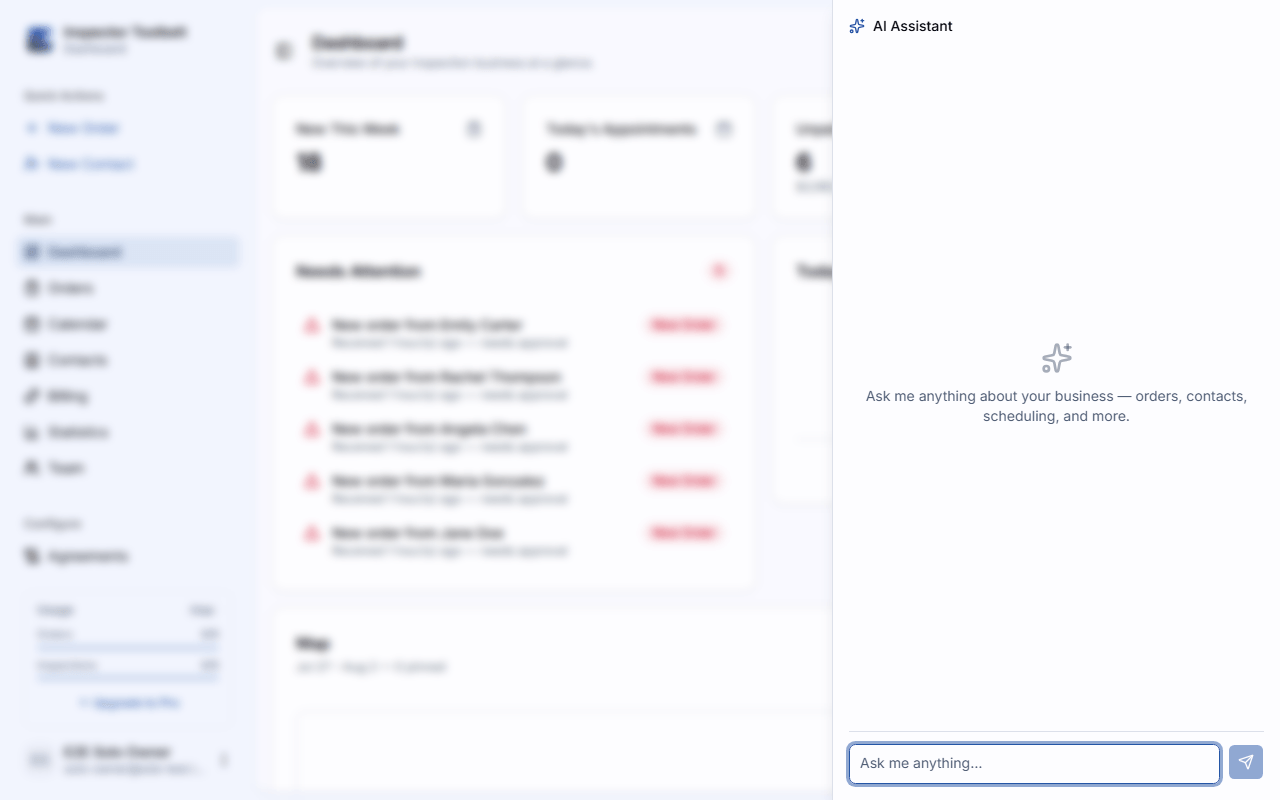
The assistant is already on, so there is nothing to switch on first. Click the Assistant pill on the right side of the top bar, next to your team badge, on any dashboard page. The chat panel slides out from the right.
Close other panels first
If you have a card or sheet open, like an item editor, the Assistant pill is hidden behind it — the assistant has no way to see what's inside, so it isn't offered as an option until you close what you're editing. Once the chat panel is open, it stays on top of the page, so you can keep chatting while you work elsewhere.
If you've started typing a message and try to close the panel with Esc or the × button before sending it, a prompt asks whether to keep editing or discard the draft.
The panel keeps a running chat history. Use the history icon to switch between past conversations (or delete one), and the plus icon to start a new chat. There's no separate button to clear the current chat — start a new one, or delete old ones from the history list.
If your plan doesn't include the AI Assistant, or you lose your internet connection, the panel stays open but explains the situation inline and disables the message box until it's resolved.
Turning it off
If you'd rather not use it, go to SettingsPreferences and switch AI Assistant off under Features. The pill disappears from the top bar entirely — there's nothing to click until you turn it back on. You can switch it back on the same way; when you do, a short disclaimer appears to accept.
Not seeing the assistant?
If the toggle is switched off and greyed out with a note that it's turned off system-wide, your administrator has disabled the assistant for the whole account.
What it can do
Ask the assistant about your business and it can look up:
- Orders
- Contacts
- Service categories
- Agreement sections
- Automations
- Your profile
It also searches these help docs to answer "how do I…" questions and shows a Sources link under its answer so you can open the article it used.
It also knows the product itself. It can say where any page is and what it is for, read your own setup to answer things like "why can't clients book me?", walk you through a multi-step job such as getting set up to take payments, and offer a button that takes you straight to the right page. An empty chat suggests a few things to try, based on what is true of your account.
Proposing actions
Beyond answering questions, the assistant can propose changes on your behalf — creating an Order, creating a contact, creating an automation, or updating an Order's status. When it does, it fills in the relevant form on the page you're viewing and shows a proposal card summarizing what it's about to do.
Every proposal gives you three options:
| Action | What it does |
|---|---|
| Confirm | Executes the proposed change |
| Edit | Lets you adjust the form yourself before deciding |
| Dismiss | Discards the proposal — nothing is changed |
Nothing happens without your confirmation
The assistant never creates, updates, or deletes anything on its own. Every proposal sits as a draft until you confirm it.
Editing report text with AI
In the report editor, a comment gives you two kinds of AI help. They sit in different places because one adds text and the other replaces it.
Generate with AI is in the comment's rich text toolbar (the sparkles button). It opens a small popover where you type a few keywords and pick how many suggestions to see. Choosing a suggestion inserts it at your cursor and leaves the rest of the comment alone.
The sliders button beside it holds the options:
- Include defect narrative — describes the problem you found. On by default.
- Include standards quotation — adds two sentences about the standards that apply. Off by default, because standards differ by area.
- Include remediation — recommends who should fix it and what to do next.
- Number of suggestions — 1, 3, or 5.
Your choices are saved for next time. If you switch all three off there is nothing left to write, so Generate with AI is greyed out until you switch one back on.
Rewrite this comment: is a labelled row under the comment text, so it's clear which text it changes. Its four buttons — Make longer, Make shorter, Improve writing, and Fix spelling & grammar — rewrite the whole comment and replace what's there. They're greyed out while the comment is empty. If you don't like the result, click Undo rewrite to restore what you had before.
On the mobile app
The assistant is also available in the mobile app. Tap the sparkle icon in the top-right of the header — on the Today, Orders, Contacts, and More screens, an Order or contact's detail screen, and the New/Edit Order and New Contact screens — to open the same kind of chat as a full-height sheet, including form-fill help on those form screens and action proposals you confirm before anything saves. There's no sparkle icon on inspection screens. It uses the same AI Assistant toggle and plan set here — there's no separate switch on the phone — and needs an internet connection. Chat history is stored on the device and kept separate from the dashboard's.
While adding a report comment on mobile, or editing one you already added (tap the comment to open its detail screen), the same kind of help sits under the comment field. Generate with AI returns a draft on the first tap — there's no options form in front of it — using whatever short text is already in the field as the steer. Once the field has text, an Edit this text row offers Improve, Longer, Shorter, and Fix grammar. Review the suggestion, then Insert or Replace — nothing changes until you do.
The sliders icon beside the button opens AI settings: Defect narrative, Remediation action, and a choice of 1, 3, or 5 suggestions. They're remembered on that phone, so you set them once instead of on every comment. There's no standards-quotation option on the phone — that one is on the dashboard only. See Writing a Report.