Viewing Your Schedule
See your scheduled work by month, week, or day — and open, create, or reschedule orders right from the calendar.
Overview
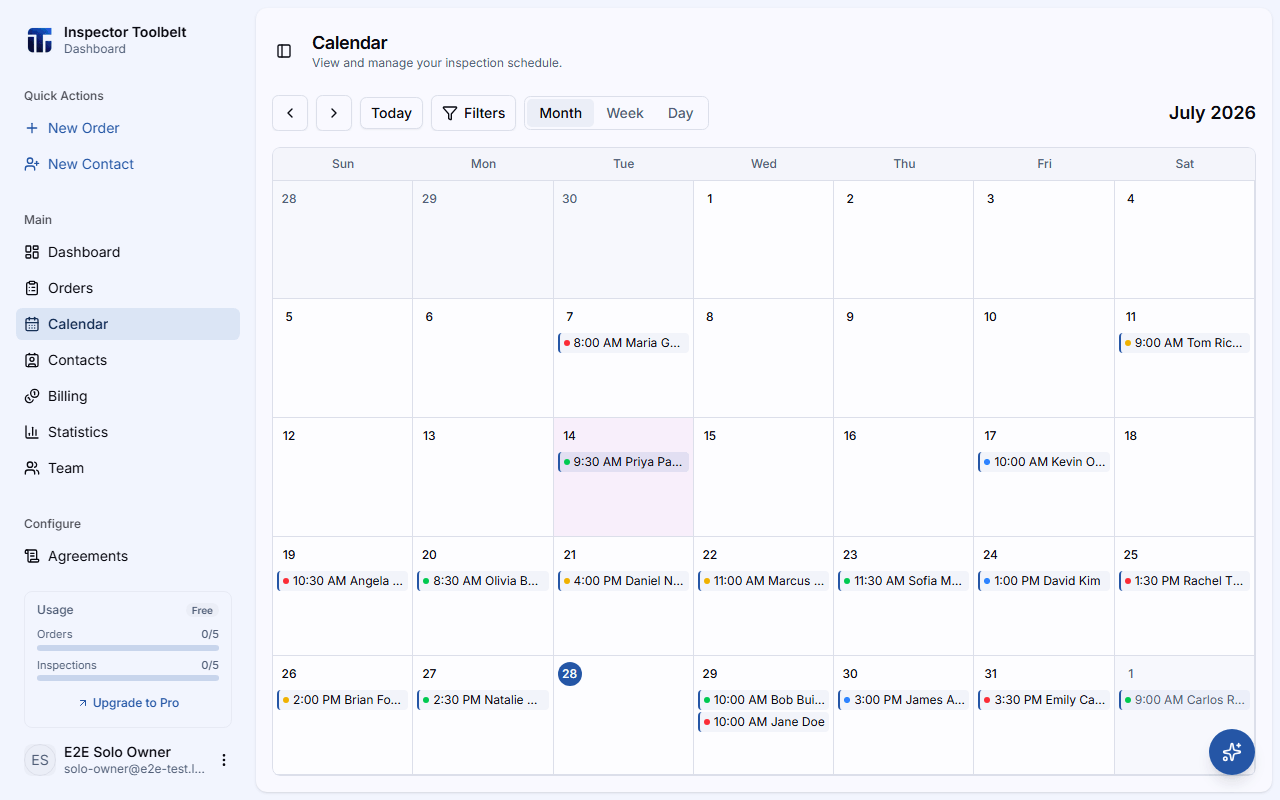
The calendar shows all your scheduled Orders in one place, alongside the busy time on your Google Calendar and any time you've blocked off. You can open a Order straight from an event, start a new Order from an empty time slot, and reschedule by dragging. Canceled Orders don't appear on the calendar.
Click Calendar in the sidebar to open it.
Before you start
- Google Calendar events only show up if you've linked your Google account under Integrations and Sync approved orders is turned on. Only events marked Busy in Google Calendar appear — events marked Free don't.
- The Team Week and Team Day views only appear when you're working in a team, and they need team billing to be active. Locked views show a lock icon.
Calendar Views
Switch views with the buttons at the top right of the calendar.
See all Orders at a glance. Each day shows up to 3 events, with a "+2 more" note when there are extras. Click any day to jump to its Day view.
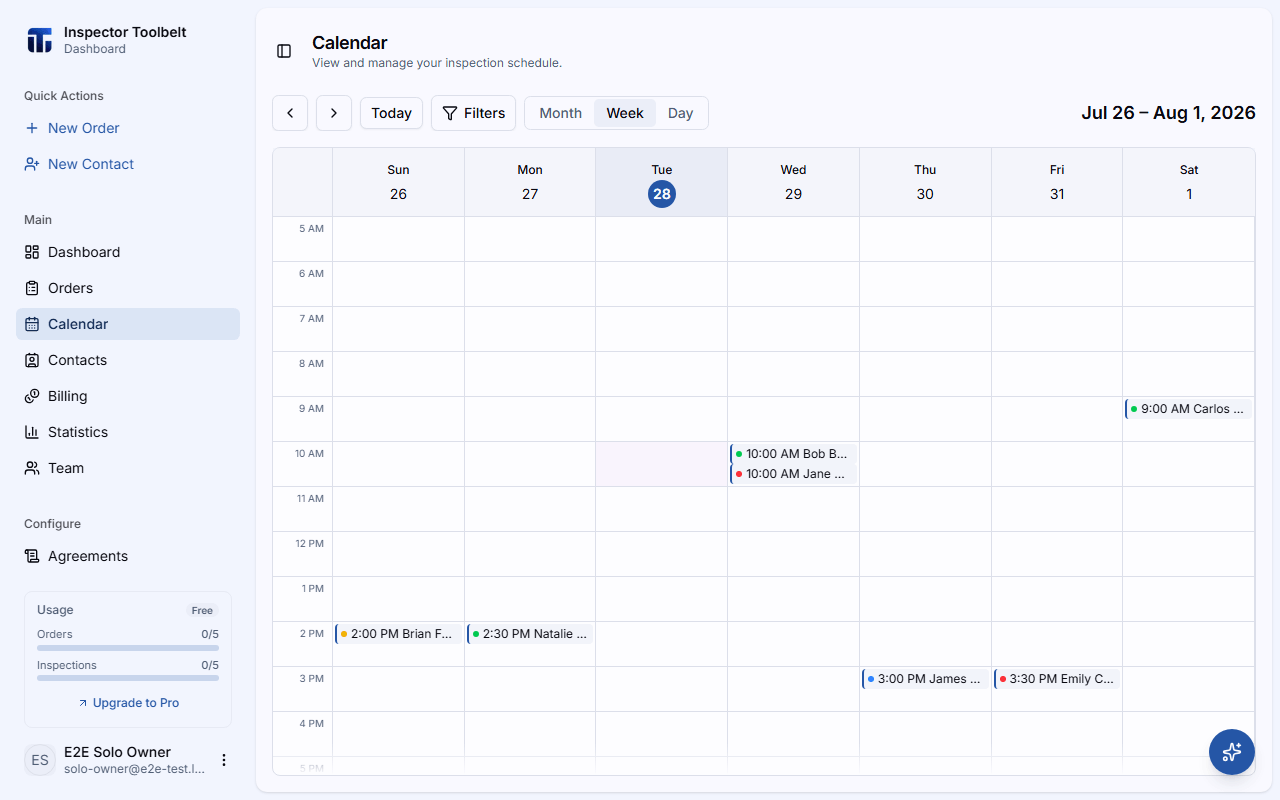
An hourly grid from 5 AM to 9 PM. Best for planning your work week and spotting open slots.
The same hourly grid (5 AM to 9 PM) for a single day, with full event cards.
A weekly view with a row per team member, so you can see everyone's workload side by side. Your own Google Calendar busy time shows in your row; other members' Google Calendars aren't shown. Only available in team mode with team billing.
The same side-by-side layout for a single day, including your own Google Calendar busy time in your row. Only available in team mode with team billing.
Moving Around
Use the left and right arrow buttons to step backward or forward — one month, week, or day at a time, depending on your view.
Click Today to jump back to the current date.
Check the heading on the right side of the toolbar — it always shows which month, week, or day you're looking at.
Opening an Order from the Calendar
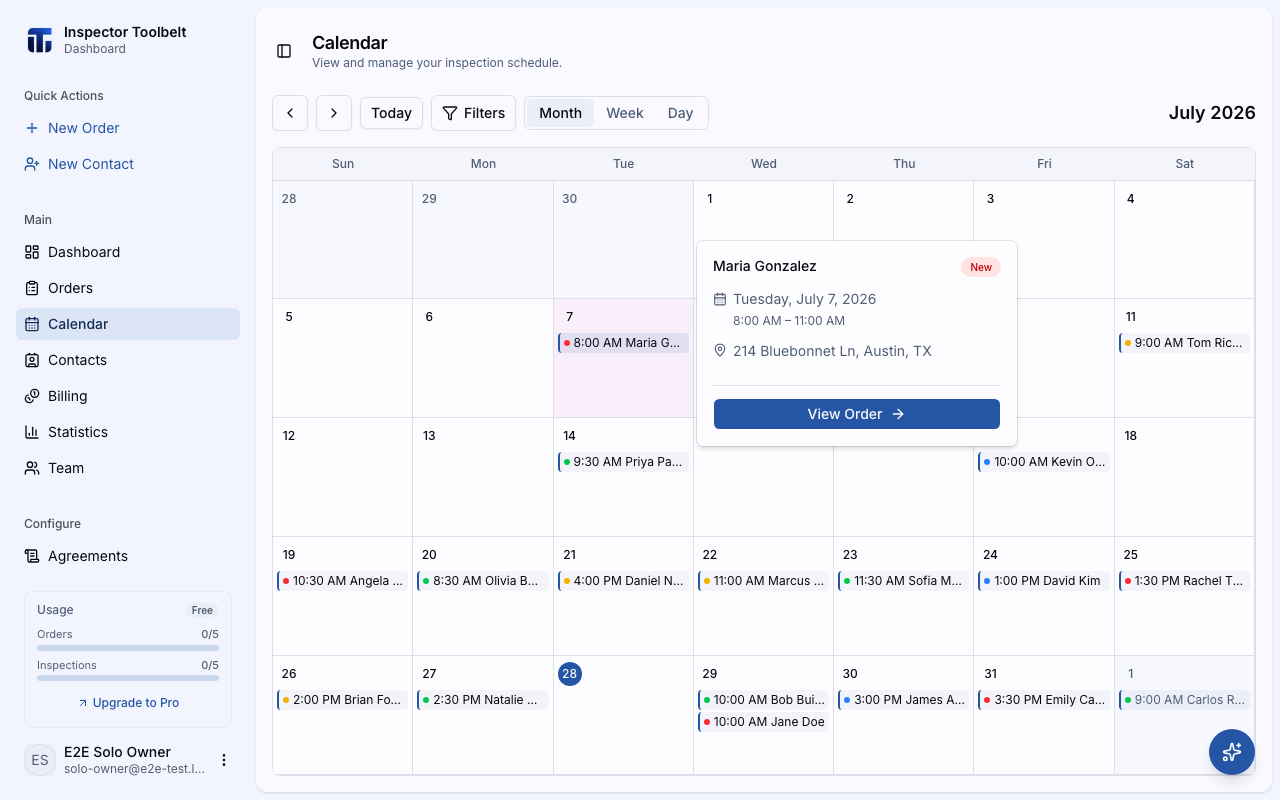
Click any Order event. A small card pops up with the details: status, date and time, address, whether it's paid, and who it's assigned to.
Click View Order to open the full Order page.
Creating an Order from the Calendar
Switch to Week or Day view.
Click an empty time slot. The new Order form opens with that date and time already filled in.
See Creating an Order for the rest of the form.
Rescheduling by Drag and Drop
In Week and Day views you can drag a Order event to a different time slot.
Press and drag the event to the new day or hour, then let go. The slot you drop on is read in the account's timezone, the same clock the calendar is showing, and the appointment keeps its minutes past the hour.
A confirmation dialog shows the old and new date and time. Click Reschedule to confirm, or Cancel to leave it where it was.
If the new time would run into your own Time Away, a Time Away conflict dialog asks the same question before it saves — the same confirm the reschedule picker uses.
If the Order is linked to a Google Calendar event, that event moves too.
Other ways to reschedule
Dragging isn't available in Month view. You can always reschedule from the Order page instead — see Rescheduling and Canceling.
Filtering the Calendar
Click Filters in the toolbar to narrow what's shown, in any view:
| Filter | What it does |
|---|---|
| Status | Show only Orders with a certain status |
| Service Type | Show only one type of service |
| Payment Status | Show only Paid or Unpaid Orders |
| Assigned To | Show only work assigned to one team member |
Use Clear all to reset. In team mode there's also an All Members picker in the toolbar to show or hide specific team members' events.
Google Calendar Events and Time Away
Three kinds of events appear on the calendar:
- Orders — your scheduled work, with a colored status dot.
- Google Calendar events — busy time from your linked Google account, shown greyed out with diagonal stripes and the event's title. They can't be dragged or opened as an Order; in Day view each one has an Open in Google Calendar link.
- Time-away blocks — time you've blocked off, shown in solid gray. In compact views they're labeled Off.
All-day Google events appear on each day they cover in Month view, and in an All day row above the hourly grid in Week and Day views. A Google event that runs past midnight shows on every day it covers too — on the later days it sits in the All day row, labeled All day or with the time it ends (for example Until 9:00 AM).
You only ever see your own Google Calendar — in team mode, each person sees their own events, not the team owner's. Orders you've synced to Google show once, as the Order, not again as a Google event.
Status Color Coding
Each Order event shows a colored status indicator:
| Status | Color |
|---|---|
| New | Red |
| Read | Yellow |
| Approved | Green |
| Complete | Blue |
| Draft / Archived | Gray |
See Order Statuses for what each status means.
What you should see
Your scheduled Orders appear on their booked days and times, each with a status color. Clicking an event opens its details card, and clicking View Order takes you to the full Order page. The view and date you pick stay in the page address, so refreshing keeps you in the same place.
If something goes wrong
- Events show at the wrong time — calendar times use your account timezone, not your device's. When the two differ, the account's timezone is shown next to the view title (for example EDT), so you can tell which clock you are reading. Check the timezone in your profile settings.
- Google Calendar events are missing — check that your Google account is linked and Sync approved orders is on under Integrations, and that the event is marked Busy in Google Calendar.
- Team Week and Team Day are locked — team billing isn't active. Hover the lock for details, or ask the account owner to activate team billing.
- Dragging does nothing — dragging only works in Week, Day, and team views.
- "This appointment time couldn't be saved." after a drag — the account has no usable timezone. The account owner can set one in profile settings, then drag again.
Nothing on your calendar yet?
While you are still setting up, an empty calendar offers two buttons: one to create an Order, and a Next button that jumps to whatever your setup guide says to do next. The second one disappears once setup is finished.
Related
- Team Calendar — assigning and balancing work across your team
- Rescheduling and Canceling
- Creating an Order
- Integrations — linking Google Calendar