Rescheduling, Canceling, and Deleting an Order
How to move an appointment to a new time, cancel an approved order and re-approve it, delete an order, and bring an archived order back.
Before you start
Scheduler only-
Inspectors have read-only access to Orders and can't reschedule, cancel, or delete them.
-
Canceling an Order voids its open invoices and cancels its agreements. If any invoice already has a payment on it, refund it first. If a bank transfer is still Processing on an invoice, wait for it to settle, then refund it.
What canceling does
A canceled Order stays in your Orders list, marked Cancelled. It leaves the calendar and frees its time slot. Its open invoices are voided and its draft invoices are discarded. Its unsigned agreements are deleted, and its signed agreements are kept and marked Void. It is locked for editing until you re-approve it. See Order Statuses for how statuses flow.
Rescheduling an Appointment
Open the Appointment Tab
Open the Order and click the Appointment tab. You'll see the current date and time.
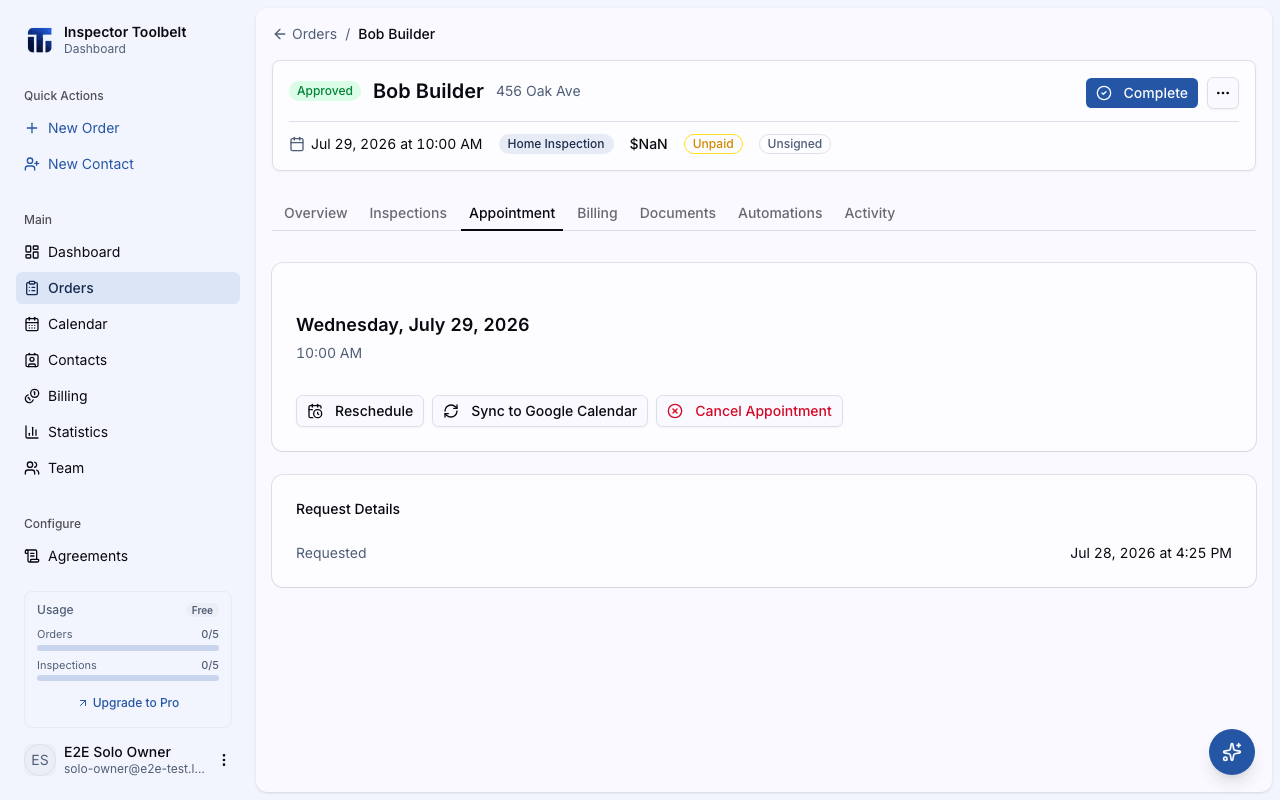
Click Reschedule
Click Reschedule. A panel opens with a calendar and your available time slots.
If the Order doesn't have an appointment yet, the button is called Schedule Appointment instead.
Pick the New Date and Time
Choose a date, then pick one of the available times — or use Custom time to enter a time that isn't in the list. Click Confirm.
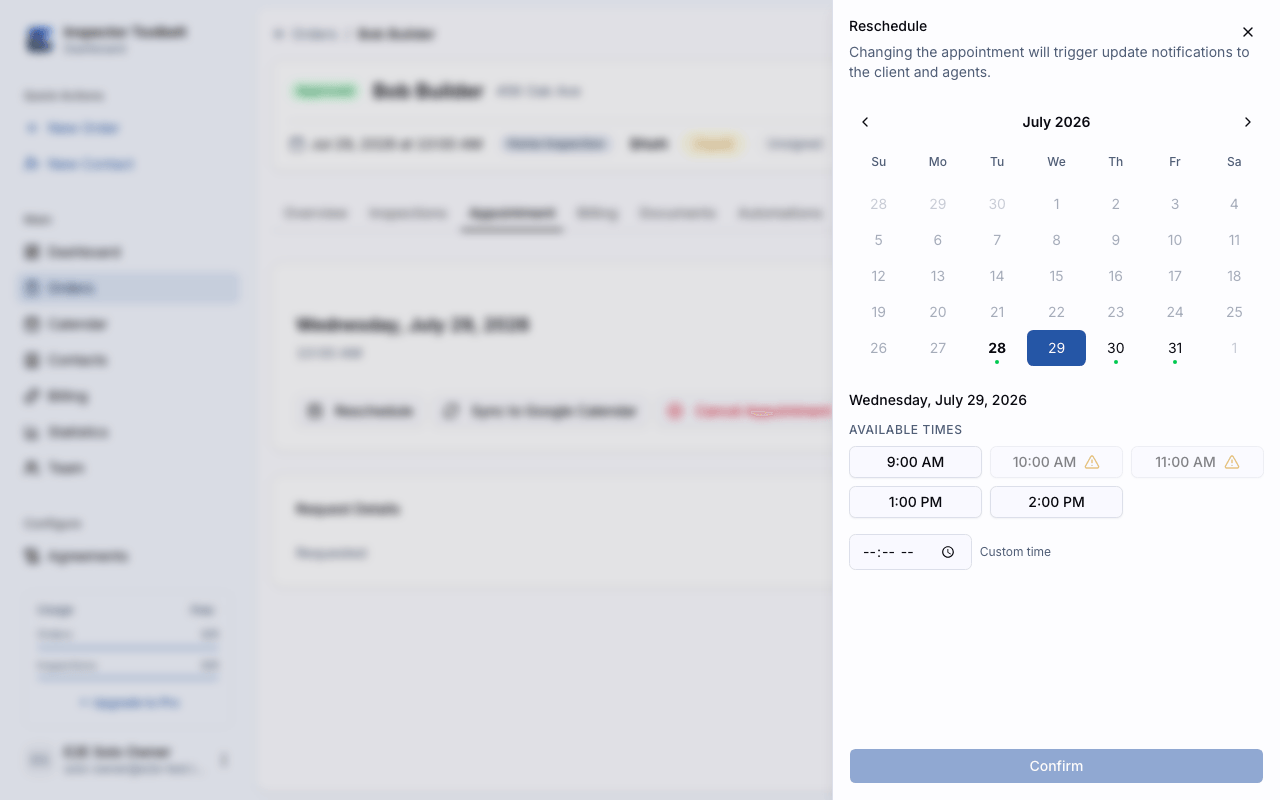
The time you pick is the business's local time, set by the account's timezone — the same clock the calendar shows. If you're working from somewhere else, picking 9:00 AM still books 9:00 AM for the business, not 9:00 AM where you are.
If the time you confirmed would run into your own Time Away, a Time Away conflict dialog opens: Book anyway reschedules to that time, Cancel returns you to the picker without saving.
On mobile, the Reschedule sheet keeps the appointment's date and changes only the time. Pick one of your configured time slots, or use the time picker for any other time — a time outside your schedule shows a warning, but you can still save it. A time that runs into your Time Away shows the same confirm before it saves.
What happens when you reschedule
- If the Order is Approved or Complete, the panel shows a notice: changing the appointment will trigger update notifications to the client and agents.
- On an Approved Order, any pending automated notifications are updated to match the new date and time, so reminders go out at the right moment.
- If the appointment is linked to a Google Calendar event, the event is moved too.
- If you've set up an automation with the Rescheduled trigger, it fires when the appointment changes. See Setting Up Automations.
Canceling just the appointment
If you only need to clear the scheduled time — but keep the Order — click Cancel Appointment on the Appointment tab and confirm. This clears the scheduled appointment and deletes the linked Google Calendar event if one exists. The Order itself keeps its status.
Rescheduling a single notification
You can also move one pending notification without touching the appointment. On the Order's Automations tab, find the notification in the Pending list, click the calendar-clock icon, pick a new date and time, and click Reschedule.
Canceling an Order
When an Approved Order falls through, cancel it. The Order stays in your list, marked Cancelled, so you can re-approve it if the client rebooks.
Only an Approved Order can be canceled.
Open the Order
Open the Order's detail page and click the ⋯ menu.
Choose Cancel Order
Choose Cancel Order. The dashboard checks the Order's invoices first.
- If any invoice has a payment on it, you see Refund the payments first. The dialog lists those invoices, and you can't cancel yet. Refund them, then try again. A fully refunded invoice doesn't block canceling.
- If a bank transfer is still settling on an invoice (it shows Processing), you see A bank payment is still settling, and you can't cancel yet. Wait for the transfer to settle, refund it, then try again. A transfer that was started more than 10 business days ago and never confirmed doesn't block canceling.
- Otherwise, the dialog lists each open invoice that will be voided and how many draft invoices will be discarded. If there are none, it says No invoices will change.
- It also lists each unsigned agreement that will be deleted (for example, Agreement #12 will be deleted) and each signed agreement that will be kept and marked void (for example, Signed agreement #11 will be kept and marked void).
Add a Reason (Optional)
Type a note in Reason (optional) if you want to remember why. It shows on the Order later.
Confirm
Click the red confirm button. Open invoices are voided, draft invoices are discarded, unsigned agreements are deleted, signed agreements are marked Void, and then the Order is marked Cancelled.
Refund before you cancel
An Order with a paid, partially paid, or partially refunded invoice can't be canceled. Refund it from the Billing tab first. The same goes for an invoice with a bank transfer still Processing: wait for it to settle, then refund it. See Refunds and Voids.
If an open or draft invoice has a Stripe copy and your Stripe account isn't connected, the dashboard can't void it in Stripe. It refuses to cancel and changes nothing, and you see a message saying so. Reconnect Stripe, or void the invoice in Stripe first, then cancel again. Older invoices that were never in Stripe are left as they are.
Canceling also cancels the agreements. An unsigned agreement is deleted, along with its PDF and the signing links sent for it. A signed agreement is kept as a record and marked Void on the Documents tab, and the Order no longer counts as signed. The dashboard offers no send or regenerate action for a void agreement, and the signing links the dashboard created for it stop working. If the Order was marked signed by hand and has only one agreement, that agreement counts as signed and is kept as Void. Uploaded documents are left as they are. Invoices with a Legacy badge are not voided.
What a canceled order looks like
- A red banner at the top of the Order says when it was canceled. It also shows who canceled it and the reason, when those are known.
- The header, the Orders list, and a contact's Order history show a Cancelled badge.
- On the Orders list, use the Cancelled status filter to find them. The Read filter doesn't include them.
- On the Documents tab, a signed agreement that was voided shows a Void badge. It has no send or regenerate actions, but you can still preview and download it.
- It is gone from the calendar and from the dashboard's Map. Needs Attention no longer asks you to assign a Inspector to it.
- Its time slot is free again, so the booking page can offer it to someone else.
What you can still change
A canceled Order is read-only, with a few exceptions. You can still:
- Edit the Notes card.
- Record a payment on the Billing tab, and refund or void invoices there.
- Duplicate or delete the Order.
- Re-approve it.
Everything else is locked. That includes the address, client, agent, and assignment details, services and pricing, the appointment, invoice creation, document sending, and the Automations tab.
Re-approving a canceled order
Click Re-approve on the red banner, or in the Order's header. The Order goes back to Approved, the Cancelled badge goes away, and you can edit it again.
Re-approving creates a fresh agreement for the client to sign. A voided agreement stays on the Documents tab as Void. Send the client the new agreement's link. The signing links the dashboard created for the voided agreement stop working.
The mobile app follows the same rules. Canceling there voids and discards invoices and cancels agreements the same way, and a canceled Order is locked the same way. On mobile, a signed agreement that was voided shows Agreement void next to the Order's badges.
Older canceled orders
Orders canceled before the Cancelled badge was added, or canceled in the older ITB app, are not marked Cancelled. They stay as plain Read Orders, and you can still edit them.
A Order that was never approved doesn't need canceling: leave it in New or Read, or delete it if it shouldn't be kept at all (below).
Archiving has been removed
Older versions let you archive Orders. That option is gone — cancel approved Orders instead. Orders archived in the past are still there under the Archived status filter and can be restored (below).
Deleting an Order
Deleting removes the Order entirely. Unlike canceling, this can't be undone. It works on a canceled Order too.
Open the Order
Open the Order's detail page and click the ⋯ menu.
Choose Delete
Choose Delete Order.
- If any invoice on the Order has a payment on it, deletion is blocked — you'll see a message telling you to refund it first. Nothing is deleted.
- If a bank transfer is still settling on an invoice (it shows Processing), deletion is blocked too. Wait for it to settle, refund it, then delete. Nothing is deleted.
- Otherwise, a dialog lists how many open invoices will be voided and how many draft invoices will be discarded. Confirm to continue.
Confirm
On confirm, every open invoice is voided and every draft invoice is discarded, then the Order itself is deleted. If any invoice can't be voided or discarded, the Order is not deleted and you'll see an error — try again once the issue clears.
Refund before you delete
An Order with a paid, partially paid, or partially refunded invoice can't be deleted. Refund it from the Billing tab first — see Refunds and Voids — then delete the Order.
Deleting follows the same Stripe rule as canceling. If an open or draft invoice has a Stripe copy and your Stripe account isn't connected, the delete is refused and nothing is changed. Reconnect Stripe, or void the invoice in Stripe first, then delete again.
On mobile, open the Order and choose Delete Order from the ⋯ menu. It needs a connection, so while you're offline it reads Delete Order (offline) and is greyed out. Confirming sends one request that voids open invoices, discards drafts, and deletes the Order; if any invoice already has a payment on it, you'll see an error and the Order stays in place — refund it first. On mobile, the linked Google Calendar event isn't removed yet — delete it from Google Calendar yourself.
Reopening an Archived Order
Orders archived before archiving was removed can be moved back to New.
Find the Archived Order
On the Orders list, filter by the Archived status to see archived Orders.
Restore It
Click the row's menu button and choose Restore, then confirm. You can also open the Order and choose Restore from the ⋯ menu on its detail page.
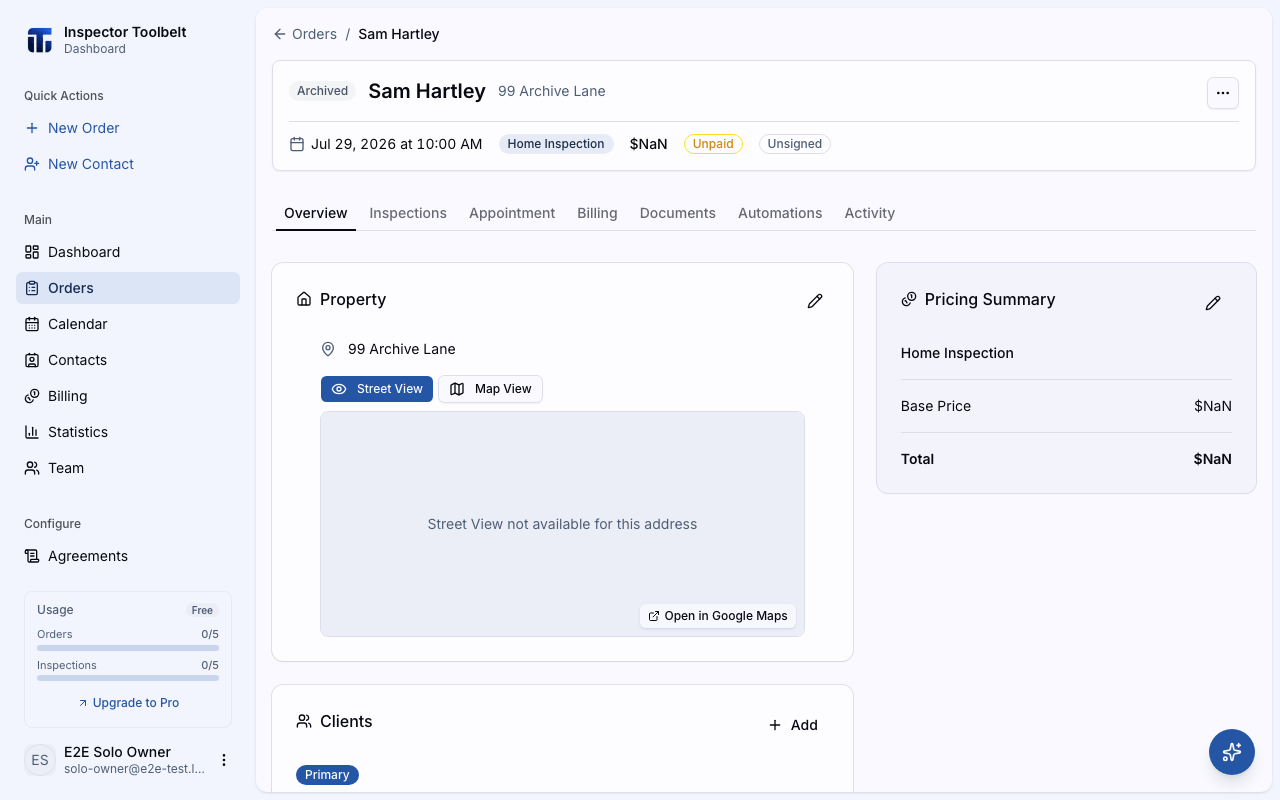
The Order returns to New status. From there it moves through the normal lifecycle again — see Order Statuses.
What You Should See
- After a reschedule, the Appointment tab shows the new date and time, and pending notifications on the Automations tab show updated send times.
- After canceling, the Order shows a Cancelled badge and a red banner. Its open invoices show as Void, its drafts are gone, its unsigned agreements are gone, any signed agreement shows Void on the Documents tab, and it no longer appears on the calendar.
- After re-approving, the Order shows an Approved badge and you can edit it again.
- After deleting, the Order is gone from your list, and any invoices it had show as voided (open ones) or are gone (drafts).
- After restoring, the Order shows a New badge and is back in your active list.
If Something Goes Wrong
- Google Calendar didn't update. If the calendar sync fails, the appointment change in the dashboard still saves. Open the Appointment tab and use Sync to Google Calendar to relink it.
- The Cancel Order option is missing. It only appears on Approved Orders. Inspectors can't cancel either. Ask a teammate with edit access.
- "Refund the payments first." An invoice on the Order has a payment. Refund it from the Billing tab, then cancel again.
- I can't edit a canceled order. That's expected. Only notes, payments, duplicate, and delete work on a canceled Order. Click Re-approve to edit it again.
- "This appointment time couldn't be saved." The account doesn't have a usable timezone, so the dashboard won't guess which clock you meant. The account owner can set it under SettingsProfile, in the Timezone field — see Profile Settings. The mobile app shows the same problem when you reschedule there.
- Deletion is blocked. The Order has a paid, partially paid, or partially refunded invoice. Refund it from the Billing tab, then try deleting again — see Refunds and Voids.
- "Stripe isn't connected." The Order has an invoice with a Stripe copy that has to be voided, but your Stripe account isn't connected, so the cancel or delete was refused and nothing changed. Reconnect Stripe, or void the invoice in Stripe first, then try again.
- Canceling failed partway. If something goes wrong after some invoices were voided or some agreements were deleted or marked void, those stay that way. The Order is not marked Cancelled. It also stops if a stored agreement PDF can't be removed, or if the client signs an agreement while you cancel. Try again: an agreement that was just signed is kept as Void instead of deleted.