Refunding and Voiding Invoices
How to refund a paid invoice, cancel an unpaid one, and understand credit notes.
Made a mistake on an invoice, or need to give money back? You have two tools:
- Refund — for invoices the client already paid. Sends money back (in full or in part).
- Void — for invoices the client has not paid yet. Cancels the invoice so it can't be paid.
Both live on the Order's Billing tab, in the menu (⋯) on each invoice row.
Manager onlyBefore you start
- You need the Admin or Manager role to work with billing.
- Refund and void only work on invoices created through the dashboard's Stripe integration. Invoices with a Legacy badge don't offer these actions.
- Refunds need a Paid (or Partially Refunded) invoice. Voids need an Unpaid invoice.
- An invoice with a bank transfer still Processing can't be voided. Wait for the transfer to settle, then refund it.
Refund a paid invoice in full
Open the Order, click the Billing tab, and find the paid invoice in the Invoices list.
Click the menu button (⋯) on the invoice row and choose Full Refund.
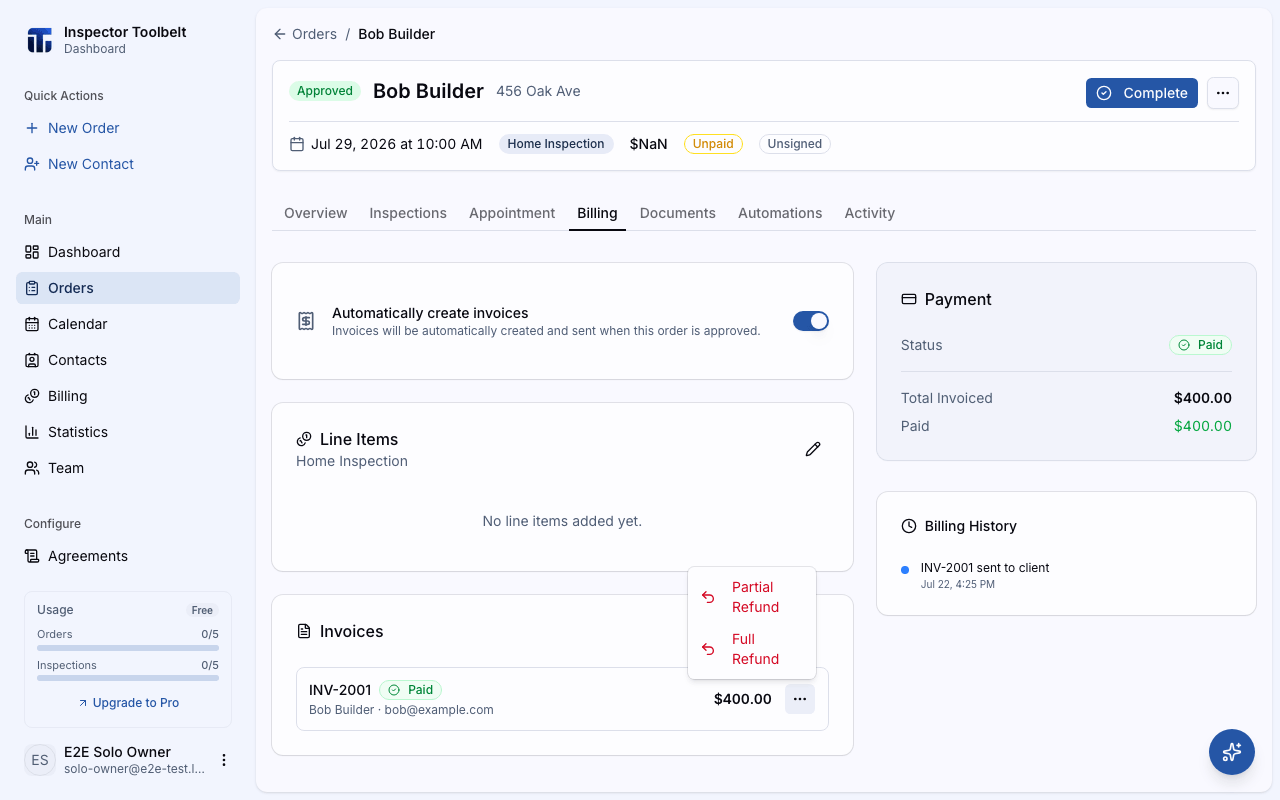
A confirmation shows the refund amount. Click Issue Refund.
After a full refund, the invoice status becomes Refunded, the Order is no longer marked paid, and its line items are freed up so you can invoice them again if needed. If the client paid a technology fee when they paid by card, that comes back to them too — in full on a full refund, and proportionally on a partial one.
Refunding more than one invoice
If the Order has two or more refundable paid invoices, a Refund All option appears above the paid invoices so you can refund them in one go.
Refund part of a paid invoice
Click the menu button (⋯) on the paid invoice row and choose Partial Refund.
Enter the Refund Amount. You can refund anything up to the amount the client paid.
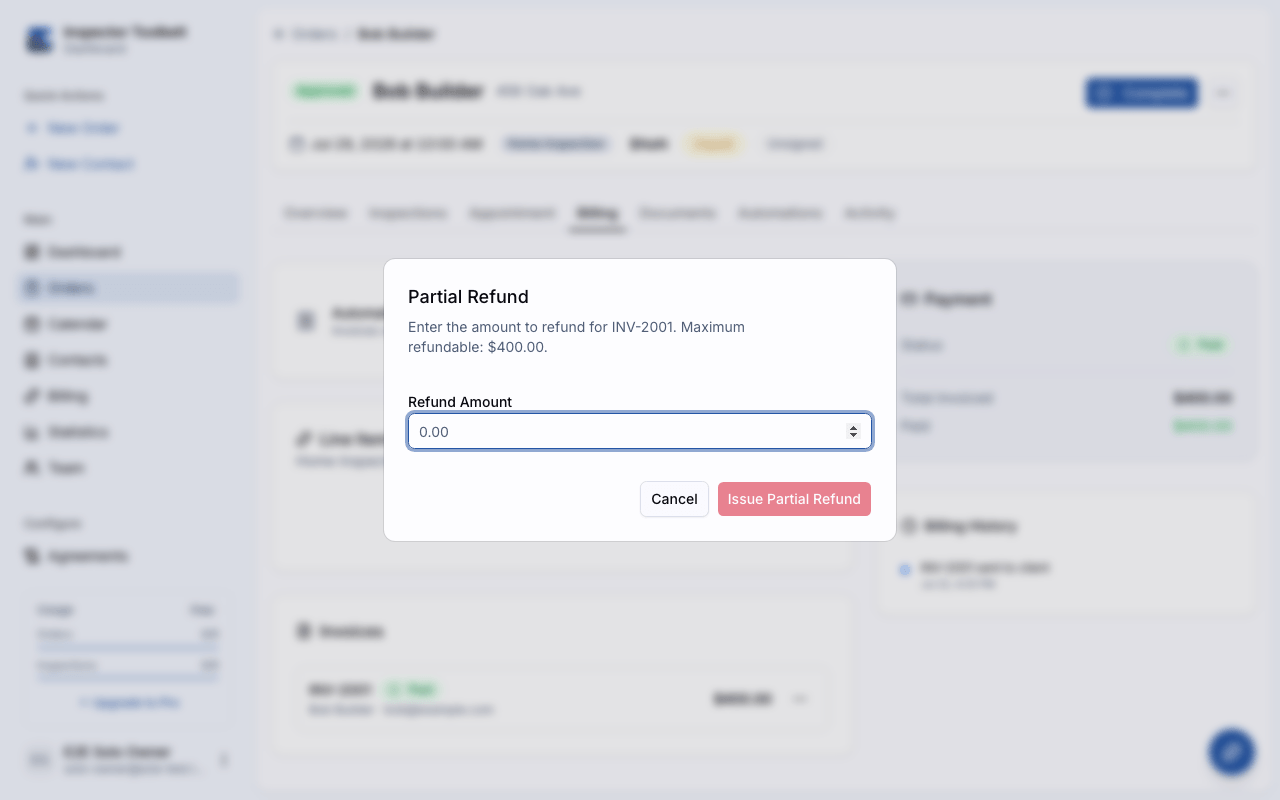
Click Issue Partial Refund.
The invoice status becomes Partially Refunded. You can issue more partial refunds later — or a full refund for the rest — until the whole payment is returned. If your refunds add up to everything the client paid, the status becomes Refunded.
Credit notes
When you issue a partial refund on a Stripe-paid invoice, the dashboard records it as a credit note — a document that shows the client was credited part of what they paid, without cancelling the invoice itself.
- The invoice row shows how many credit notes have been issued.
- The invoice menu (⋯) gets a Download credit note option with the PDF for each one.
Credit notes are also created automatically when you lower the price of services on a paid Order — see Editing an Order.
Void an unpaid invoice
Voiding cancels an invoice that hasn't been paid. The client can no longer pay it.
Open the Order, click the Billing tab, and find the unpaid invoice.
Click the menu button (⋯) and choose Void Invoice.
Confirm by clicking Void Invoice in the dialog.
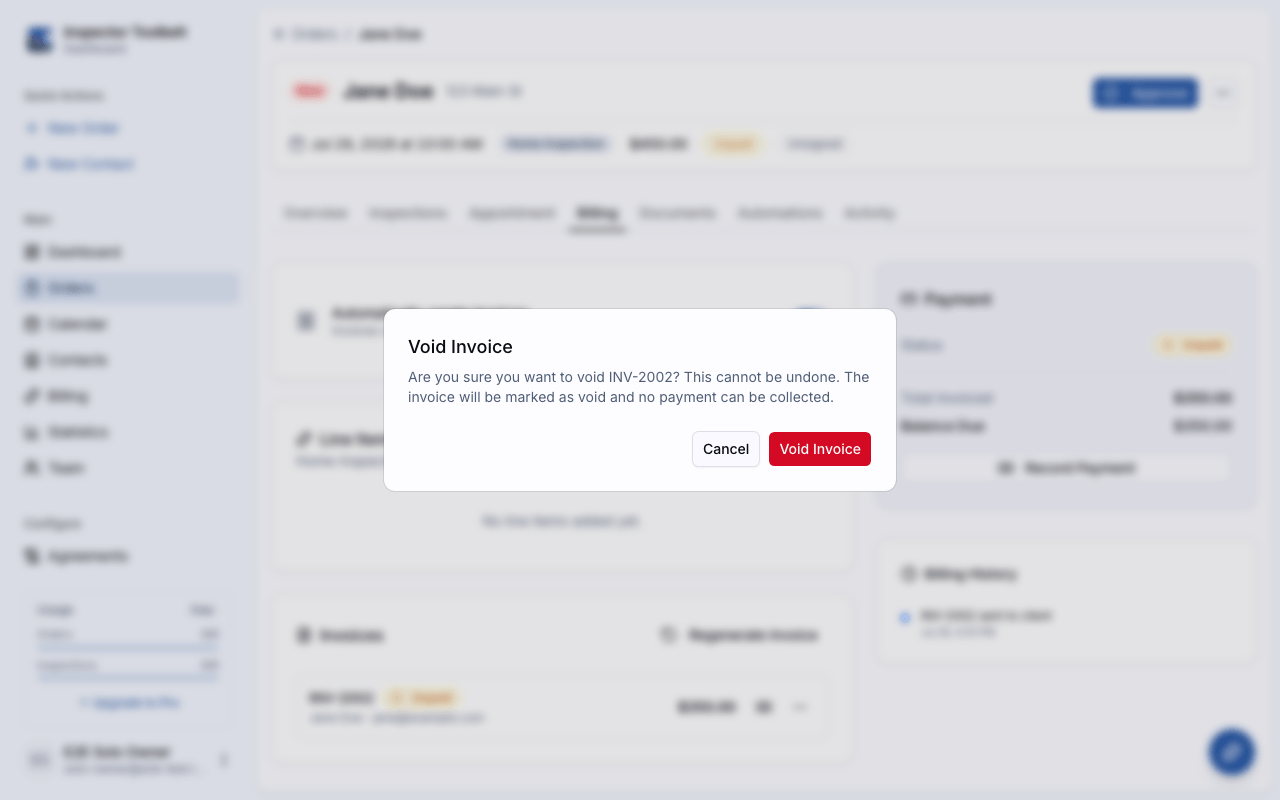
Voiding cannot be undone
A voided invoice stays voided. If you still need to bill the client, create a new invoice afterward.
Not while a bank transfer is settling
If the invoice shows Processing, the client's bank transfer is still on its way. Void Invoice is greyed out in the menu, with a note that a bank payment is still settling. Wait for the transfer to settle, then refund it instead. A transfer started more than 10 business days ago and never confirmed doesn't block voiding.
Draft invoices can't be voided
Only Unpaid (already sent) invoices can be voided. A Draft invoice hasn't been sent yet. If you change the Order's services, the draft is updated to match or, if it no longer matches, the Billing tab offers Update draft. Send it with Finalize & Send when ready, or discard it from the invoice row's menu.
What the client sees
- Full refund of an online payment — the money is sent back through Stripe to the payment method the client used. The refund is submitted to Stripe right away and your dashboard updates immediately; how long the money takes to appear on the client's statement depends on their bank or card company.
- Partial refund — a credit note is issued for the refunded amount, with a PDF you can download and share.
- Void — the invoice is cancelled and no payment can be collected on it.
Cash and check payments
If the invoice was paid with a payment you recorded by hand (cash, check, Venmo, Zelle, bank transfer), clicking refund only updates the records — no money moves automatically. Return the payment to the client yourself.
What you should see
A success message appears ("Refund issued successfully" or "Invoice voided successfully"). The invoice's status badge changes to Refunded, Partial Refund, or Void, and the refund shows up in the Billing History card on the Billing tab.
If something goes wrong
- "Cannot refund an invoice with status …" — refunds only work on Paid or Partially Refunded invoices. Check the invoice's current status.
- "Cannot void an invoice with status …" — voids only work on Unpaid invoices. If it's already paid, use a refund instead.
- "This invoice was not processed through Stripe" — Legacy invoices can't be refunded from the dashboard.
More help: Payment problems.