Files & Report Attachments
Manage an order's generated documents and uploads, and attach files to inspection reports.
Overview
Every Order has a Documents tab that lists both the documents the dashboard generates for you — agreements, invoices, reports — and anything you upload yourself.
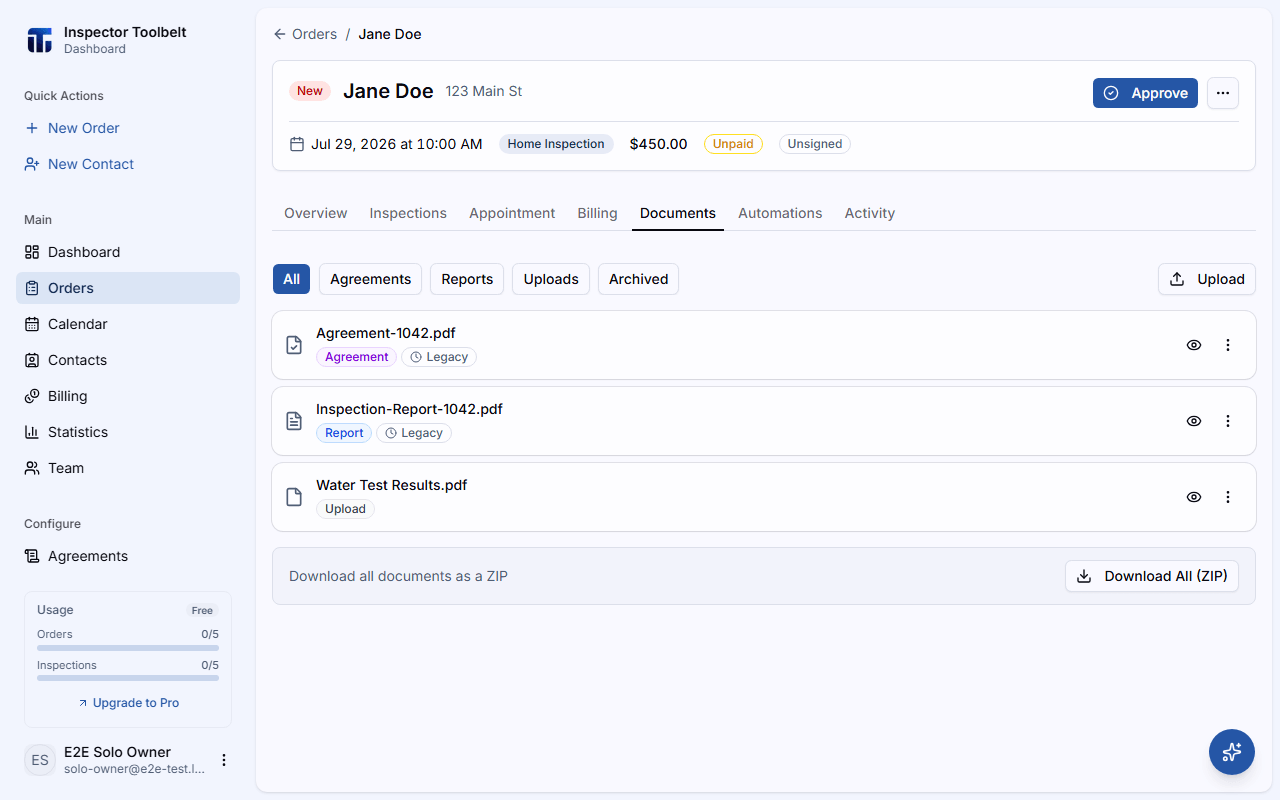
The Documents Tab
Open the Order and go to its Documents tab. Each row shows a type pill (Agreement, Invoice, Report, or Upload) and, where it applies, a status pill: Draft, Scheduled, Sent, Delivered, Viewed, Failed, Signed, Awaiting signature, or Void.
A Void agreement is a signed agreement that was kept when its Order was canceled. It stays as a record you can preview and download, but the dashboard offers no send or regenerate action for it. See Canceling an Order.
An agreement can also show Signed · PDF pending. This means the client has signed, but the signed PDF hasn't been generated yet — opening or downloading the file right now shows the unsigned version. Use Generate signed copy from the row's actions menu to render it; the pill switches to Signed once it succeeds. Regenerate Agreement is unavailable on this row too — only Generate signed copy can move it forward.
From a row's actions you can:
- Preview — open an inline PDF viewer
- Download — save the file
- Download All (ZIP) — download every document at once (shown once there are two or more)
- Generate signed copy — render the signed PDF for an agreement showing Signed · PDF pending (agreement rows only)
- Delete — remove a file you uploaded, or an archived copy of a regenerated agreement. A confirmation dialog (Delete Document for an upload, Delete archived file for an archived copy) asks you to confirm before it's removed for good
- Delete agreement — permanently delete a live agreement (agreement rows only — see below)
- Regenerate Agreement — rebuilds the order's unsigned agreement PDFs. It's unavailable on a signed agreement — the signed copy is kept (agreement rows only)
Click Upload to add your own files — any file type is accepted, up to a limit of 10 uploads per Order.
Archived orders are read-only here
If the Order has the Archived status, the Documents tab tells you so. You can still preview and download every file, but Upload, Delete, and sending are turned off. Reopen the Order to make changes — see Order Statuses.
Name files clearly before uploading
"Water Test Results" is a lot more useful to your client than "scan_20260728_113" once it shows up in the Documents list.
Deleting an Agreement
Scheduler onlyFrom an agreement row's overflow menu, choose Delete agreement. A confirmation dialog explains that this permanently removes the PDF, the client's signing link, and any archived (superseded) copies of it — this can't be undone.
Deleting a signed agreement also unsigns the order
If the client already signed, the dialog uses stronger wording and asks you to confirm again with Delete signed agreement. Deleting it removes the signed PDF and the signature record, and marks the Order as unsigned.
Archived copies — the superseded PDF kept after you use Regenerate Agreement — have their own Delete action (the trash icon on the row). Deleting an archived copy only removes that copy; the current agreement is not affected.
Inspectors can't delete agreements.
Attaching a Document to a Report
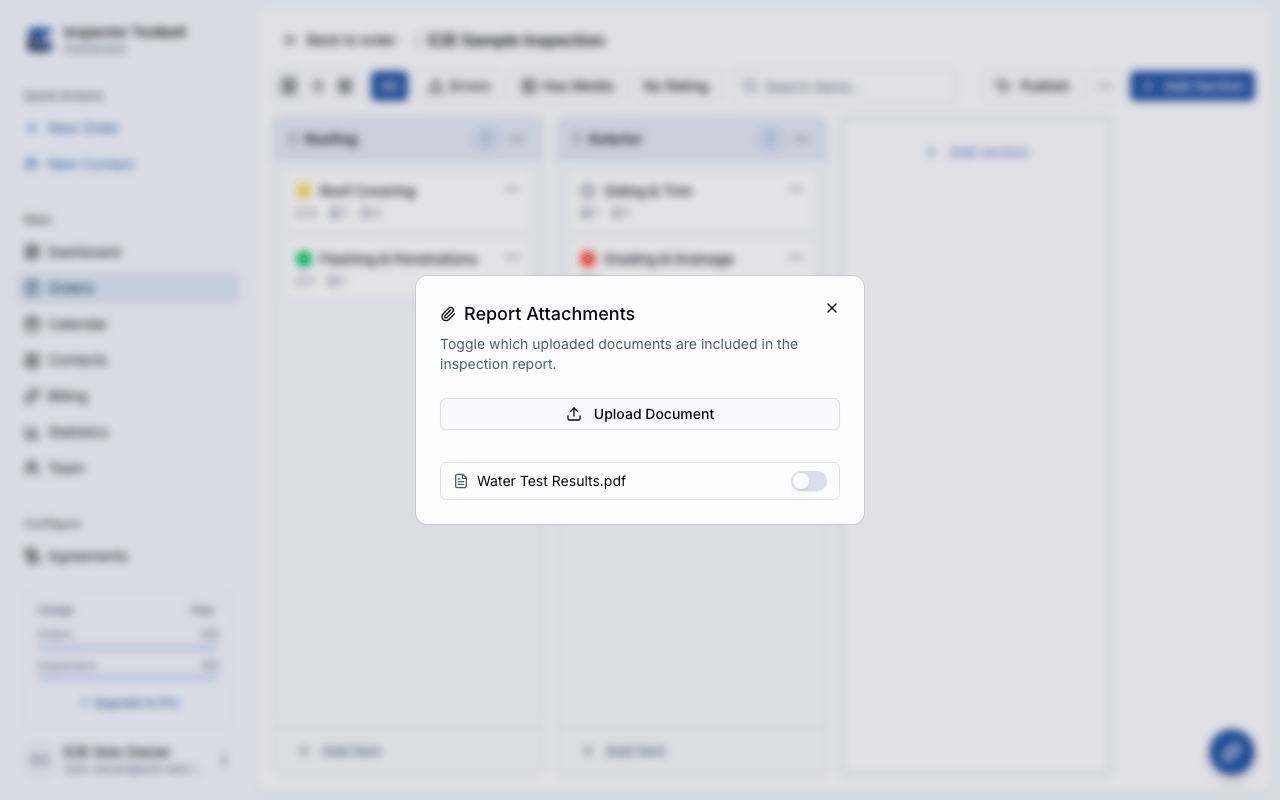
Any file you've uploaded can be attached to one of the order's inspection reports, so it's included alongside the report itself. You can attach a document from three places:
Open the row's overflow menu and check Attach to report.
From the inspection editor's overflow menu, open Attachments to see the Report Attachments dialog, toggle which uploaded documents are included, or upload a new PDF directly from the dialog.
The Report Attachments section of the publish checklist lists your uploaded documents with a checkbox for each — check the ones you want included before you publish.
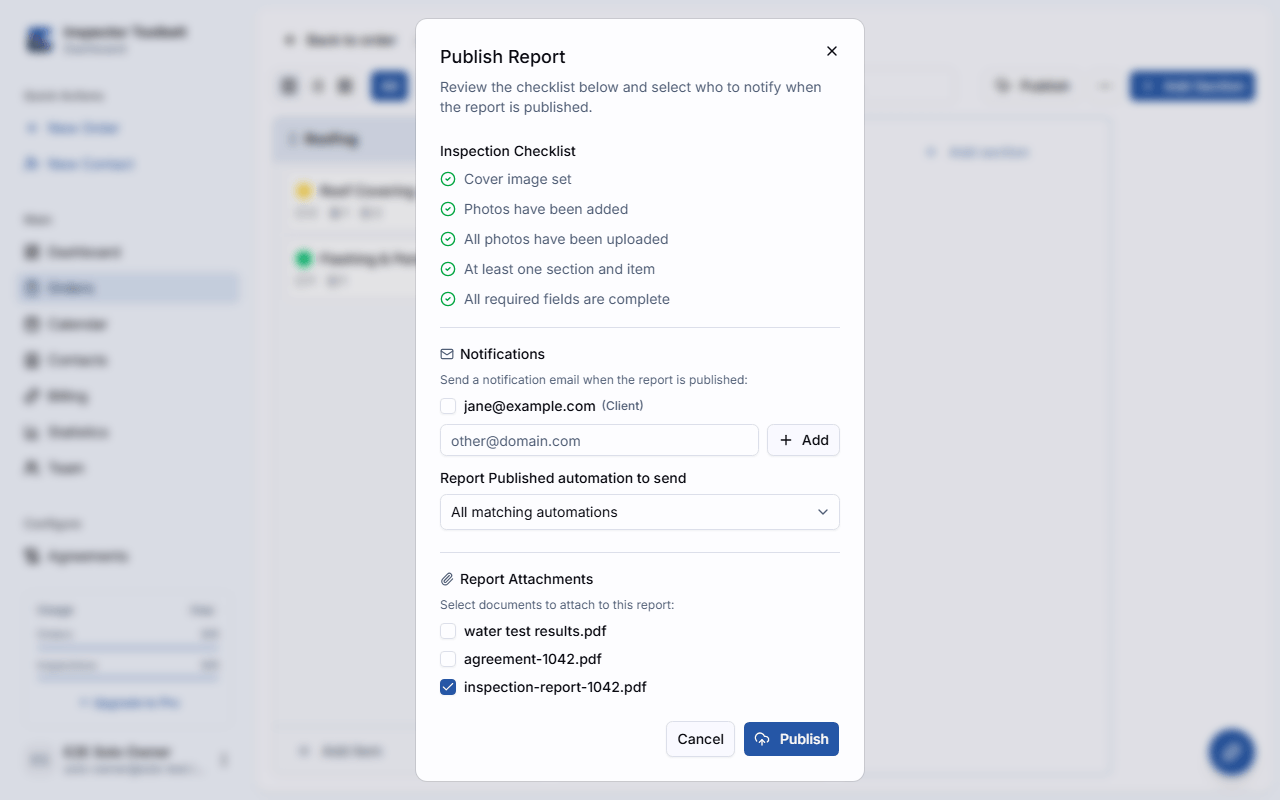
What your client receives
Attached documents appear as their own menu item on the web report and are appended to the end of the PDF report, so clients can find them alongside your findings.
Only files you've uploaded yourself can be attached this way — generated agreements, invoices, and other reports aren't attachment candidates.
Related Guides
Rescheduling, Canceling, and Deleting an Order
How to move an appointment to a new time, cancel an approved order and re-approve it, delete an order, and bring an archived order back.
Viewing Your Schedule
See your scheduled work by month, week, or day — and open, create, or reschedule orders right from the calendar.