Editing an Order
How to update services, pricing, and billing details after an order is created.
Overview
A Order isn't locked in once it's created. You can update its services and pricing at any point in its lifecycle — New, Draft, Approved, or Complete — and the dashboard keeps any existing invoices in sync for you.
Scheduler onlyBefore you start
- You need edit access. Inspectors have read-only access to Orders on the dashboard and can't make edits here. The mobile app is different for services and pricing specifically — see Edit services from the mobile app below.
- A canceled Order is locked. Only its notes and payments can change. Re-approve it first to edit anything else. See Canceling an Order.
- The Inspection Type locks once invoiced. After an invoice exists for the Order, you can still change individual services and prices, but not the Inspection Type itself.
Edit services and pricing
Open the services editor
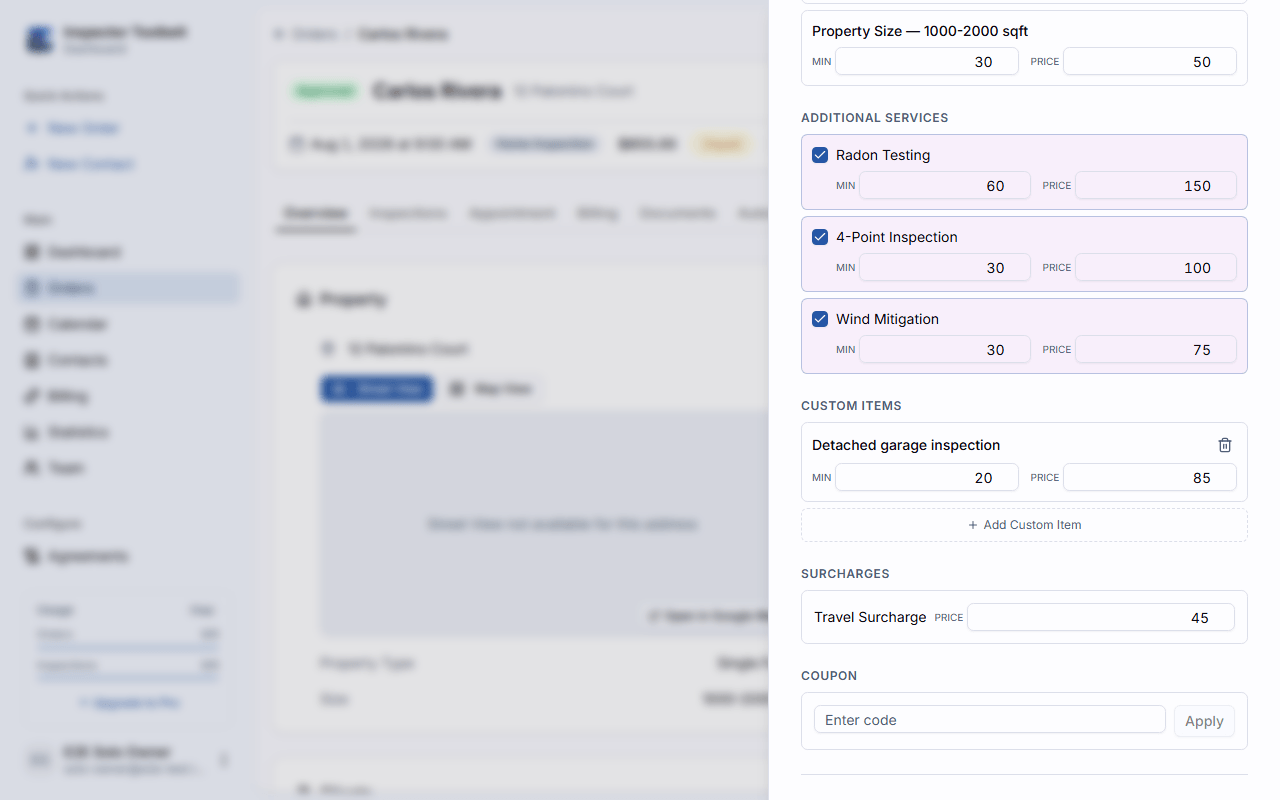
On the Overview tab, click the pencil icon on the Pricing Summary card. The same editor is also available from the Billing tab via the pencil icon next to Line Items — handy when you're focused on invoicing.
Make your changes
From the editor you can:
- Change the Inspection Type, property type, and property size — switching Inspection Type resets your other selections
- Toggle additional services and additional info items on or off
- Adjust the price and time (in minutes) for the base service, any additional item, or the property size
- Add custom line items — a description, price, and time — for one-off charges not in your service catalog
- Set a travel surcharge
- Apply a coupon code, which validates against your configured coupons and is applied as a discount line
Review and save
As you make changes, the sheet shows a live comparison between the current total and the new total, with the difference in brackets.
If ticking a service completes one of your configured bundles, the bundle discount applies straight away — so the difference is smaller than that service's listed price. The sheet names the bundle and its discount above the totals, marks each covered service with a Bundled badge, and spells out the list price against the bundled price, so the smaller figure is never a surprise.
Save when the new total looks right.
What you should see
- The Order's pricing summary and line items update immediately.
- If a draft invoice the dashboard built from the Order exists, it is updated to match the new pricing as part of the save. A draft you made by hand, or one from before the dashboard tracked this, stays as it is. The Billing tab offers an Update draft button when it no longer matches.
- If your changes affect an already-invoiced Order, a Billing Adjustments Required dialog appears before you save — whichever pencil icon you used. It lists any credit notes due on paid invoices, a new supplemental invoice for added charges, and any unpaid invoice being reissued, with the net difference. Choose Process Changes to save the order and apply the billing together, or Cancel to go back without saving anything (see below).
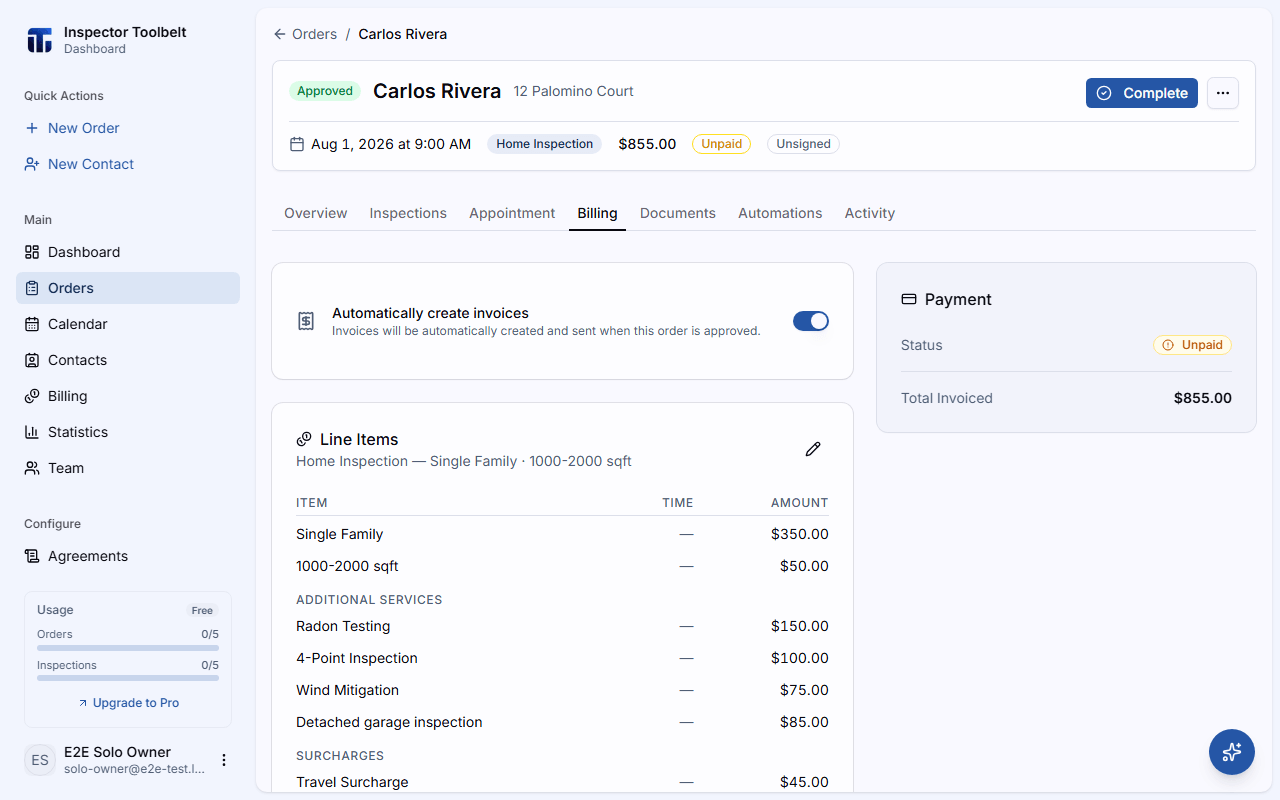
The Billing tab is also where you finalize and send draft invoices, record offline payments, and issue refunds or void invoices — see Creating Invoices for the full invoice lifecycle.
What happens on approved orders
Saving a change to the client, address, or pricing details on an Approved Order triggers a few automatic follow-ups:
- Any pending automated notifications are updated with the new details
- If the Order has agreements, you're offered the option to regenerate documents and resend past notifications, so the client always sees up-to-date paperwork. Agreements the client has already signed are never regenerated — the offer only covers the unsigned ones
- Unpaid invoices are included in that offer only when the change was not a pricing change. A pricing change's billing is handled by the Billing Adjustments Required dialog as part of saving instead (see below), so the dashboard never separately asks you to regenerate an invoice it has already adjusted — that would bill the client for the same change twice
- An unpaid invoice with a bank transfer still Processing is never regenerated. It's left as it is, and the confirmation tells you how many invoices were skipped for this reason
Billing adjustments on invoiced changes
When a pricing change affects an order that's already been invoiced, saving asks you to confirm the billing first, in the Billing Adjustments Required dialog:
- If the order has an invoice that's been sent but is still unpaid, that invoice is simply updated to match — an added item, a price change, a discount, all land on it. The dashboard voids the old version behind the scenes and bills a fresh one for the new total, but it's the same invoice to your client: same invoice number, same payment link. They don't get a new email or a new link to track down; the one they already have just shows the updated total, whether that's higher or lower than before.
- Once everything on the order has already been paid, a new charge (an added item, a price increase) goes on a new supplemental invoice instead, and a price decrease or removed item issues a credit note for the paid amount.
- The next change then finds that supplemental invoice unpaid, so it gets updated in place too, the same way an ordinary unpaid invoice does — one supplemental per order, not a new one for every edit.
- An invoice that's partially paid is never changed automatically — there's already real money on it, and the dashboard won't guess how to handle a payment that's still in progress. Nothing is billed or credited for it; a warning in the dialog tells you to review that invoice on the Billing tab yourself after saving.
- If removing or changing services leaves an unpaid invoice with nothing left to bill, it's voided instead of being updated to show $0 — you'll see it listed as a voided invoice rather than a reissue.
Review the listed credits, charges, and reissues and the net difference, then choose Process Changes — the order's new services and the billing changes save together in one step. Choose Cancel instead and nothing is saved: your edits stay in the sheet so you can keep adjusting them.
If the billing picture changes before you confirm — for example a teammate records a payment while the dialog is open — the dashboard asks you to review the refreshed amounts before you can confirm again.
If an invoice gets paid in the brief moment between your confirm and the save finishing — for example your client pays online right as you click Process Changes — the dashboard skips reissuing that one invoice rather than guessing what you'd want. Nothing is refunded automatically. You'll see a warning that this happened, and you should check the Billing tab to review that invoice before doing anything else with it.
If a bank transfer is still settling on an unpaid invoice (it shows Processing), you can't make a services change that would update or void that invoice. Saving shows a message that a bank payment is still settling, and nothing is changed. The client's transfer was for the old total, so wait until it settles, then make the change. A transfer started more than 10 business days ago and never confirmed doesn't block anything.
An invoice that has already been fully paid is never rebuilt or reissued — doing so would show a client who has settled up as owing the money again. Changes affecting a paid invoice always go through a credit note instead, as above. One consequence worth knowing: if you correct a client's name or address afterwards, a paid invoice keeps the details it was issued with. Its PDF is a record of a completed transaction, so it is left as it was; only unpaid paperwork — including a reissued invoice — picks up the new details.
For the full refund, credit note, and void flows — including doing these manually — see Refunds and Voids.
Edit services from the mobile app
The mobile app's Edit Order screen can change services and pricing too, and it handles billing the same way the dashboard does:
- If the change affects billing, a confirm lists what's about to happen — a new invoice, a credit, or a reissued invoice, the same outcomes described in Billing adjustments on invoiced changes above — before it saves.
- This is the one exception to the read-only rule above: on mobile, any Inspector assigned to the Order can make this change, including a helper added for just that one Order (see Temporary Team Members) — even without edit access on the dashboard. Everything else — creating, rescheduling, canceling, and deleting Orders — still needs a role with edit access.
- If you're also changing other details (notes, schedule, contact info) in the same edit while online, those save first. Declining the billing confirm only drops the services change — the rest of your edit stays saved.
- Services and pricing changes need a connection. If your phone is offline, saving a services change blocks the whole edit, including any notes, schedule, or contact changes made at the same time — reconnect, or remove the services change, to save the rest. An edit that doesn't touch services saves offline as usual.
If something goes wrong
- Can't change the Inspection Type? An invoice already exists for this Order — the category is locked to keep billing consistent.
- No pencil icons? You're in a read-only view. Ask a teammate with edit access. If the Order shows a red Cancelled banner, click Re-approve to edit it again.