Sub-Items
Break an item into repeated instances or individually-rated findings.
Overview
A sub-item is a child card that lives under a parent item, with its own rating, comments, and photos, without cluttering the parent section with extra top-level items. Sub-items are useful for two common cases:
- Repeated instances of the same kind of item, like "Bedroom 1", "Bedroom 2", "Bedroom 3"
- Breaking out a specific finding from a general item so it can be rated and commented on separately
Sub-items work the same way in both the template editor and the report editor — anything you set up on a template's sub-items carries over when an inspection is created from it, and inspectors can still add more while writing a report.
The Sub-Items Tab
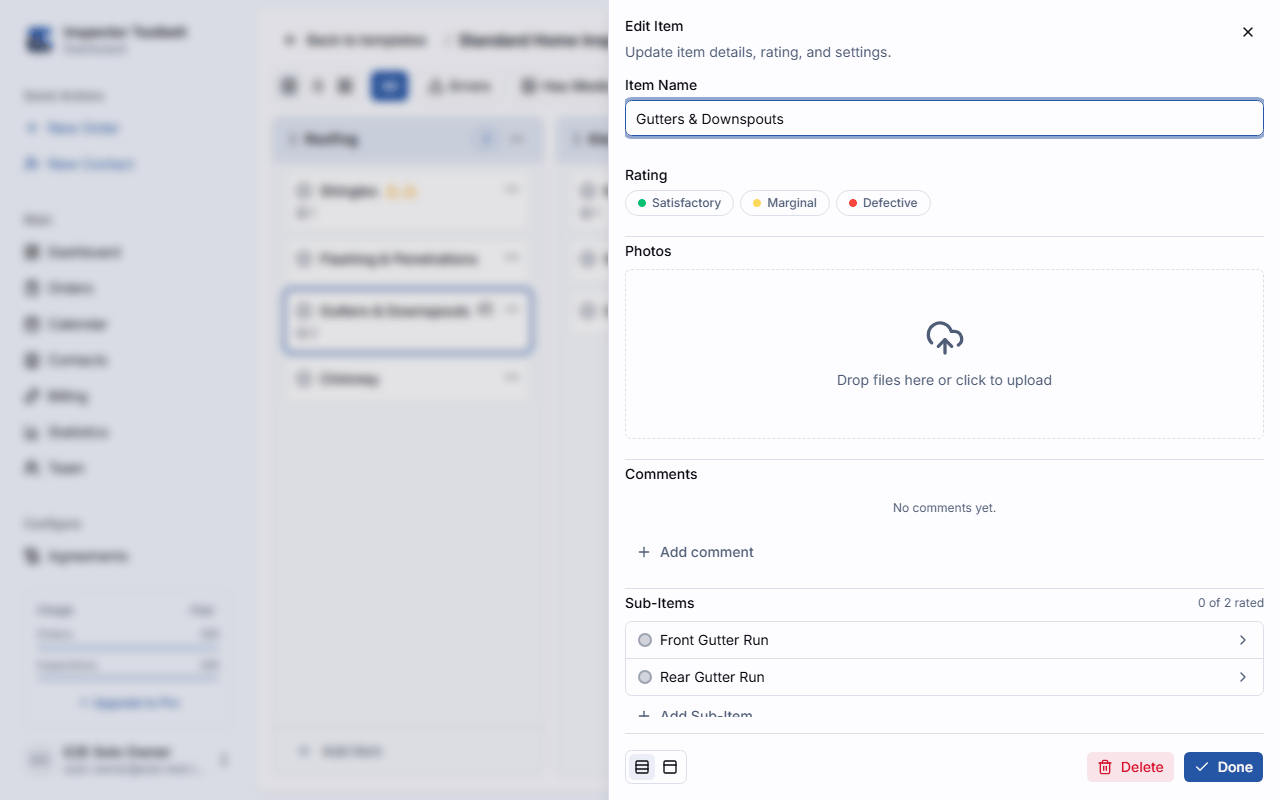
Open an item and go to its Sub-Items tab. The tab header shows a progress count (e.g., "2 of 5 rated") so you can see at a glance how much is left. Each sub-item is a row, laid out the same way as the rows on the Comments tab:
- Grip handle — drag it to reorder. It shows only when there are two or more sub-items.
- Checkbox — ticked means the sub-item is included in the report. Clear it to leave the sub-item out. A sub-item that's left out dims the whole row. When report numbering is on, it also shows a Not in report badge.
- Rating dot — the sub-item's rating. A solid dot shows the rating's color; an empty ring means it hasn't been rated yet. Click the dot to change the rating: each click moves to the next option in the rating system, and after the last option it clears the rating. An information-only sub-item has no dot.
- Name — click the row to open that sub-item. Under the name, a second line shows the rating's name and how many comments and photos the sub-item has. After you try to close the parent item with a rating still missing, a red Rating required badge appears there too.
- Quick actions — Convert to Comment and Delete at the end of the row. See Turning a Sub-Item Back into a Comment and Deleting a Sub-Item.
Board cards and tree rows show the same rating dot, and you can click it there too. Sub-items listed under an expanded item show the dot only.
Adding Sub-Items
Add One at a Time
Click Add Sub-Item on the Sub-Items tab to create a single sub-item with a default name you can edit.
Add Several at Once
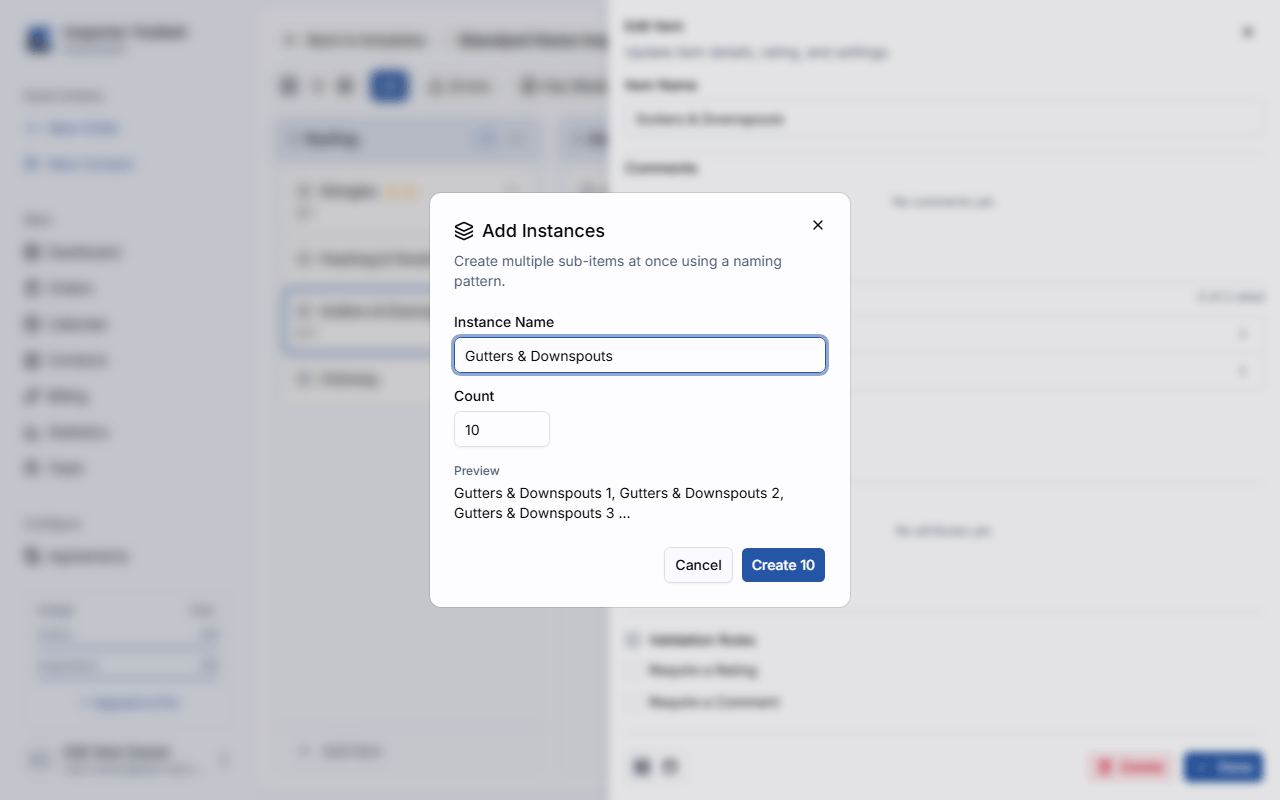
Click Add Instances to bulk-create numbered sub-items from a naming pattern and a count — for example, "Bedroom" × 3 creates "Bedroom 1", "Bedroom 2", and "Bedroom 3" in one step.
Convert a Comment to a Sub-Item
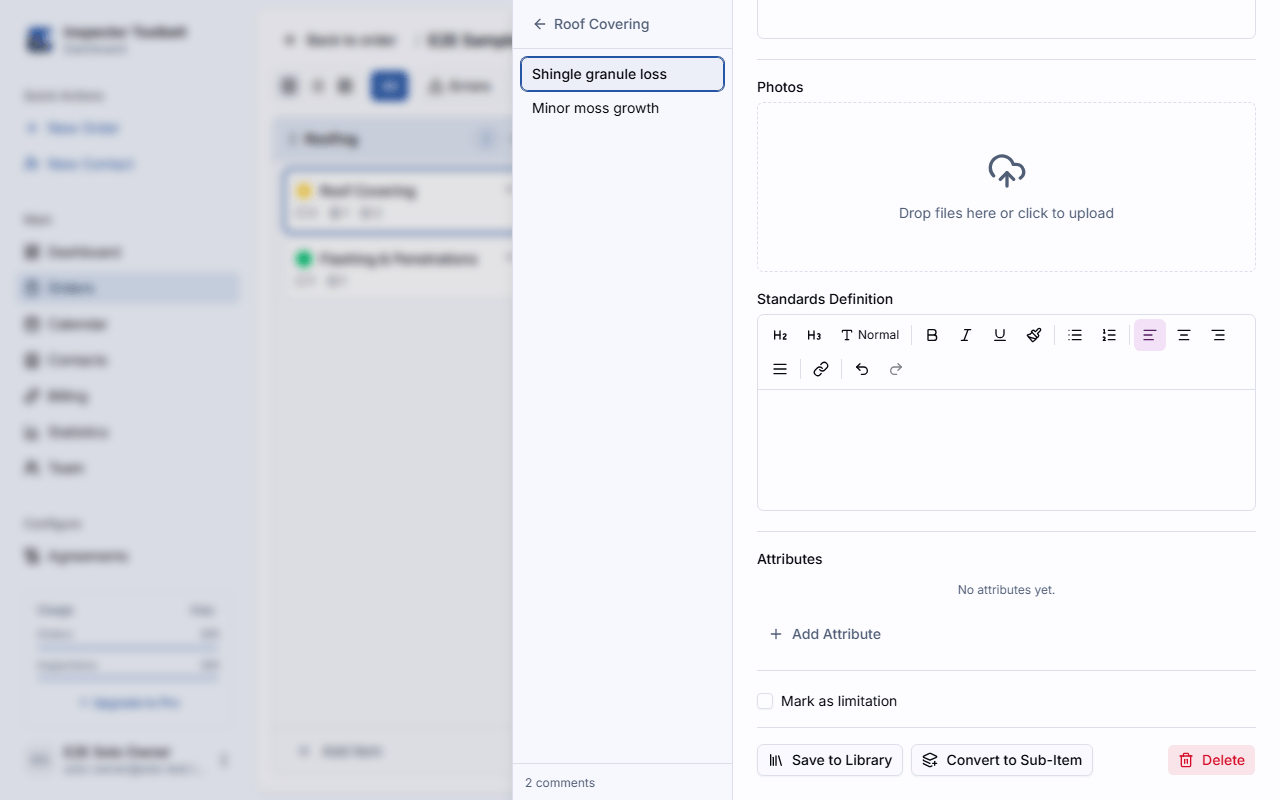
Click Convert to Sub-Item to promote a comment into its own sub-item — useful when a comment on the parent item turns out to describe something worth rating on its own. The button is at the bottom of the comment when you have it open, and it's also an icon at the end of the comment's row on the Comments tab. The new sub-item keeps the comment's place in the list when that spot is free, and goes at the end otherwise.
Reordering Sub-Items
Drag a row's grip handle up or down to put the sub-items in the order you want. The order stays within the same parent item, and it's the order the sub-items appear in the published report. This works in both the template editor and the report editor. Comments on the Comments tab drag the same way.
Dragging is turned off while the inspection is read-only (for example, archived or while its report is being generated), and while a sub-item is still saving — wait a moment and the handles come back.
Turning a Sub-Item Back into a Comment
Click Convert to Comment (the small minus-circle icon at the end of a sub-item's row) to turn the sub-item back into a regular comment on its parent item. It asks you to confirm first. Its rating is removed, and the sub-item's own comments move to the parent item. The new comment keeps the sub-item's place in the list when that spot is free, and goes at the end of the comments otherwise. This can't be undone.
If you have the sub-item itself open, the same Convert to Comment button is in its footer. The button is hidden while the inspection is read-only, and greyed out for a moment while the sub-item is still saving.
Deleting a Sub-Item
Click Delete (the trash icon at the end of a sub-item's row) and confirm to delete it. The sub-item's own comments, attributes, and photos are deleted with it. This can't be undone. The button is hidden while the inspection is read-only, and greyed out for a moment while the sub-item is still saving.
Working with Sub-Items
In the board and tree views, an item with sub-items shows an expand/collapse control (and a toolbar button to expand or collapse every item's sub-items at once) so you can tuck them away or bring them all into view without leaving the section. Each sub-item is rated and commented on independently of its parent — the parent item's own rating and comments aren't affected by what happens on its sub-items.
On the ITB mobile app, sub-items are listed on the item's own screen, where you can rate them, include or leave them out of the report, and reorder them — see Writing a Report.