Report Numbering
Turn on section, item, and comment numbers that match the published report.
Overview
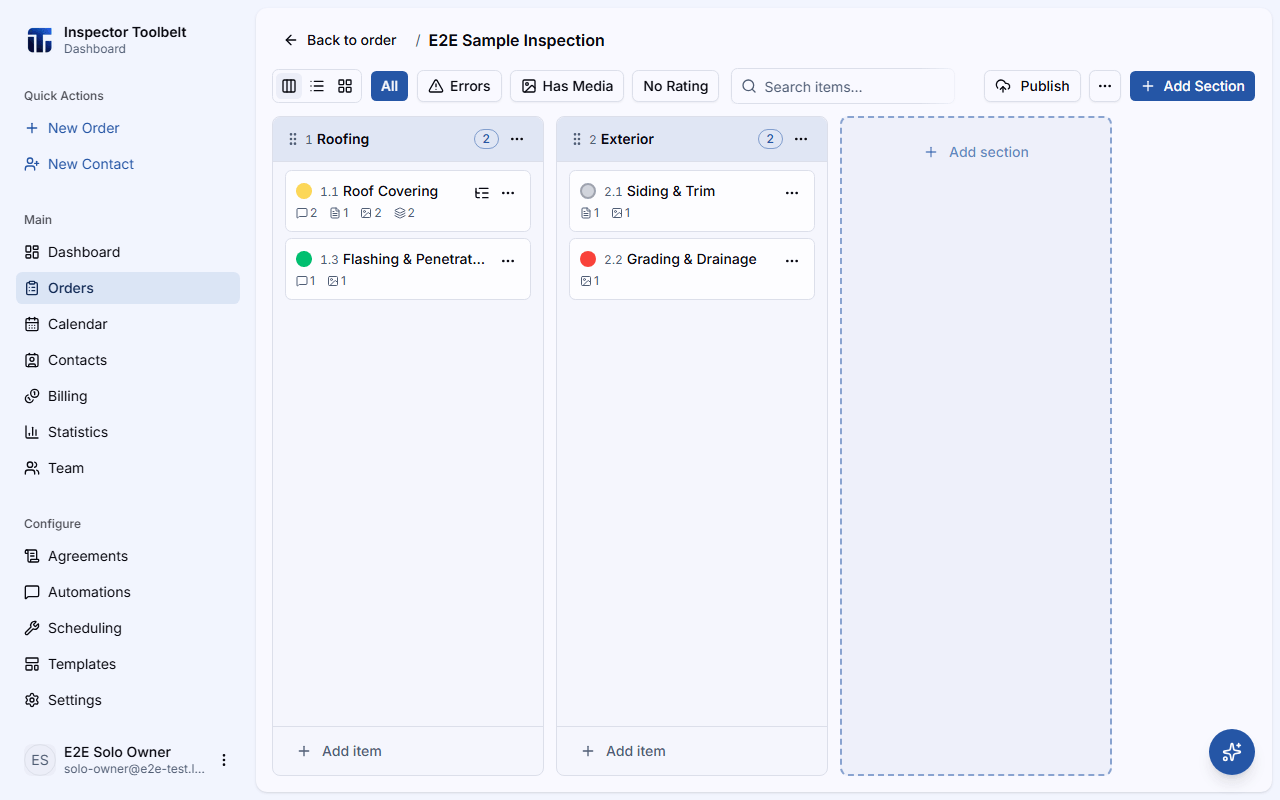
Report numbering labels each Section, Item, and comment with a number — "1", "1.2", "1.2.1" — as you work through the inspection editor. The numbers reflect the exact order things will appear in the published report, so you can say "see 1.2.1" to a client or agent and have it match the delivered report.
For report-enabled accounts
Numbering is a display option for inspection reports — see that guide for the rest of the report-building workflow.
Turn It On
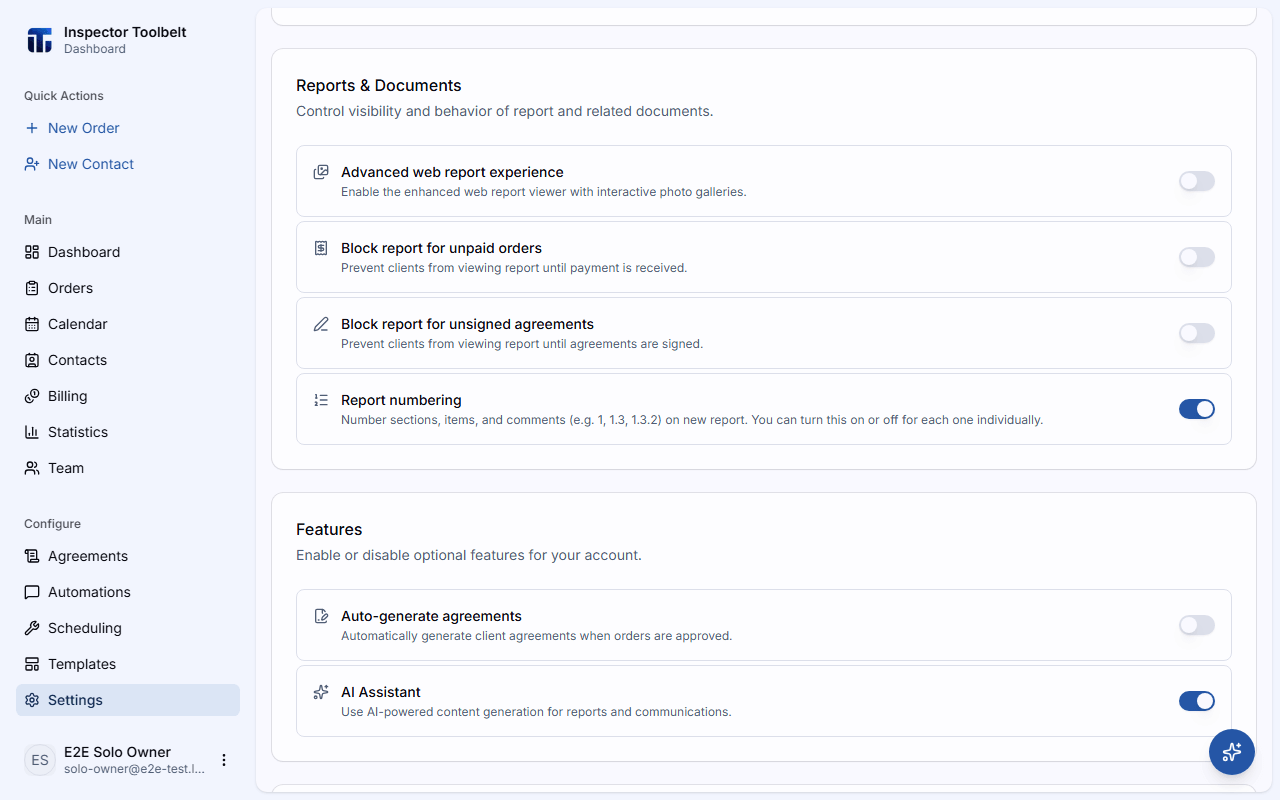
Set your default
Go to SettingsPreferences and flip on Report numbering under Reports & Documents. New inspections pick up this default; existing ones don't change.
Starting an inspection with no signal
The mobile app keeps a copy of this default on the device, so an inspection you start in the field without a connection uses it too. If you change the default on the web while the phone is offline, the phone picks up the new value the next time it reconnects — inspections started on that phone before then use the previous default. The per-inspection switch below always works offline.
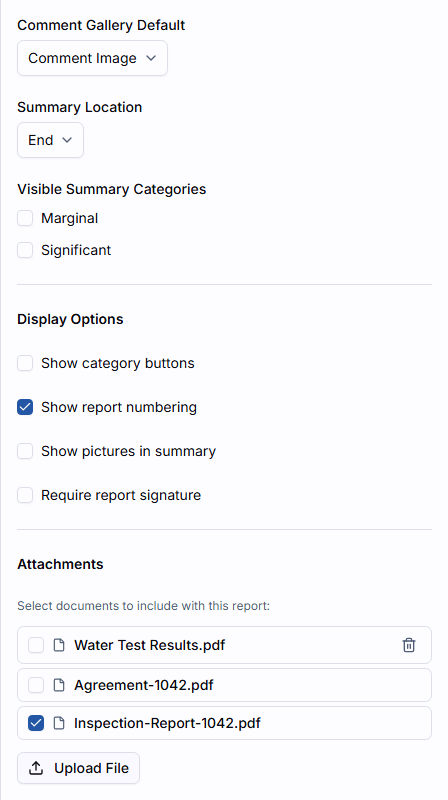
Or set it per inspection
Open an inspection, open the More actions (⋯) menu, choose Settings, and check Show report numbering under Display Options. This overrides your default for that inspection only.
On the ITB mobile app, tap the gear icon on the inspection screen and switch on Show report numbering under Display Options — the same setting on the same inspection.
Not available for every inspection model
TREC, Wind Mitigation, and 4-Point inspections already have their own numbering scheme built into their fixed report layout, so this option is disabled for them.
How Numbers Are Assigned
Numbers follow the order things actually appear in the report:
- Sections are numbered in order: "1", "2", "3"…
- Items are numbered within their section: "1.1", "1.2"…
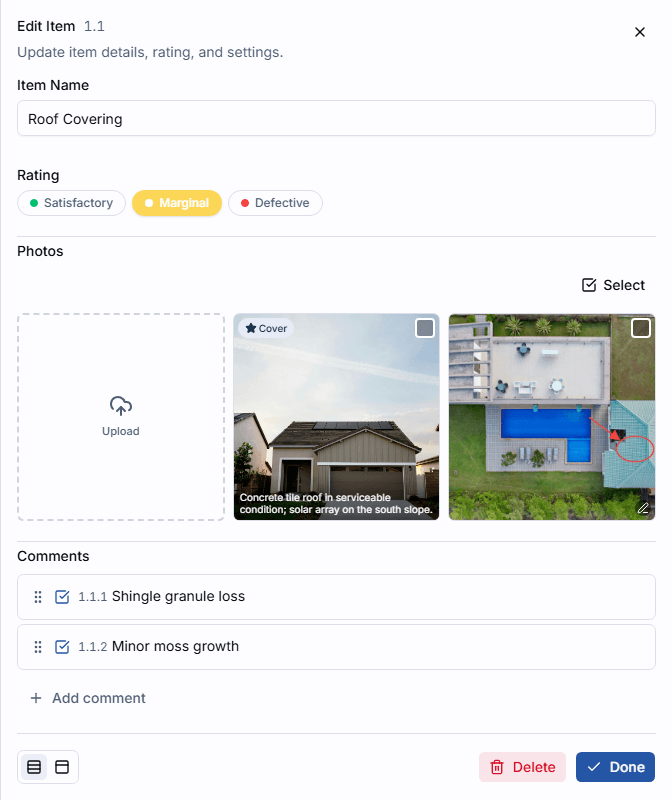
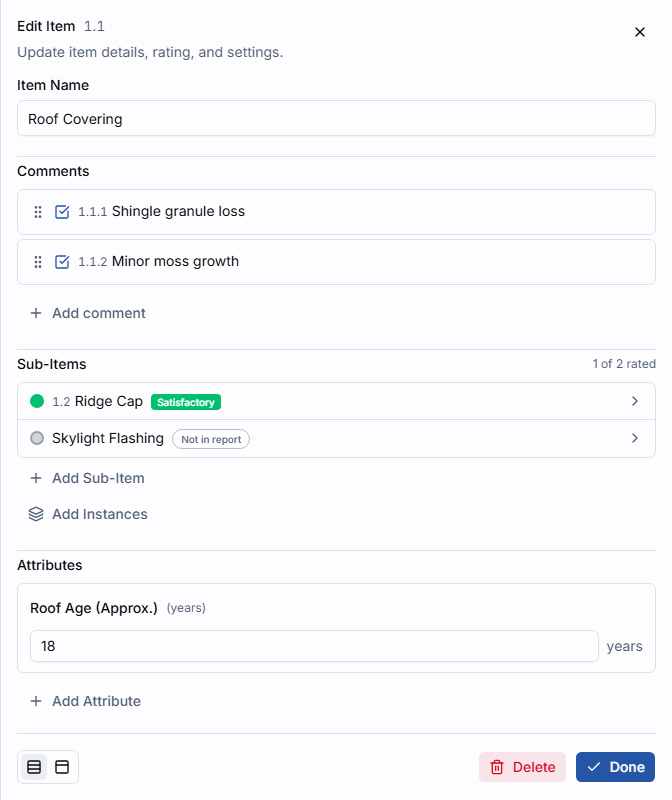
- Sub-items share the same counter as their parent's items, so a sub-item gets the next number in the section (for example "1.2", right after its parent "1.1"), not a number nested under its parent.
- Comments are numbered within their item or sub-item: "1.2.1", "1.2.2"…
What Doesn't Get a Number
Anything that won't appear in the delivered report is skipped, so the numbering never gets ahead of the report itself:
- A sub-item marked Not in report — its checkbox cleared in the sub-item list, with a dimmed row and a Not in report badge once numbering is on — is skipped and doesn't use up a number. Tick the checkbox at the start of its row to put it back in the report. The ITB mobile app uses the same checkbox.
- A comment that isn't selected for the report — its checkbox cleared in the comment list, with a dimmed row and a Not in report badge when numbering is on — is skipped and doesn't use up a number.
- A hidden section is skipped.
What You Should See
Every numbered section, item, and comment shows its number in the editor, and the same numbers appear on the published web report or PDF — nothing is renumbered between the editor and the delivered report.
The ITB mobile app shows the same numbers while you work on site: on the section list and board view, on item and sub-item rows, on comment rows, on search results, and in the screen title when you open a section or an item. They're labels only — nothing is saved with a number, and they update as soon as content is added, hidden, or reordered.