Comment Library
Build a library of reusable comments to speed up report writing.
Overview
The comment library holds pre-written narrative comments you can drop into a report instead of typing them each time — for example a standard note about damaged roof shingles. Comments are searchable while writing a report.
For report-enabled accounts
The comment library is part of the inspection reporting tools, alongside report templates and rating systems.
Managing Comments
Navigate to Templates in the sidebar and open the Comments tab.
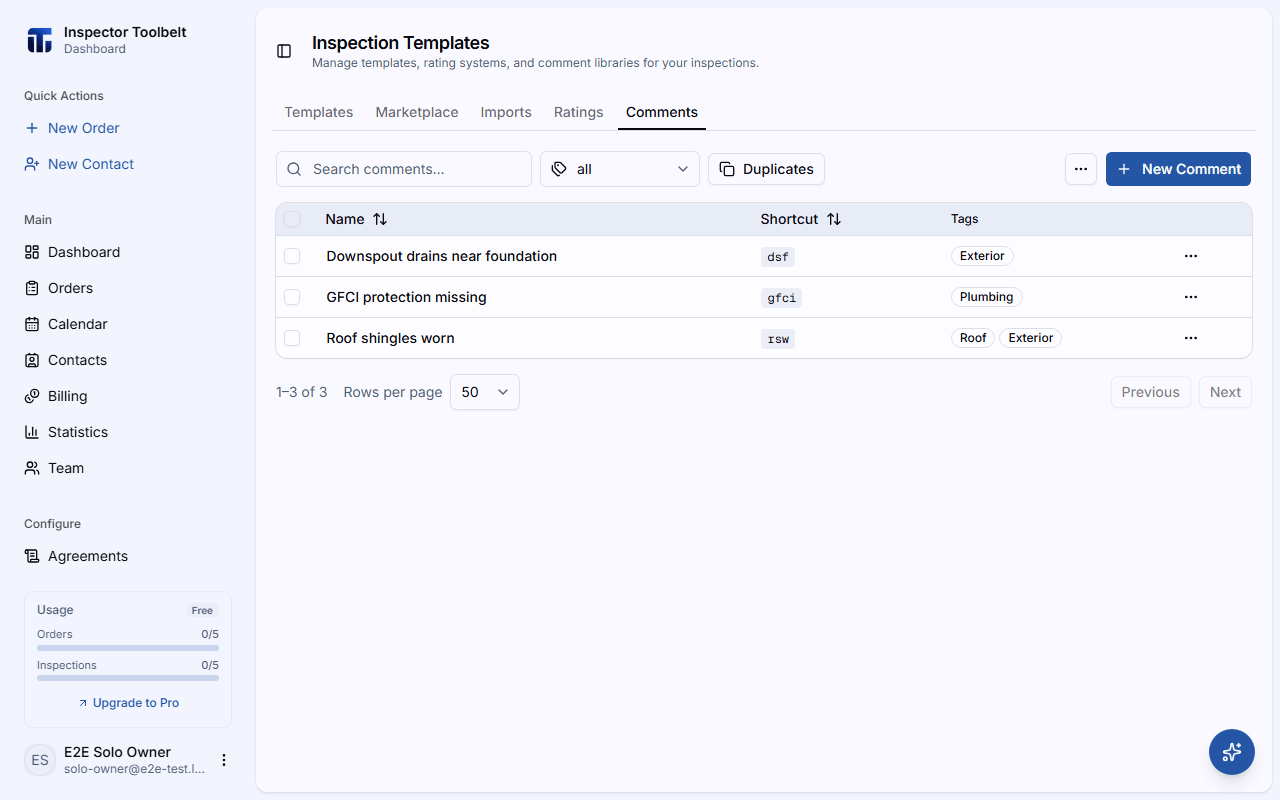
Create a Comment
Click New Comment and fill in:
| Field | Description |
|---|---|
| Name | A short title (e.g., "Roof shingles damaged") |
| Shortcut | An optional short code, like RC. Typing it in an item's comment box inserts this comment — see Insert a Comment With Its Shortcut |
| Tags | Labels for organizing and filtering |
| Comment | The narrative text inserted into the report — supports rich text formatting (bold, italic, lists, links, highlight colors, and more) via a toolbar |
| Standards Definition | An optional standards reference |
Organize
Use the search box and the All Tags filter to find comments. Search matches a comment's name and its shortcut, and covers your whole library however large it has grown. Type three or more characters to search names and shortcuts. If you type only one or two characters, the list shows just the comment whose shortcut is exactly that. Select multiple comments to Add Tag or Delete Selected in bulk.
Insert a Comment With Its Shortcut
A shortcut is a short code you give a comment, such as RC for "Roof shingles damaged". It lets you add that comment to an item without searching for it.
Set the shortcut
Type a code in the Shortcut field when you create or edit a comment. You can also set it on a comment inside an inspection: open the comment and fill in its Shortcut field.
Type the code on an item
In a report, open an item and click Add comment. Type the code in the box and press Enter or click Add. The code must match the shortcut exactly. Capital letters don't matter, so rc and RC both work.
You should see the library comment added to the item, with a short message naming the comment that went in. A comment you already added to that item isn't added a second time. On the mobile app, type the code in the Add Comment sheet and tap Add.
A code that doesn't match becomes a new comment
If what you type isn't a saved shortcut, pressing Add adds your text to the item as a new comment. Check the spelling of the code first.
Each result in the search list also shows its shortcut next to its name, so you can see which code reaches which comment.
Import, Export, and Deduplicate
- Import CSV — bulk-add comments from a spreadsheet (columns: name, shortcut, severity, tags, comment, standards definition)
- Export CSV — download your library
- Duplicates — find and resolve comments with the same name
Using comments in a report
While writing a report, open an item and search the library to insert a comment. You can still edit the text after inserting it for that specific report. The results show how many comments match, and a Show more button loads the next 20 when there are more.
Adding comments on mobile
On the mobile app, typing a new comment while inspecting adds it to the item only — it isn't saved to your library automatically. To reuse it later, open the comment and choose Save to Library from its menu; it's searchable offline immediately, even before the sync finishes, and a short message confirms the save. If your library already has comments, the Add Comment sheet opens with a prompt to search them — type three or more letters to find one.
Formatting on mobile
Formatting you add to a comment — bold, italic, lists, links, and more — displays correctly whether you're viewing it on the dashboard or the ITB mobile app.