Editing Templates
Work inside the template editor — sections, items, and the rules that guide inspectors.
Overview
The template editor is where you build out a report template's structure in detail: adding sections, items, and the validation rules that keep Inspectors from skipping something important. Open a template from the Templates tab to get started.
For report-enabled accounts
Templates work together with rating systems and the comment library.
Board and Tree Views
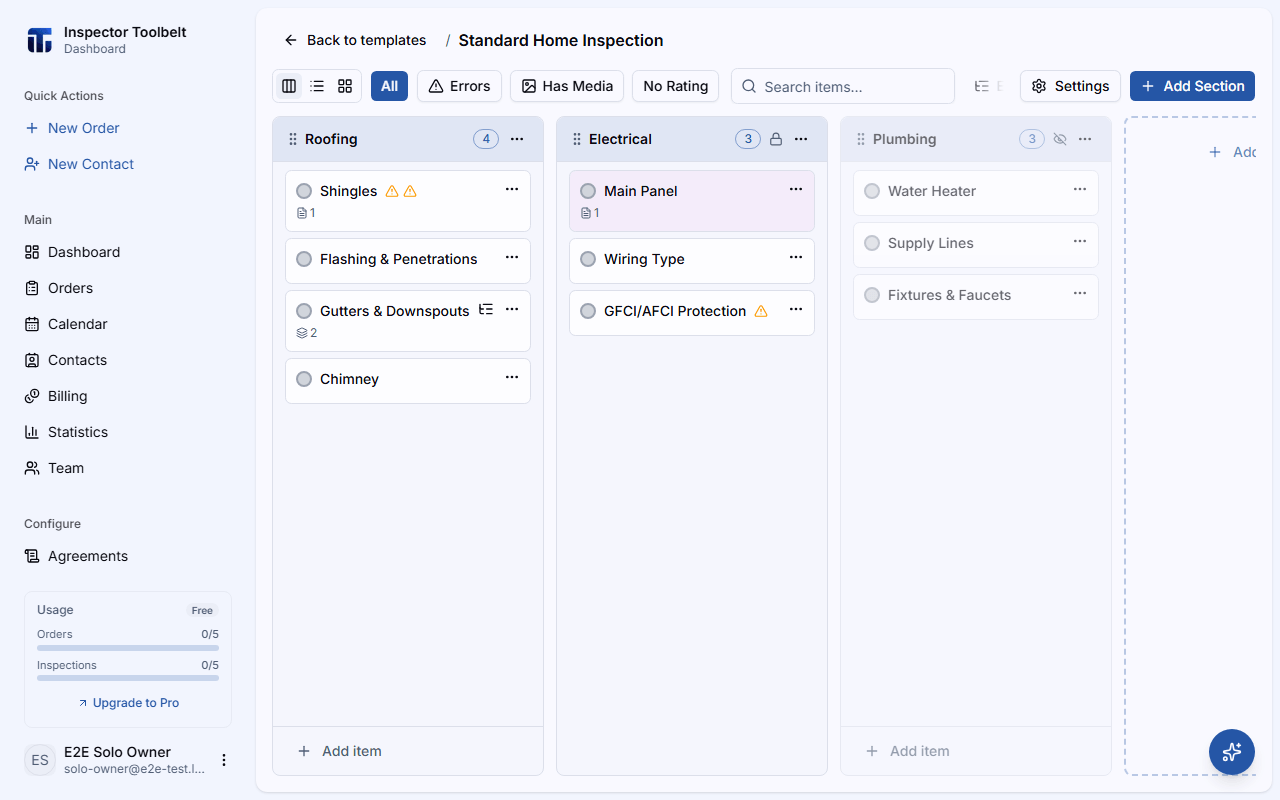
Switch between two layouts using the view switcher:
- Board — sections appear as columns, with items as cards you can drag between them.
- Tree — sections and items appear as an expandable list, useful for scanning a large template quickly.
Both views share the same search box and filters, so switching views doesn't lose your place.
Cards show small icons for anything that needs attention: a missing rating, a missing comment required by validation rules, or a photo that hasn't finished uploading. When a card has more than two of these at once, they collapse into a single count badge — hover it to see the full list.
Each card and row also starts with a dot for the item's rating: a solid dot in the rating's color, or an empty ring if the item has no rating. Click the dot to move to the next rating; after the last one it clears. Information-only items have no dot. Sub-items listed under an expanded item show the same dot, but clicking it there doesn't change the rating — use the Sub-Items tab for that.
Selecting Multiple Items
Click Select in the toolbar, next to the search box, to turn on multi-select. A checkbox appears on each card or row — check the ones you want, then use the bar at the bottom of the screen to Delete them or Clear the selection. Click Done selecting (it replaces the Select button while multi-select is on) to leave selection mode.
Deleting an item also deletes its sub-items, along with their comments, attributes, and photos, so you can't get them back.
You can also start from a single item: open its ⋯ menu and choose Select — this turns on multi-select and checks that item.
Press-and-hold only drags
Pressing and holding a card starts a drag, not a selection. Use the Select toggle to choose multiple items.
Managing Sections
Add a Section
Click Add Section to create a new column (or list group in Tree view).
Clear search and filters first
Add Section is disabled while a search term or filter is active. Clear the search box and any filters to add a new section.
Use the Section Menu
Open a section's ⋯ menu for more actions:
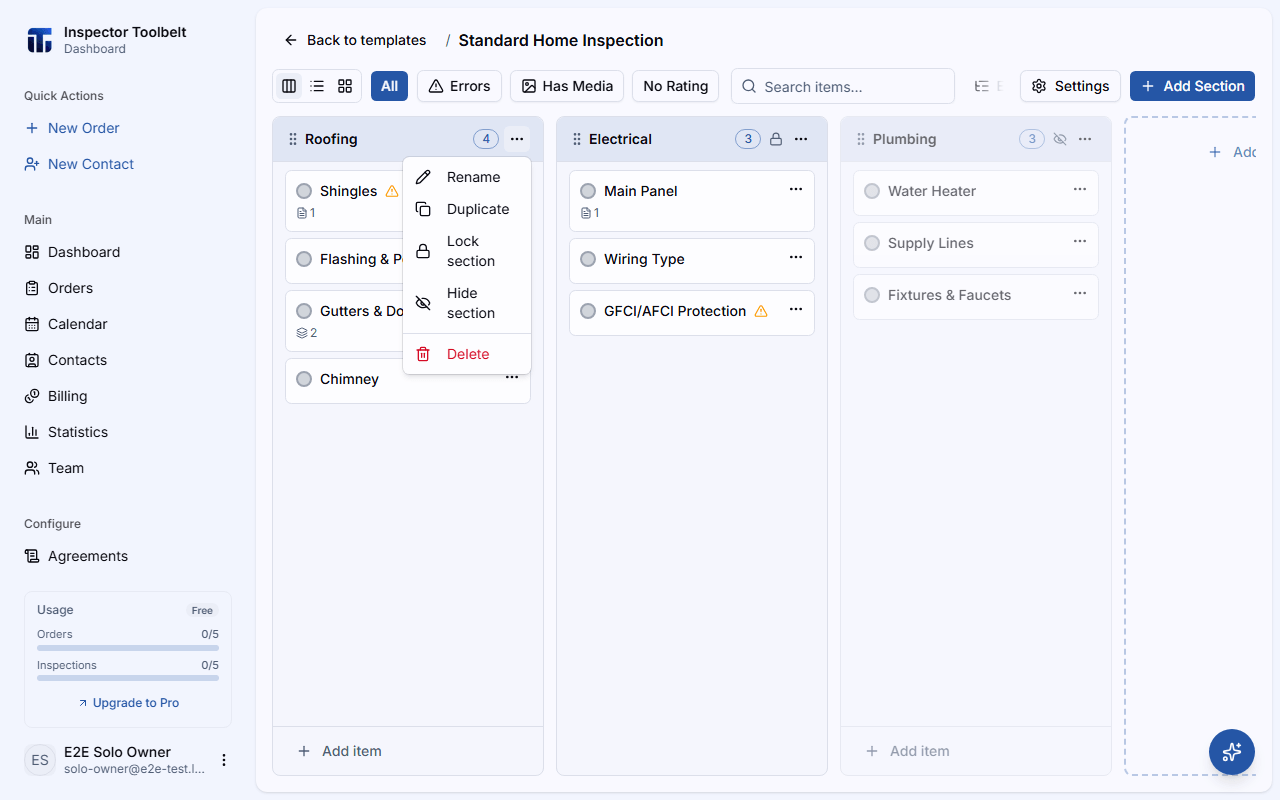
| Action | What it does |
|---|---|
| Rename | Change the section's name |
| Duplicate | Copy the section along with its items, comments, attributes, and photos |
| Lock / Unlock | Prevent new items from being added to the section |
| Hide / Show | Remove the section from new reports without deleting it |
| Delete | Permanently remove the section (with confirmation) |
You can also drag a section's header to reorder it relative to other sections.
Locking is a soft guardrail
A locked section still shows its existing items — it just blocks adding new ones. Use it to keep a shared template consistent across your team while inspectors can still edit item details.
Hidden Sections
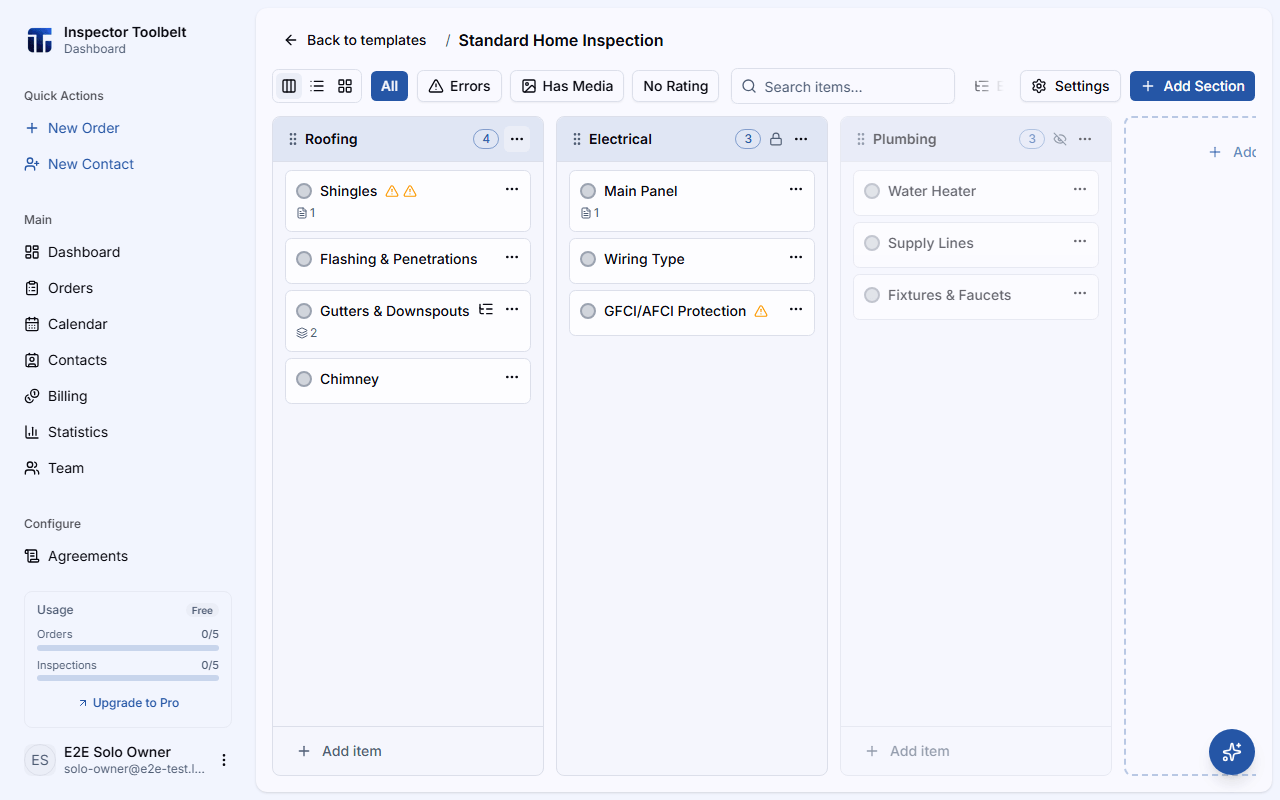
Hiding a section is reversible — it isn't deleted. In the template editor a hidden section stays on the board, dimmed, so you always know it's there; use Show in its ⋯ menu to bring it back. Hidden sections are left out of new reports built from the template.
The Item Editor
Click any item to open the item editor sheet. It has five tabs:
- Details — the item's name and whether it's Information only
- Comments — pre-written comments an inspector can insert (from the comment library). A selected comment shows its attributes' default values right under it, ready to adjust
- Attributes — custom fields inspectors fill in for this item
- Photos — reference photos attached to the item itself
- Sub-Items — child cards for repeated instances or specific findings (see Sub-Items)
Attributes
An attribute has one of six types: Text, Number, Select (one option from a list), Multiple (more than one option from a list), Date, or Range (a number between a minimum and maximum — inspectors enter it with a slider). Give a Range its Min and Max; Number and Range attributes can also carry a Unit, like "sqft". Select and Multiple need at least one option. Create (when adding a new attribute) or Done (when editing one) stays disabled, with the reason shown underneath it, until the attribute is valid.
Mark an attribute as Required to show a Required badge next to it — this flags the field for the inspector to fill in, but it doesn't block publishing a report that's missing it.
Drag an attribute's handle to reorder it. Some attributes are locked: you can't rename them, change their type or options, or delete them there either. A locked item also hides Add Attribute and turns off reordering for its attributes.
The board or tree stays visible behind it
On a desktop-sized screen, the item editor doesn't block the rest of the page — you can still see and click a different section or item while it's open, the same way every side panel in the dashboard works (see Managing Contacts for the general behavior). Dragging to reorder and the arrow-key/Enter shortcuts on rows are paused until you close the editor, but clicking another row still switches straight to it. Clicking outside the editor no longer closes it; use the × button, Esc, or a footer button instead. On a phone-sized screen the editor still opens full-screen and closes the usual way.
The item editor saves as you type, so unlike most other panels it never asks about unsaved changes when you close it — there's nothing left to lose.
Validation Rules
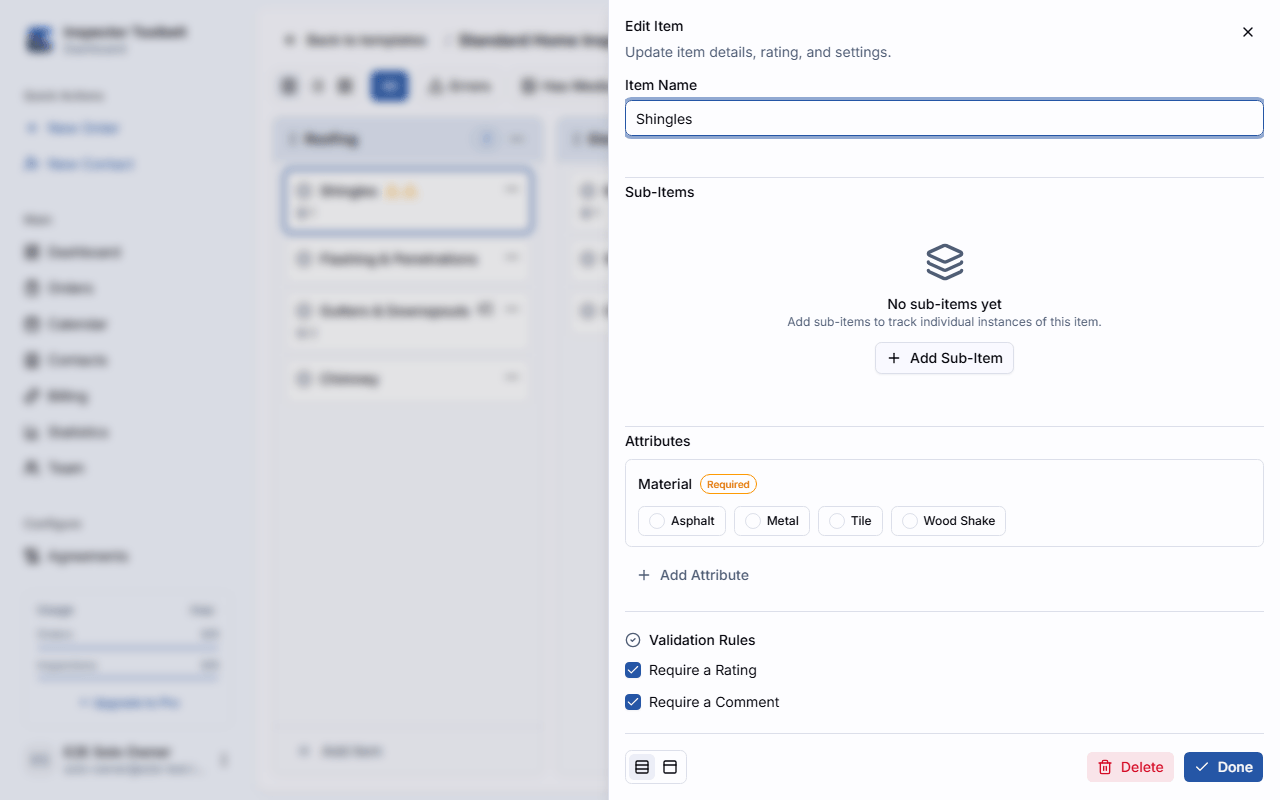
For report items that aren't marked Information only, the item editor has a Validation Rules block where you can turn on:
- Require a Rating — the item must have a rating before the report can be published cleanly
- Require a Comment — the item must have at least one comment
These rules apply while writing a report built from this template: a missing rating or comment shows an inline error on the item and is counted in the publish checklist. An inspector can still override the checklist and publish anyway — the rules are a reminder, not a hard stop.
Default Ratings
Each rating system can have one rating item marked as its default. When an inspector starts a new inspection from this template, every item that needs a rating is pre-set to that default instead of starting blank — handy when most items typically pass inspection, since the inspector only has to change the exceptions.