Rating Systems
Build the rating scales inspectors use to grade report items.
Overview
A rating system is the set of grades an inspector can apply to an item in a report — for example Good, Minor, or Significant. Each report template has a default rating system, and the same system can be reused across many reports.
For report-enabled accounts
Rating systems, report templates, and the comment library are part of the inspection reporting tools.
Managing Rating Systems
Navigate to Templates in the sidebar and open the Ratings tab.
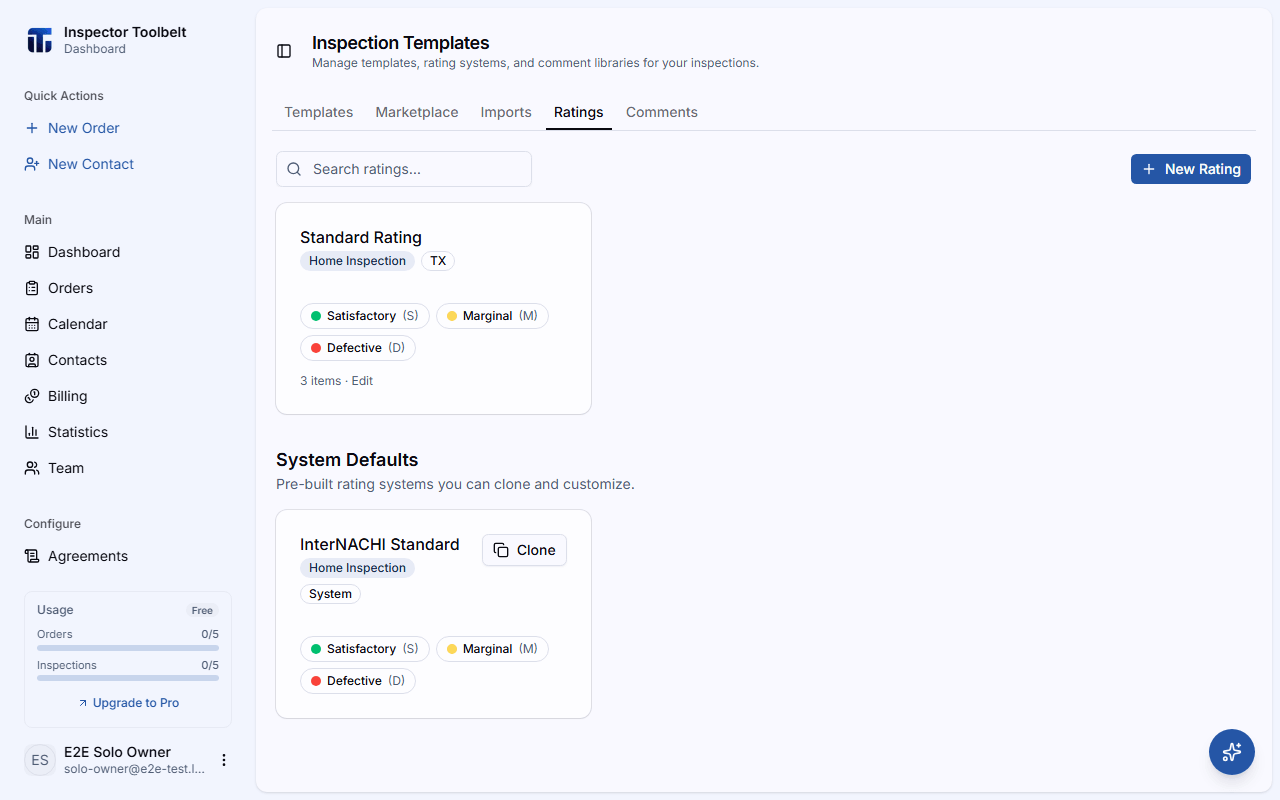
Create a Rating System
Click New Rating and give it a Name (e.g., "TREC", "Default", "4-Point") — required. Optionally set a Inspection Type and State to help you find it later.
Inspection Type is a dropdown listing the categories you've already set up in SchedulingCategories, plus a None option. If your team hasn't set up any categories yet, the dropdown is disabled with a hint pointing you there. A rating system saved with an older, free-typed value that isn't one of your current categories still shows that value as an option, so opening it again doesn't lose or blank it out.
Add Rating Items
Under Rating Items, click Add Item for each grade. For each item, set:
| Field | Description |
|---|---|
| Item name | Required — the grade shown to inspectors (e.g., "Good") |
| Code | Required — a short code |
| Description | Optional explanation |
| Severity | One of Good, Informational, Minor, Marginal, or Significant — also determines the color used to highlight the rating in the report |
Drag the handle to reorder items. You need at least one complete item (both a name and a code) to save — a row you've started but left half-filled shows an inline error and blocks Save until you finish it or clear it.
Start from a system default
Under System Defaults you can Clone a pre-built rating system into your own library and adjust it, rather than building one from scratch. On the mobile app, the same action appears as a save icon next to a system rating while creating an inspection — tap it to add that rating to My Ratings (this needs a connection).
Save stays disabled until the Name field and every rating item are filled in correctly, and until you've changed something — editing an existing rating system without changing anything leaves Save disabled.
Editing panel behavior
While a rating system's editor panel is open, its card stays highlighted in the list behind it — see Managing Contacts for how side panels behave generally. If you've changed something and try to close the panel — with ×, Esc, or Cancel — a prompt asks whether to keep editing or discard the changes.
How Ratings Are Used
When you build a report template, you choose its Default Rating. While writing a report, the inspector picks a rating from that system for each item — and the item's severity drives what appears in the report summary.
A default rating is a starting point, not an answer. In the mobile app an item still sitting on the template's default is drawn as an outline instead of a filled pill, so an inspector can tell at a glance which items they have actually reviewed. Tapping the rating confirms it.