Recording a Payment
How to record a cash, check, or other offline payment against an invoice.
When a client pays you outside the app — cash on the job, a check in the mail, a Venmo transfer — you can record that payment against their invoice. Recording a payment does not charge the client. It just tells the dashboard the money was already collected, so the invoice shows as paid.
Cash and check never carry the technology fee
If you charge a technology fee, it is only added when a client chooses to pay by card. Record a cash or check payment for the invoice amount as normal — there is no fee to account for.
Before you start
- You need the Admin or Manager role to work with billing.
- The invoice must have status Unpaid or Partially Paid. You can't record a payment on a Draft, Paid, or Void invoice.
Record the payment
Open the order's Billing tab
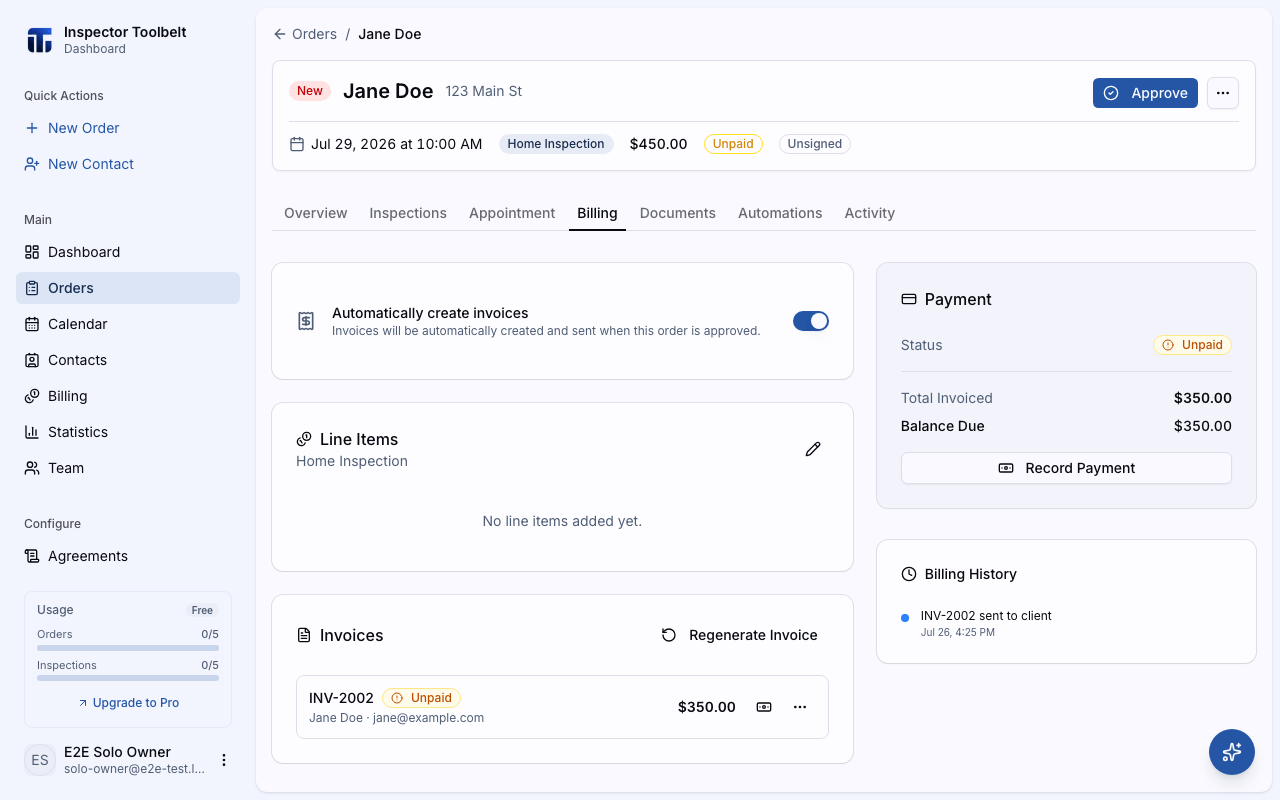
Open the Order and click the Billing tab.
Click Record Payment
You can start from two places:
- The Record Payment button in the Payment card on the side (one button per unpaid invoice)
- The banknote icon on the invoice's row in the Invoices list
Fill in the payment details
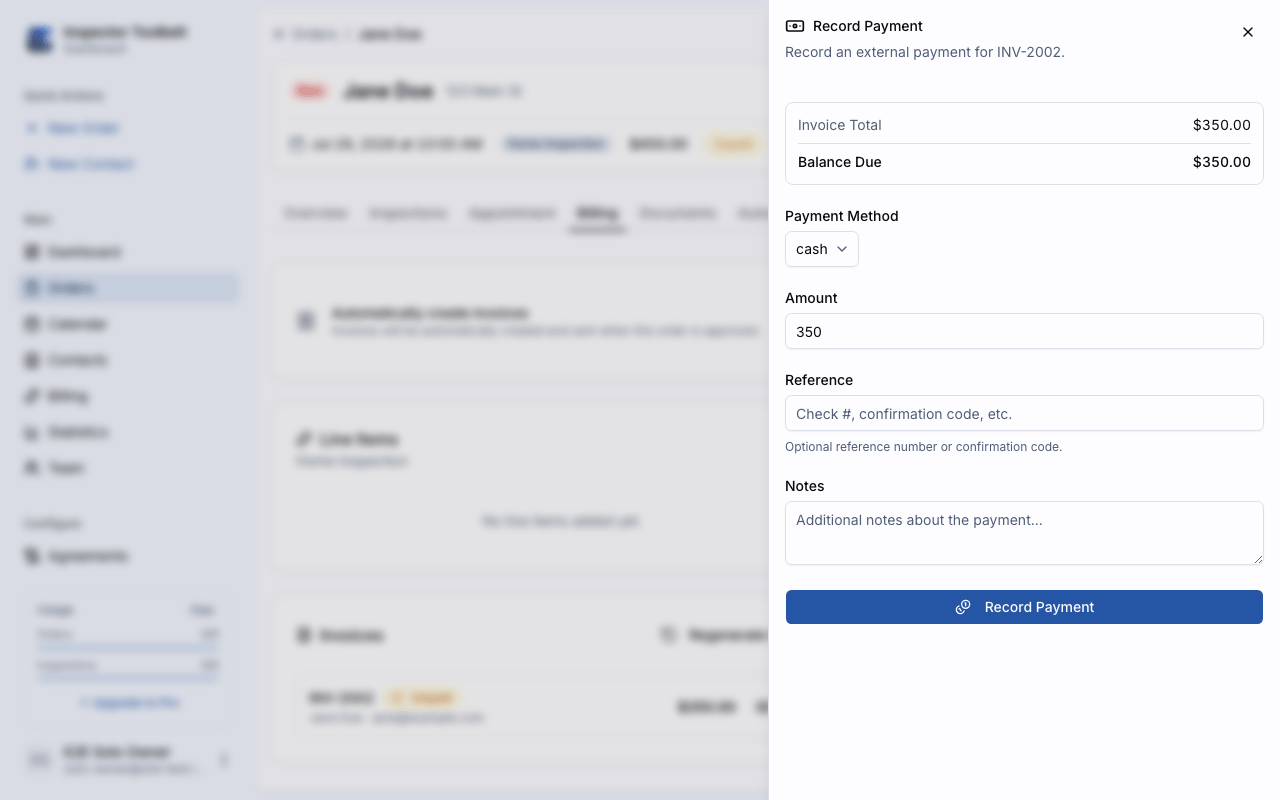
A panel opens showing the invoice total, anything already paid, and the balance due.
A bank payment may already be on its way
If the client started a bank transfer on the payment page, the invoice shows Processing and the panel warns you. That transfer can still clear in the next few days. Recording a payment now means the client may pay twice, so wait for it to settle unless you know it failed.
| Field | What to enter |
|---|---|
| Payment Method | Cash, Check, Venmo, Zelle, Bank Transfer, or Other |
| Amount | Pre-filled with the full balance due. Lower it for a partial payment. |
| Reference | Optional — a check number or confirmation code |
| Notes | Optional — anything you want to remember about the payment |
Click Record Payment
Click Record Payment to save.
Partial payments
You don't have to record the whole balance at once. Enter any amount up to the balance due:
- If the payment covers the full balance, the invoice status becomes Paid and the Order is marked paid.
- If it covers part of the balance, the invoice status becomes Partially Paid and the remaining balance stays due. You can record more payments later until it's fully paid.
Legacy invoices
Invoices with a Legacy badge (created in the older ITB app) can only be paid in full. The amount field is locked to the full balance for these invoices.
What you should see
A Payment Recorded confirmation appears. It shows the new invoice status (Paid or Partially Paid), the amount recorded, and any remaining balance. The invoice's status badge updates right away, and the payment shows up in the Billing History card with the method you chose.
If something goes wrong
- "Payment amount exceeds balance due" — you entered more than what's still owed. Enter an amount up to the balance due.
- "This invoice is already paid" or "Cannot record payment for a voided invoice" — someone else may have updated the invoice while you had the panel open. Close it and check the invoice's current status.
- "Legacy invoices can only be paid in full" — record the full balance instead of a partial amount.
More help: Payment problems.