Inviting Team Members
Add team members and assign roles to collaborate on your service business.
Overview
If you work with a team, you can invite members to your ITB Dashboard account. Each team member gets their own login and a role that controls what they can see and do.
Admin onlyBefore You Start
- Only Admins can invite team members.
- Have the person's email address ready. They don't need an ITB account yet — the invite email tells new users how to create one.
Sending an Invite
Navigate to Team
Click Team in the sidebar to view your current team members.
Send an Invite
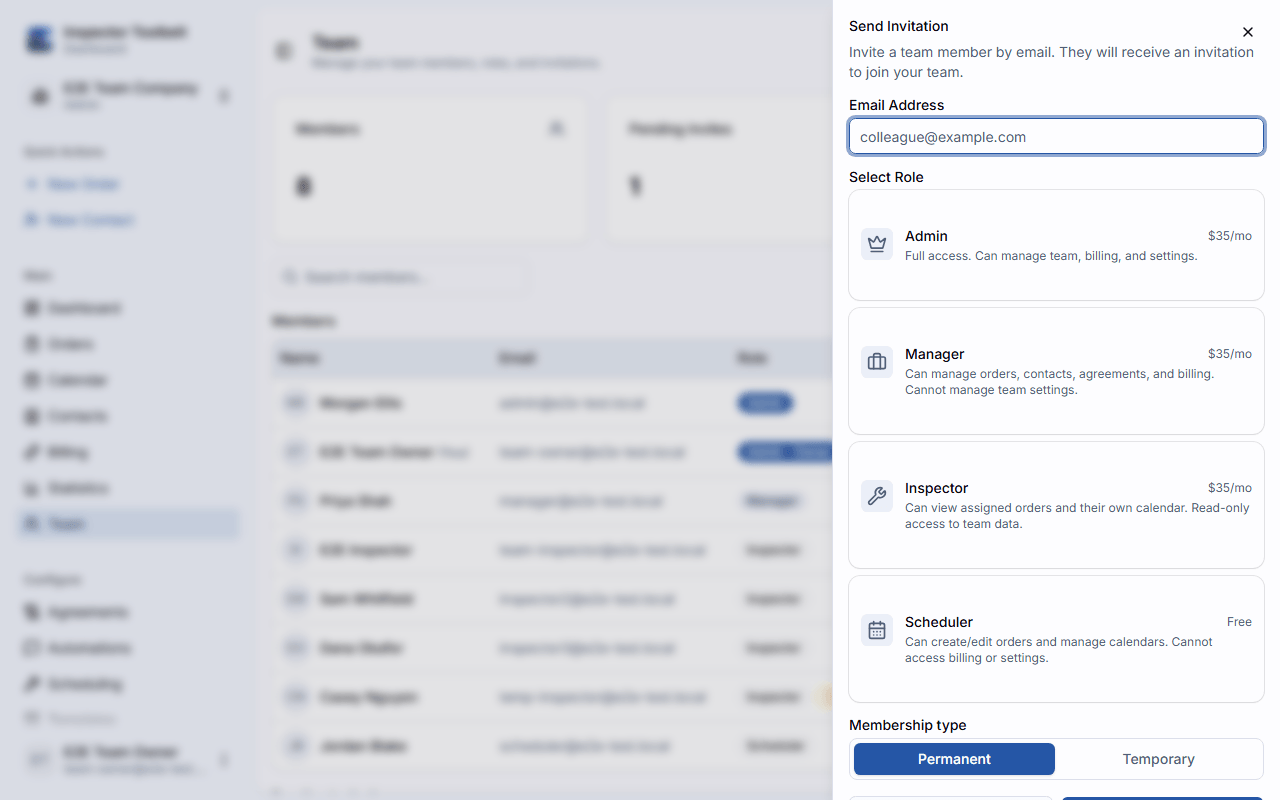
Click Invite and enter the email address of the person you want to invite. Then pick a role. In short: an Admin can do everything, including managing the team itself; a Manager runs the day-to-day work but can't manage the team; a Scheduler books Orders and manages the calendar; a Inspector can view Orders, the calendar, and contacts, but not change them.
Not sure which role?
See the Team Roles reference for a full breakdown of what each role can and cannot do.
You can also choose between a Permanent or Temporary membership. A temporary member's access ends on a date you pick — see Managing Team Members for how temporary members work.
Click Send Invite.
Wait for Acceptance
The invited person will receive an email with a link to join your team. Once they accept, they'll appear in your team member list.
When they sign in, a badge on the Team nav item lets them know an invitation is waiting. From TeamInvitations they'll see a card with the team name, who invited them, and the role they've been offered, along with Accept and Decline buttons to respond.
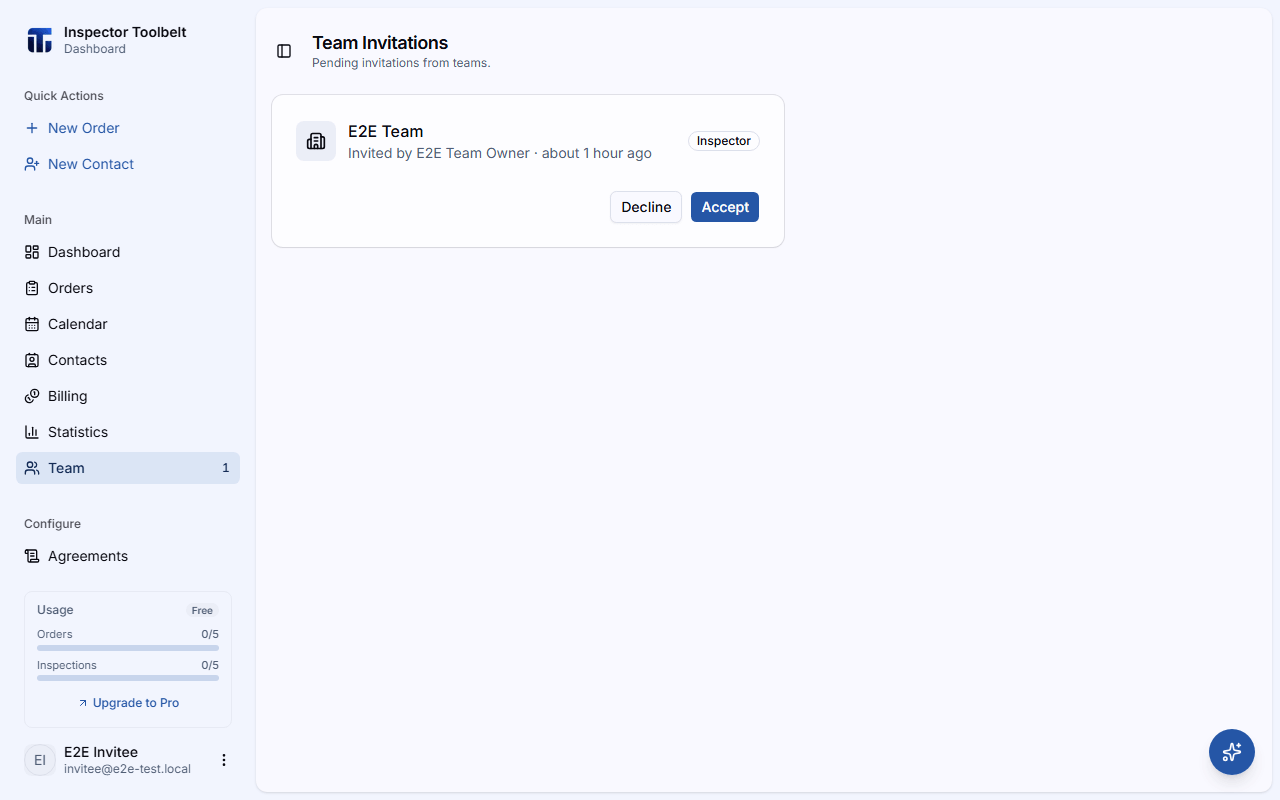
What You Should See
Until the person responds, the invitation is listed under Pending Invitations on your Team page, where you can Revoke it if you change your mind. Once they accept, they appear in your team member list with the role you chose.
If Something Goes Wrong
- "Team member limit reached" — free-trial teams can have up to 2 members besides the owner. Click Upgrade to Pro to add more.
- "Free trial ended" — your free trial is over. Upgrade to Pro to keep inviting team members.
- "Team billing not active" — on Pro, team seat billing must be set up before you can invite. Click Activate Team Billing in the invite panel.
- Typo in the email, or no response yet? Just send the invite again — a new invite to the same email address replaces the earlier pending one, so each address only ever has one open invitation to your team. Invitations don't expire: they stay pending until they're accepted, declined, or you revoke them.
- Person is already on your team? Inviting them again doesn't change their current access. To give an existing member different permissions, change their role instead.