Setting Up Your Profile
A five-minute walkthrough — add your name, region, timezone, photo, and signature.
Take five minutes right after creating your account to set up your profile. When you're done, the dashboard will show prices, dates, and measurements the way you expect, your photo will appear in the sidebar, and your signature will be ready for agreements.
Everything on this page saves automatically — there is no Save button. Just fill things in and move on.
Open your profile
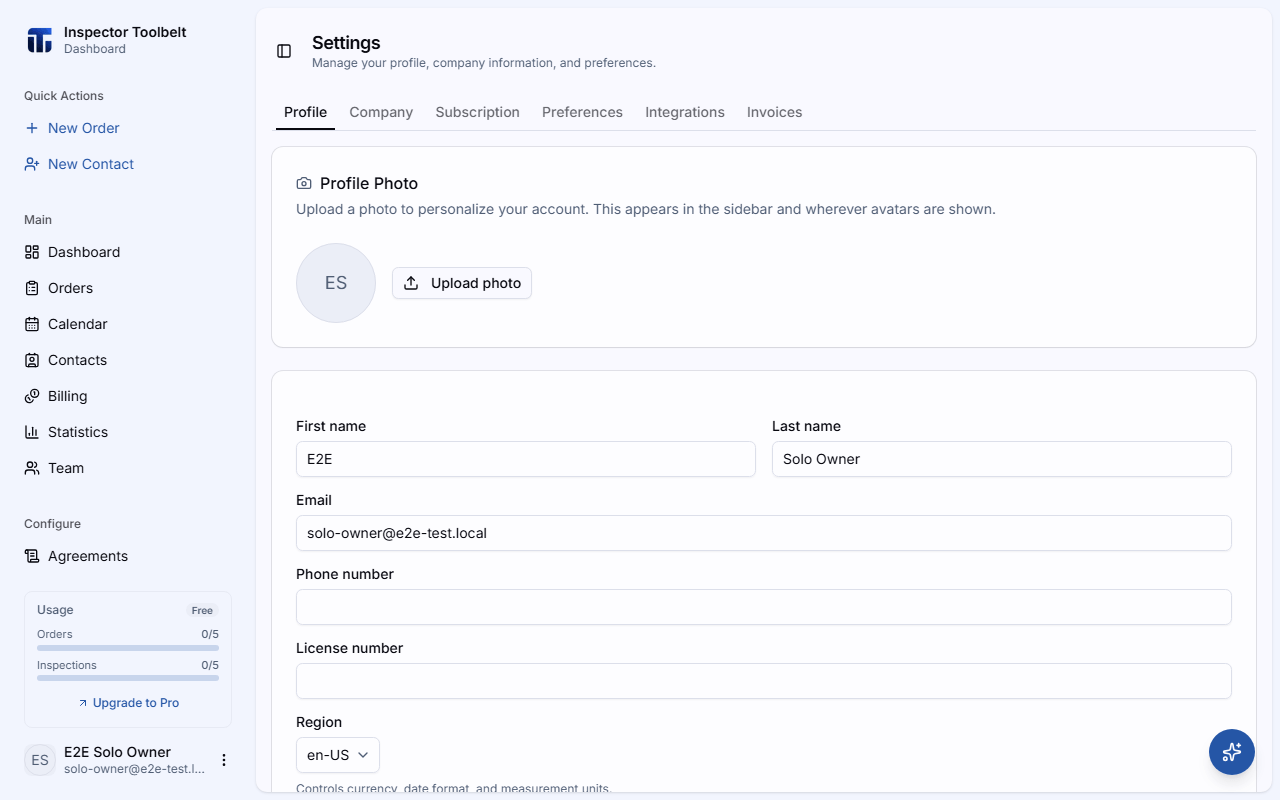
Go to SettingsProfile from the sidebar.
Add a profile photo
At the top of the page, click Upload photo and pick a clear photo of yourself. PNG, JPEG, or WebP, under 5 MB. Until you upload one, the dashboard shows your initials instead.
Enter your name and contact details
Fill in First name and Last name — both are required — plus your email and phone number. Your name is shown to team members and in client communications.
Pick your region
Under Region, choose where your business operates — for example Australia (AUD, metric). This one setting controls currency symbols, date formats, and measurement units across the whole dashboard. Pick Australia and prices show as A$ and areas as m²; pick United States and you get $ and sq ft.
Check your timezone
The dashboard detects your timezone from your browser and saves it for you. Glance at the Timezone field to confirm it's right — if a red warning says your browser and account timezones don't match, pick the correct one from the list. All dates and times in the app display in this timezone. If you work on someone else's team, the dashboard uses the account owner's timezone instead, so you get no warning and no detected timezone there — see Profile Settings.
Upload your signature
Scroll to the bottom and click Upload signature. Add an image of your signature — PNG, JPEG, or WebP, under 5 MB. It will be used on your agreements.
What you should see
- Your photo in the sidebar instead of initials.
- Prices, dates, and units in your region's format everywhere in the dashboard.
- No red timezone warning on the profile page.
- Your signature image showing on the profile page, ready for agreements.
That's it — your profile is done.
Changing the interface language
The dashboard language is set from the language switcher in the sidebar footer — not the profile page. Currently supported: English, Spanish, French, Arabic, Chinese, and Korean.
Related
- Profile Settings — the complete field-by-field reference for this page, including the license number
- Your First Order — the next step
- Inviting Team Members