Using the AI Assistant
Ask the built-in AI helper questions, and let it draft new records that you approve before anything is saved.
Overview
The AI Assistant is a chat helper built into your dashboard. It introduces itself as SAM, and it is the same assistant that helps you set up your account when you first sign up. You can ask it questions about your business, ask how to do something in the app, or ask it to set things up for you — like drafting a new Order.
The most important thing to know: the assistant never changes your data on its own. When it wants to create or change something, it shows you a card with the details first. Nothing happens until you press Confirm or Apply Changes.
Before you start
- The AI Assistant is on by default. If it has been switched off in SettingsPreferences, the Assistant pill doesn't show in the top bar (and the sparkle icon doesn't show in the mobile app's header).
- Some actions depend on your team role. For example, creating a Order or changing its status needs the Admin, Manager, or Scheduler role. See Team Roles.
Turning it off (and back on)
The assistant is on by default, so there is nothing to switch on.
If you would rather not use it, go to SettingsPreferences, find the Features section, and switch the AI Assistant toggle off. The Assistant pill then disappears from the top bar.
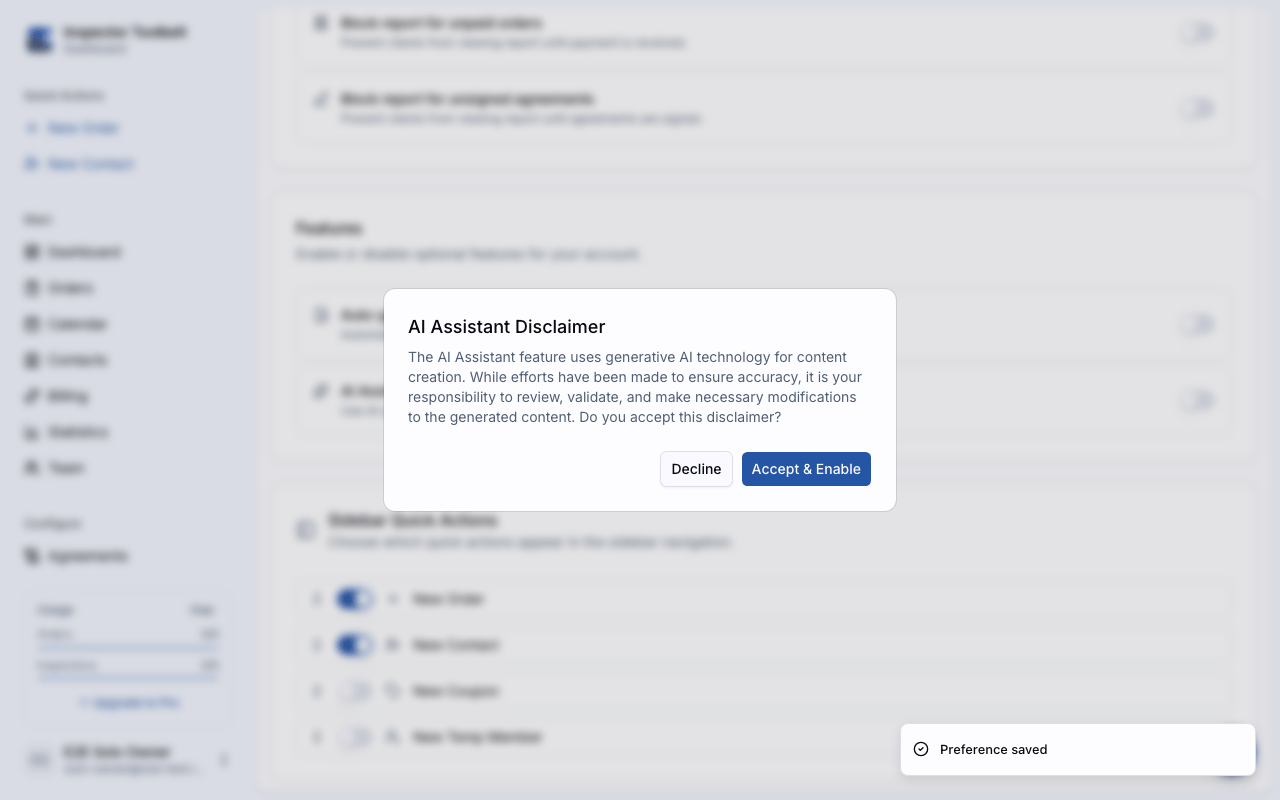
Switching it back on shows a disclaimer first — it reminds you that AI-generated content can make mistakes, and that it is your job to review it. Press Accept & Enable to continue.
Chat with the assistant
Open the chat
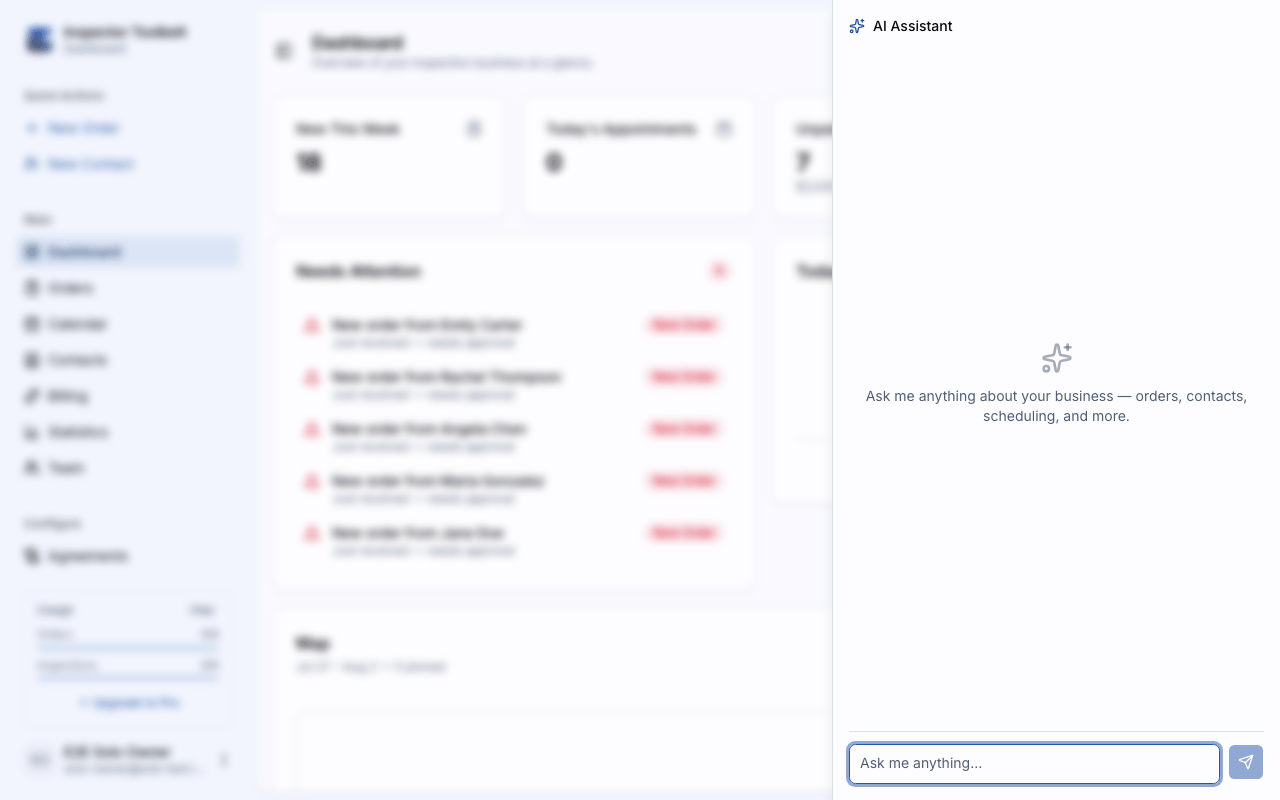
Click the Assistant pill in the top bar — on the right, next to your team badge. A chat panel slides out from the right.
Stays open while you work
The chat panel stays on top of the page, so you can keep it open while you edit a card or sheet — for example while you're editing a report or template item.
If you've started typing a message and try to close the panel with Esc or the × button before sending it, a prompt asks whether to keep editing or discard the draft.
While you're still setting up, there's a shortcut: the setup guide's steps and any draft banner carry an Ask AI button. That opens the chat already asking about that step, so you don't have to explain what you're working on. If a draft is waiting on the page, the assistant knows what it says and can offer to create it — no need to describe your services a second time.
Ask a question
An empty chat suggests a few things to try, picked from what is true of your account right now. Click one, or type your own.
Type your question and press Enter (or click the send button). You can ask things like:
- "What's on the Johnson Order?" — the assistant can look up your Orders, contacts, and services.
- "How do I set up my booking page?" — the assistant searches these help articles and answers with what it finds.
- "Create a Order for Sam Lee at 42 Oak St tomorrow at 9am" — the assistant drafts it and asks you to approve.
Review what the assistant proposes
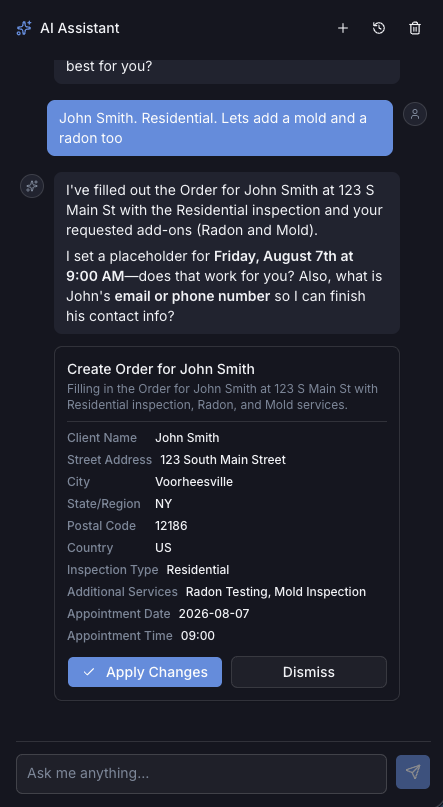
When the assistant wants to create or change something, a card appears in the chat showing every detail — names, addresses, dates, prices. Check it over, then:
- Press Confirm to save it.
- Press Edit (when shown) to move the details into the normal form and finish there yourself.
- Press Dismiss to throw it away. Nothing is saved.
If something important is missing or wrong, the card shows a warning. A serious warning locks the Confirm button — tell the assistant what to fix, or dismiss the card.
What the assistant can do
Answer questions about your account
The assistant knows every page in the app and what each one is for, so "where do I change my invoice numbering?" gets a straight answer rather than a guess.
It can also read your own setup. Ask "Why can't clients book me?" and it checks your account and names what is actually missing, rather than listing everything it might be.
Walk you through a job
Some things take several steps in an order. Ask for the goal and the assistant works out where you already are:
- "Get me set up to take payments"
- "Bring my data over from my old software"
- "What's left to set up?"
- "Why can't clients book me?"
It tells you what is already done, what is next, and what is waiting on something else. It will not hand you a step you cannot start yet.
Take you to the right page
When it tells you where something lives, it usually offers a button that goes there. You click it — the assistant never moves you on its own.
Do things, once you approve
Every action shows you a card first:
| Action | What it does |
|---|---|
| Create a Order | Drafts a new Order with the client, address, service, date, and an estimated price based on your rates |
| Create a contact | Adds a new person to your contacts |
| Create an automation | Drafts a notification template — what to send, when, and to whom |
| Change a Order status | Moves a Order to a new status, like approved or complete |
| Request a data migration | Records that you want your templates and contacts moved over from your old software |
The assistant can also fill in forms for you. If you're on a form (like a new Order form) and ask for help, it shows a card listing each field change — old value → new value. Press Apply Changes to fill the form, or Dismiss to skip it. You still save the form yourself, so you get a final look before anything is stored.
AI help in reports
When you're writing a Report, the assistant can also draft narrative text for you. The two kinds of help are kept apart, because one adds text and the other replaces it.
Generate with AI writes a new narrative from a few keywords. Use it when you start a new comment, or from the toolbar above an open comment's text — there it adds the text at your cursor and leaves what you already wrote alone. Suggestions only go into the Report after you pick one.
When you generate from a comment you've already named, the name is used as the subject of the draft. So give the comment a specific name first — "Missing tile" rather than "Flooring" — and the narrative comes back about that finding instead of about the item in general.
Rewrite this comment: sits under the comment text itself. Its four buttons — Make longer, Make shorter, Improve writing, and Fix spelling & grammar — rewrite the whole comment you're editing and replace what's there. An Undo rewrite button appears afterwards if you want the old text back. The buttons are greyed out while the comment is empty, since there's nothing to rewrite yet.
Before you generate, the sliders icon next to Generate with AI opens the options:
- Include defect narrative — describes the problem you found. On by default.
- Include standards quotation — adds two sentences about the standards that apply. Off by default, because standards differ by area, so turn it on only when you want them quoted.
- Include remediation — recommends who should fix it and what to do next.
- Number of suggestions — 1, 3, or 5.
Drafts written from inside an Order are grounded in where the job is. The city and region on the Order steer the wording, and any standards quoted are the ones that apply there.
Comments written in a template have no address behind them, so those drafts stay general.
Your choices are remembered for next time. Turning all three off leaves the assistant nothing to write, so Generate with AI is greyed out until you turn at least one back on.
See Writing a Report.
On the mobile app
The same help sits under the comment field when you're adding a comment on-site, or editing one you already added. Generate with AI returns a draft on the first tap — there's no options form in front of it — and a second tap is labelled Regenerate.
The sliders icon beside that button opens AI settings: Defect narrative, Remediation action, and a choice of 1, 3, or 5 suggestions. There is no standards-quotation option on the phone — that one is on the dashboard only.
Beside the sliders icon is a second button that opens Edit this text — a menu of Improve, Longer, Shorter, and Fix grammar. These replace the whole field, so the button is greyed out until the field has something in it.
Chat history
Your conversations are saved so you can come back to them:
- The + button starts a new chat.
- The history button lists past conversations — click one to pick it back up, or use the × on a row to delete it.
There's no separate button to clear the current chat — start a new one, or delete old ones from the history list.
Using the assistant in the mobile app
The AI Assistant travels with you in the mobile app too.
Open the chat
Tap the sparkle icon in the top-right of the header. It's on the Today, Orders, Contacts, and More screens, an Order or contact's detail screen, the New Order, Edit Order, and New Contact screens, and an inspection's own section list. There's no sparkle icon once you're inside a section, item, sub-item, or comment — the assistant doesn't have inspection-specific context there.
The chat opens as a full-height sheet over the screen. Drag it down from the top, or swipe down, to dismiss it.
Ask, fill forms, or approve actions
Ask questions the same way you would on the dashboard, with answers drawn from your data and these help articles. On the New Order, Edit Order, and New Contact screens, ask the assistant to fill in fields for you — it shows a card listing each proposed change, and nothing is filled in until you press Apply Changes. It can also propose creating a Order, creating a contact, or changing a Order's status — review the card and press Confirm, just like on the dashboard.
While the assistant is writing a reply, the send button turns into a stop button — tap it to cancel the reply.
Manage your conversations
The chat header has a + icon to start a new chat and a history icon that opens a dropdown of your saved conversations — tap one to pick it back up, or tap its trash icon to delete it. There's no separate button to clear the current chat.
Same setting, separate history
The mobile assistant needs an internet connection, and it follows the same AI Assistant toggle and plan you set up in SettingsPreferences on the dashboard — there's no separate switch on your phone. Conversations are saved on your device and are separate from your dashboard chat history.
What you should see
After you press Confirm on a proposal, the card shows a Created badge and a View link that takes you straight to the new record.
If something goes wrong
- No Assistant pill (web) or sparkle icon (mobile) in the header — the assistant has been switched off in SettingsPreferences, or an administrator has turned it off for everyone. In the second case the toggle is greyed out with a note saying so. Turn it on in SettingsPreferences.
- The chat panel shows an upgrade message and the input is disabled — your plan doesn't include the AI Assistant. Follow the Upgrade link in the message, or ask an account admin to upgrade.
- The chat panel shows an offline message and the input is disabled — you (or your device) lost the internet connection. You can still read past messages; reconnect to keep chatting.
- "You've reached the AI usage limit." — there's a cap on how much AI you can use per hour and per day. Wait a bit and try again.
- A proposal shows a Failed badge — the save didn't go through. The card shows the reason. Fix the issue and ask the assistant to try again.