Service Categories
Configure the types of services you offer.
Overview
Service categories define the types of Orders you handle. They appear as options when creating a new Order and in your public booking page.
Managing Categories
Navigate to SchedulingCategories in the sidebar.
AI-suggested services
If you described your business during account setup, a banner may appear at the top of this page with suggested services and prices. Click Create all to add them in one step, or dismiss the banner and add your own.
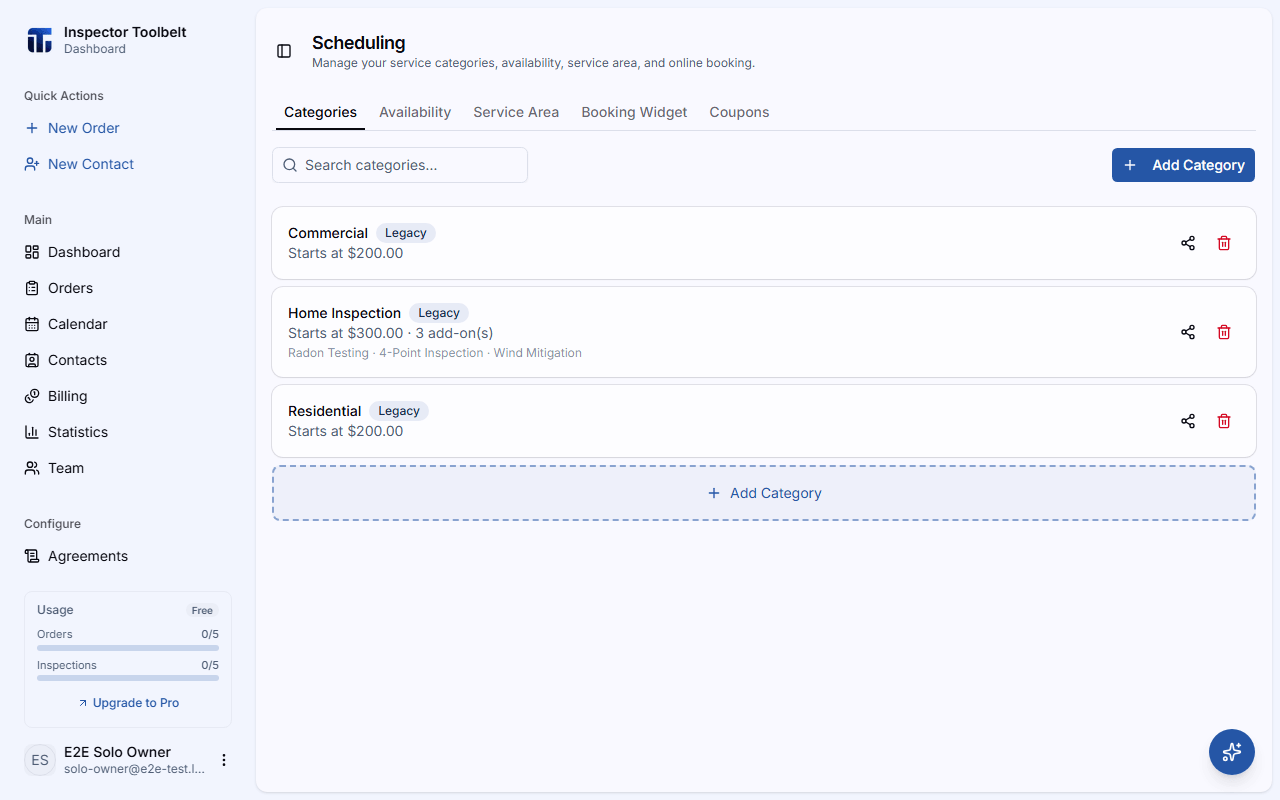
Adding a Category
Click Add Category.
Enter a Name for the service type (e.g., "Standard Residential", "Commercial") and choose whether it's Active on booking — whether clients can select it on your public booking page.
Click Save to add the category.
Editing
Click on any category to open its detail page, where the remaining options live:
| Setting | Description |
|---|---|
| Description | An optional description of the service |
| Lead Time | Minimum advance booking time for this service |
| Hide Pricing | Optionally hide pricing from the booking page |
| Pricing | Tier-based pricing, or area-based pricing calculated per square footage |
You can also configure property type options, property size pricing, additional services, and additional information items for the category.
Bundles and Upsells
On the Bundles tab, package two or more of the category's additional services together at a discount (a percentage off or a fixed bundle price). Clients see the bundle offered on the booking page alongside your individual additional services, and it's applied automatically once they've selected every service in it — there's no separate "add bundle" step.
On the Upsells tab, recommend related additional services to clients while they're booking: an Upsell suggests a service when a client is considering another one, and a Cross-sell suggests a service once a client has already added one to their order.