Availability
Set your weekly bookable hours and control booking capacity.
Overview
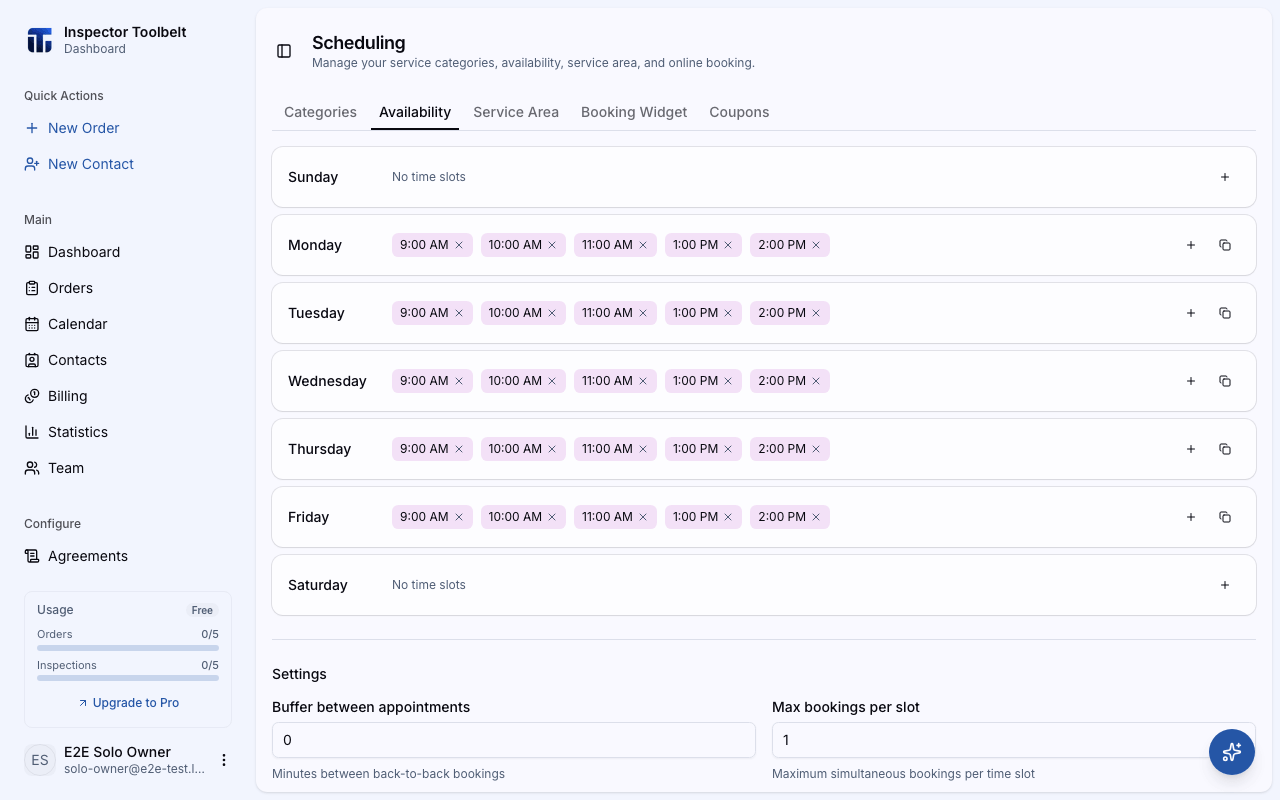
Availability defines the time slots clients can choose from on your booking page. You set bookable times for each day of the week and control how many bookings you'll take per slot.
Setting Weekly Hours
Navigate to SchedulingAvailability. Each day of the week has its own list of time slots.
AI-suggested availability
If you described your business during account setup, a banner may appear at the top of this page with suggested working days and hours. Click Confirm schedule to apply them, or dismiss the banner and set your own.
Add a Time Slot
Click Add time slot on any day and pick a time. Slots sort automatically by time, and duplicate slots are rejected.
Remove a Slot
Click the remove control on any slot badge to delete it. Days with no slots show No Slots and won't be bookable.
Capacity Settings
Below your weekly hours, configure global booking rules and click Save:
| Setting | What it controls |
|---|---|
| Buffer between appointments | Minutes between back-to-back bookings (0–480) |
| Max bookings per slot | Maximum simultaneous bookings for a single time slot (1–100) |
How this affects clients
Clients only see and select from the available time slots you've defined here. The buffer and per-slot limit prevent overbooking.
Blocking Time Off
Vacations, appointments, and other one-off unavailability don't belong in your weekly hours — use Time Away instead to block specific dates and times without changing your regular schedule.