Tracking Payments and Payouts
How to use the Billing page to see your invoices, incoming payments, and bank payouts.
The Billing page is your money overview: every invoice you've sent, every payment that came in, and every payout Stripe sends to your bank account. It has three tabs — Invoices, Payments, and Payouts. The pages /billing/invoices, /billing/payments, and /billing/payouts all open the same page on the matching tab.
Before you start
- You need the Admin or Manager role — the Billing item only appears in the sidebar for roles with billing access.
- The Payments and Payouts tabs need online payments enabled. If you see "Payments not configured", click Go to Settings (or go to SettingsInvoices) to connect your Stripe account.
Find what you're looking for
Open Billing
Click Billing in the sidebar.
Pick a tab
Choose Invoices, Payments, or Payouts depending on what you want to check.
Filter invoices (Invoices tab)
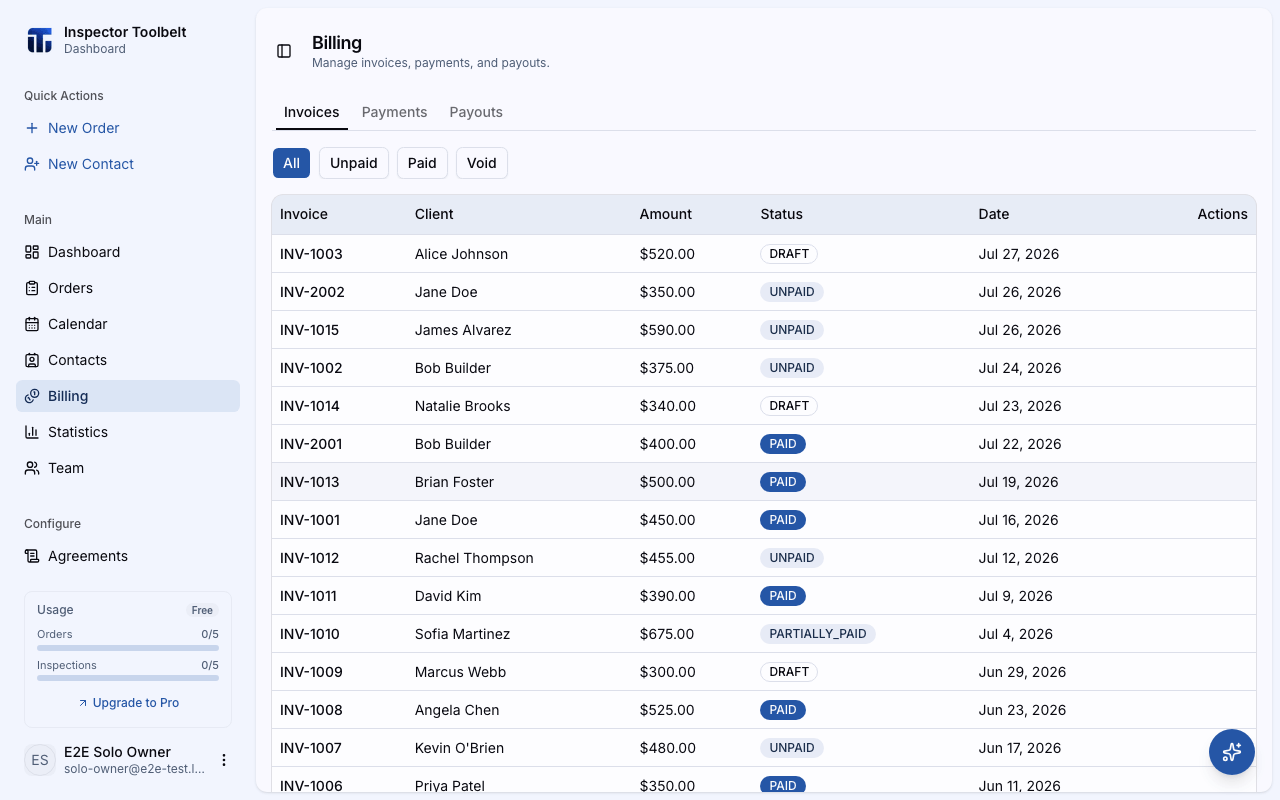
Use the filter buttons — All, Unpaid, Paid, Void — to narrow the list. The Unpaid filter also includes partially paid invoices.
The Invoices tab
A table of every invoice across all your Orders, with columns for Invoice number, Client, Amount, Status, and Date.
- Click a row (or its View button) to open the invoice's Stripe payment page in a new tab.
- Invoices from the older ITB app show a Legacy badge.
- Invoices are created from the Order detail page, not from here — see Creating Invoices for the full invoice lifecycle and status list.
The Payments tab
Shows your payment activity from Stripe — the online payments clients have made on your invoices. This view comes straight from Stripe ("Powered by Stripe").
Payments you recorded by hand (cash, check, Venmo, Zelle, bank transfer) are not Stripe payments. Find those in the Billing History card on the Order's Billing tab instead.
The Payouts tab
Shows your payouts — the transfers Stripe makes from your collected payments to your business bank account. This view also comes straight from Stripe and shows your payout history and balance details from your Stripe account.
Payouts appear here once Stripe transfers funds to your bank account. For how the money flows from client payment to your bank, see Getting Paid.
What you should see
With Stripe connected and invoices going out, all three tabs fill in on their own: invoices appear when you create them from a Order, payments appear when clients pay, and payouts appear when Stripe transfers funds to your bank.
If something goes wrong
- "Payments not configured" — your Stripe account isn't connected yet. Go to SettingsInvoices and connect it.
- Empty Payments or Payouts tab — that's normal until clients start paying online. Manual cash/check payments never show here.
- Can't find Billing in the sidebar — your role may not include billing access.
More help: Payment problems.