Customizing Report Delivery
Control the email or SMS message your clients receive when their report is published.
Overview
By default, ITB Dashboard sends your client a report delivery email as soon as you publish their report. If you want to customize that message — its wording, who else gets notified, or when it goes out — you do it the same way you configure any other message: by creating an automation with the Report Published trigger.
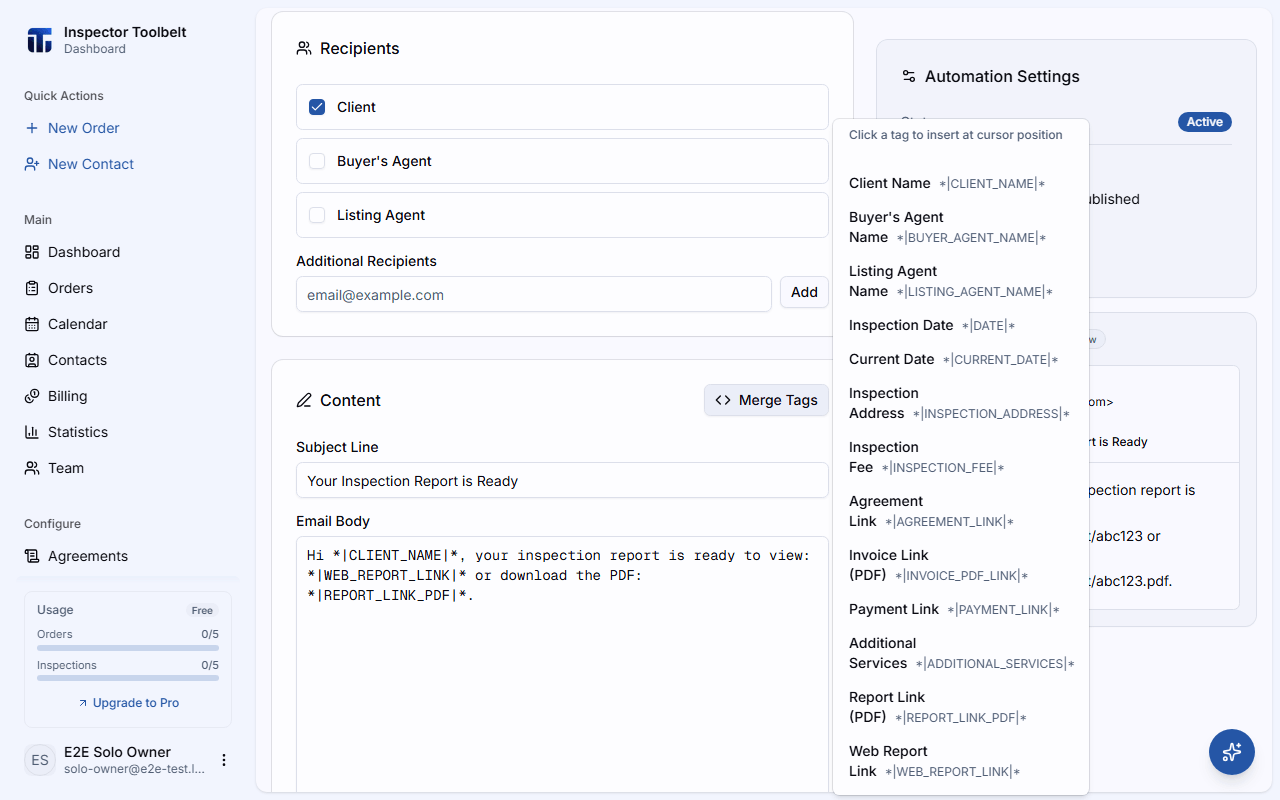
Creating one replaces the default delivery
As soon as you save an active automation using the Report Published trigger, it overrides the system's default report delivery for every report you publish. If your automation's message doesn't include a report link merge tag (below), your client will receive an email with no way to view the report.
Creating a Report Published automation
Start a new automation
Click Automations in the sidebar, then New Automation.
Set the trigger
Set Trigger to Report Published. Two things change once you do:
- Channel locks to Email — SMS isn't available for this trigger.
- Timing can be Immediate or After (with an Hour/Day/Week offset) — you can delay delivery after publish, but you can't send it before a report exists.
Choose recipients
Send to any combination of:
- The client
- The buyer's agent and/or listing agent
(shown when your Order supports agents)
- The assigned inspector(s) on the Order
- Any other email addresses you add manually
Narrow when it fires (optional)
Under Conditions, restrict the automation to specific service categories or additional services so it only fires for matching Orders — leave conditions empty to match every Order.
Write the message and add report links
Write your subject and body as usual. The Report Published trigger unlocks two extra merge tags on top of the standard set:
| Tag | Value |
|---|---|
*|REPORT_LINK_PDF|* | Link to download the report PDF |
*|WEB_REPORT_LINK|* | Link to the web-based report |
Always include a report link
Make sure your message body (or subject) includes *\|WEB_REPORT_LINK\|* and/or
*\|REPORT_LINK_PDF\|*. Without one of these tags, the client has no way to reach their
report from this email.
Save and activate
Click Save. The automation is active immediately — the next report you publish will use it instead of the system default.
Choosing which automation sends at publish time
If you have more than one active Report Published automation (for example, one per service category), the publish checklist lets you pick which one fires for that specific report.
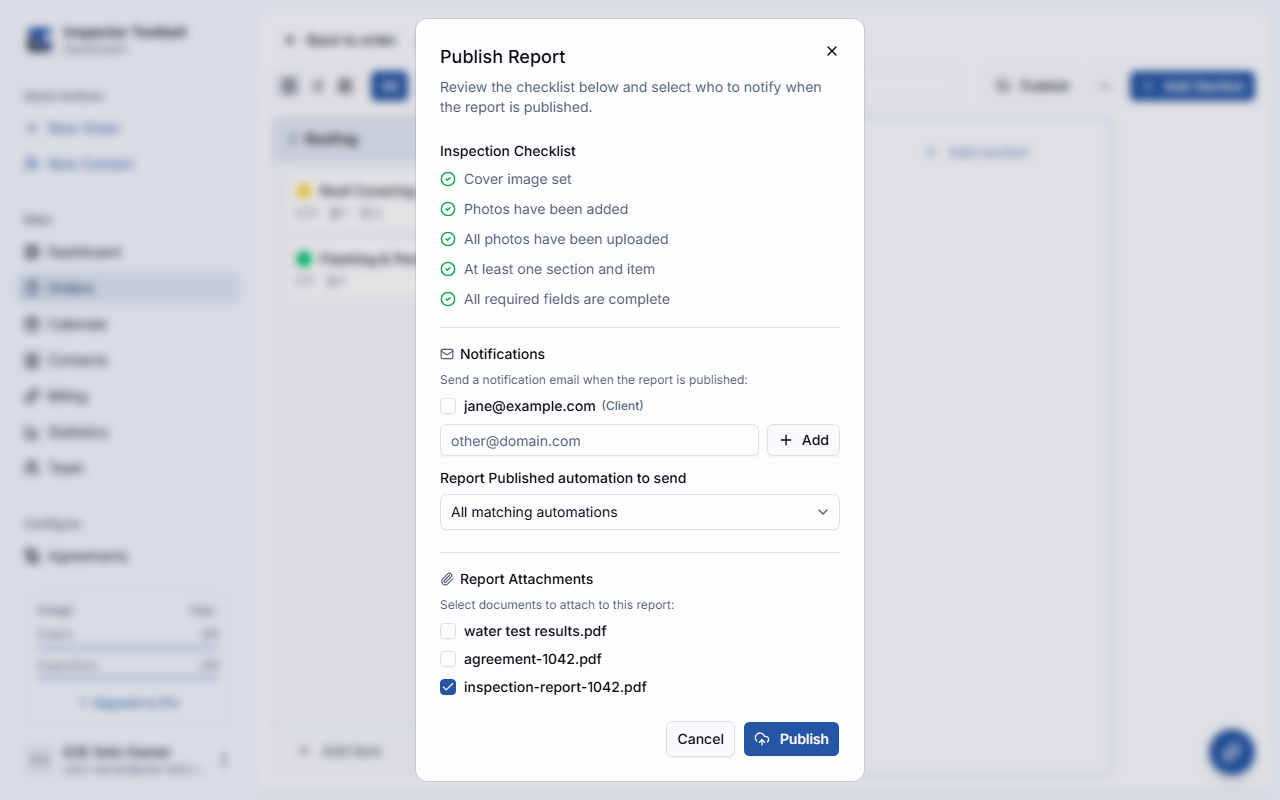
Open the publish checklist from the report editor and look for Report Published automation to send. It defaults to All matching automations (every active automation whose conditions match fires, same as before); switch it to a specific automation to send only that one for this report.
Picker only appears when needed
This picker only shows up when at least one active Report Published automation exists. If you haven't created one, the system's default delivery email sends as usual.
Limits
You can create up to 25 automation templates in total (combined across Email and SMS, across all triggers) on your account.
What your client receives
The email your client gets follows whatever you configured above — subject, body, and report links. If you haven't created a Report Published automation, they receive the system's default report delivery email instead.