Multi-Team Management
How the multi-team system works for businesses with multiple teams or virtual assistants.
Overview
ITB Dashboard supports users who belong to multiple teams. This is common for virtual assistants managing several service businesses, or business owners with multiple branches.
Team View Modes
The dashboard offers two view modes, accessible from the team switcher in the sidebar:
View only your personal account data. This is the default mode.
View data for a specific team. When you select a team, the dashboard shows Orders, contacts, and billing for that team's account.
You always work within one account at a time — your personal account or a single team. Switch teams from the team switcher whenever you need to move between them.
Team Switching
Use the Team Switcher in the sidebar header to quickly switch between teams. While you're viewing a team, a team badge in the top bar makes it clear whose data you're looking at.
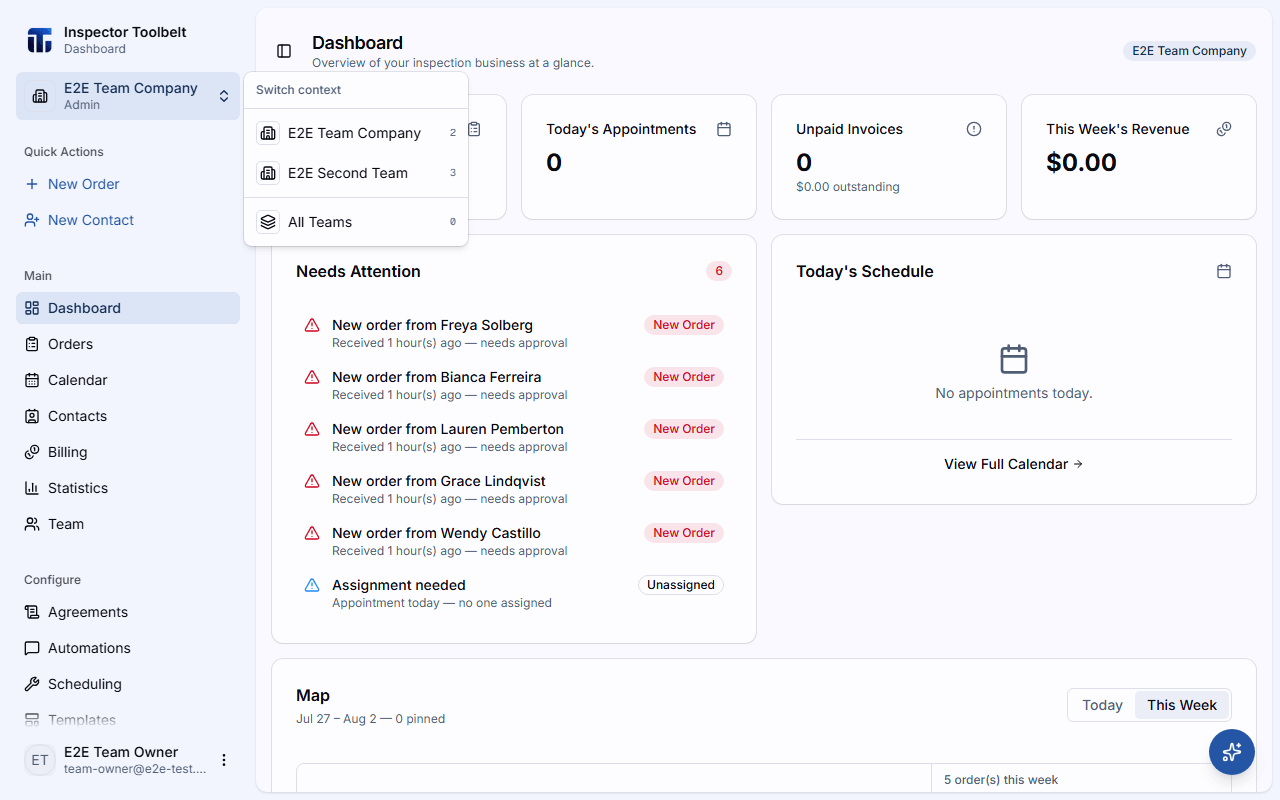
Press Ctrl+Shift+T (Cmd+Shift+T on Mac) to open the switcher, then press a number key to jump directly to that team.
Team Brand Colors
Each team can have a brand color. On the web dashboard, it tints that team's badge in the top bar and its dot in the team switcher, so you can tell teams apart at a glance when you belong to more than one. On the mobile app, the same color shows as a small dot in the top-left corner of the main screens — tap it to see the team name.
Admin only Team owners and admins set it in Team Settings on the Team page: pick a named color from the Brand Color dropdown, or choose No brand color to use the plain badge.
How Team Data Works
When you're viewing a team, the dashboard automatically routes all data to the team owner's account. This ensures you see and interact with the correct Orders, contacts, and billing records for that team.